


Sign out of the app
Sign out from the More menu when you share a phone with others or stop using the app. The app then returns to its first sign-in screen.
Step by step
-
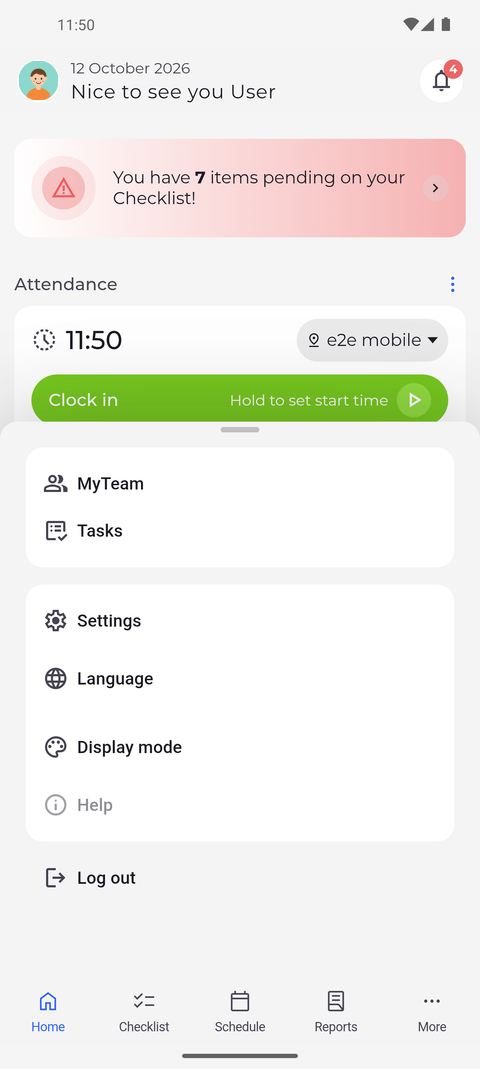
Step 1: Log out is the last row of the More menu
Tap More at the bottom right of the screen. A menu slides up from the bottom; tap Log out, its last row. You also find Log out at the bottom of the Settings page.
Tip: Log out signs you out straight away - the app does not ask you to confirm.
Tip: Log out is also the last row of Settings and works the same way.
-
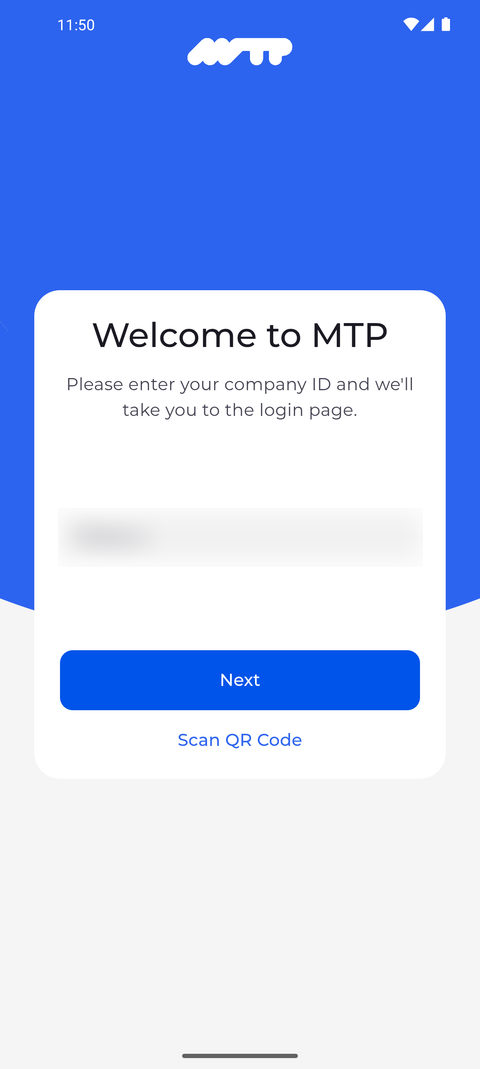
Step 2: You are signed out and the app shows the sign-in screen again
The app goes straight back to the Welcome to MTP screen, with the company ID field and the Next button. The Home screen and the bar at the bottom are no longer shown.
What happens next
You are signed out of the app on this phone. To sign in again, start at Welcome to MTP with your company ID, then enter your username and password.
Good to know
- After you sign out, this phone no longer receives MyTimePlan notifications for you until you sign in again.
- Signing out removes your sign-in from this phone, but not your display mode, Home widgets or menu layout - they stay as they are for whoever signs in next.
Questions
Why am I back on the sign-in screen although I did not sign out?
When the app cannot renew your sign-in by itself - for example after your password was changed - it signs you out and shows Welcome to MTP. Sign in again with your current password.
Does signing out clock me out?
No. A running attendance keeps running after you sign out - sign in again and tap Clock out when you finish work.