


Sign in to the MyTimePlan app
Signing in takes two screens: first your company ID, then your username and password. After that, the app opens your Home screen.
Before you start
You need:
- Your company ID (ask your manager if you do not know it)
- Your MyTimePlan username and password
When to use it
The first time you open the app on a device, and whenever you have signed out.
Step by step
-
Step 1: Enter your company ID
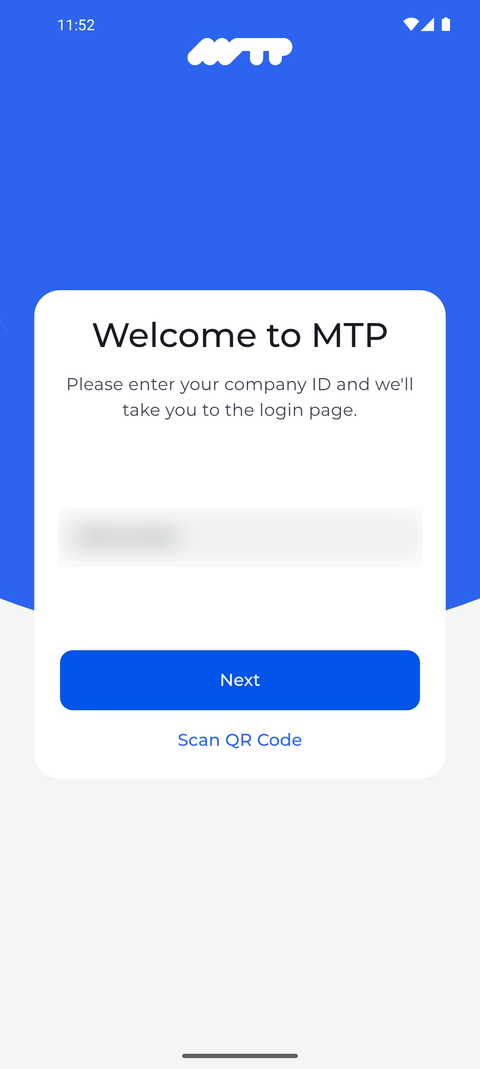
Open the app. On the Welcome to MTP screen, type your company ID into the field exactly as your workplace gave it to you, then tap Next.
Tip: If "Incorrect credentials" appears above the field after you tap Next, the app could not find this company ID. Check the spelling and your internet connection, then tap Next again.
Tip: If your company signs you in through its own sign-in page (single sign-on), Next opens that page in your browser instead of the Login form.
-
Step 2: Sign in with your MyTimePlan account
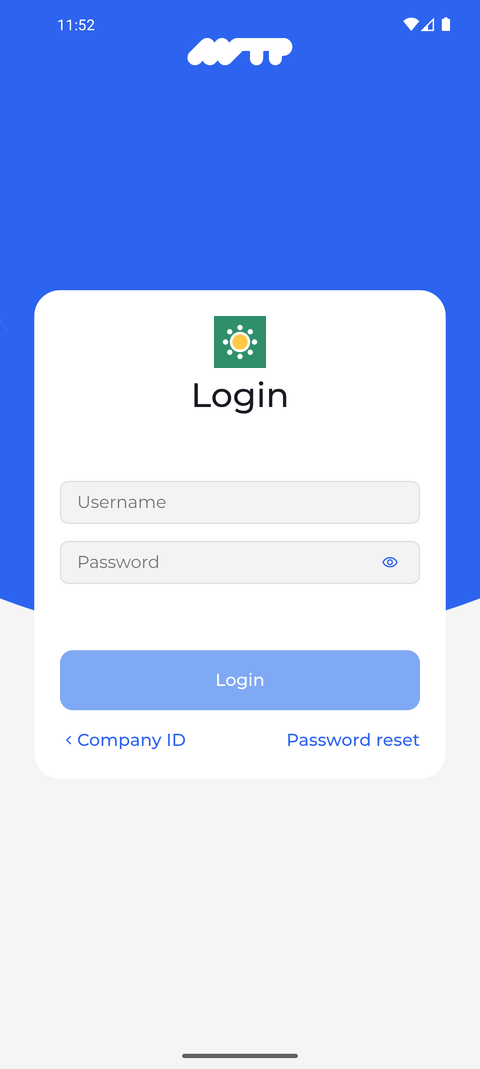
The Login screen opens. Type your username in Username and your password in Password, then tap Login. If you need to change the company ID, tap Company ID at the bottom left to go back.
Tip: Forgotten your password? Tap Password reset and follow the instructions sent to your email.
Tip: Tap the eye icon at the end of the Password field to show or hide the password you typed.
Tip: Login stays greyed out until both Username and Password are filled in.
-
Step 3: You are signed in and your Home screen opens
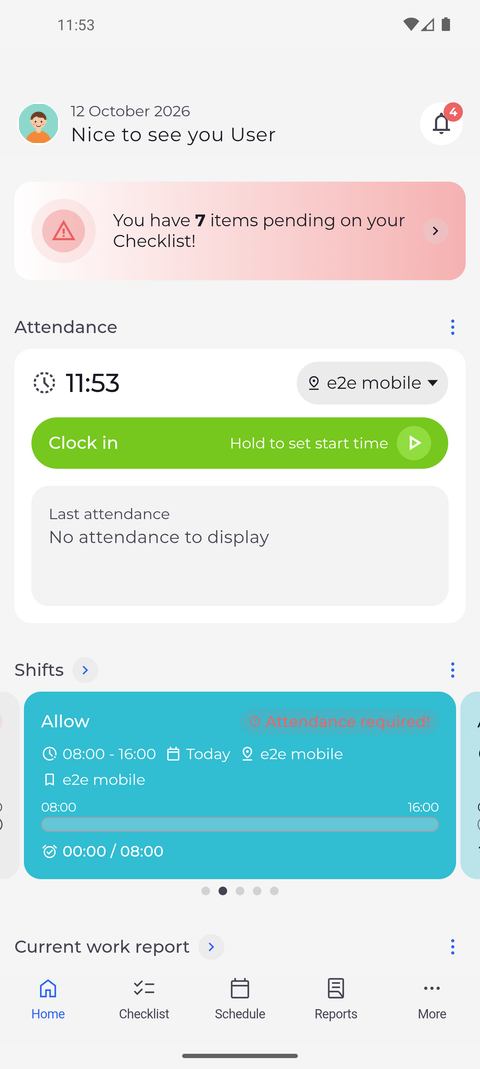
The Home screen opens. At the top, the app greets you by your first name under today's date, and the bar at the bottom shows Home, Checklist, Schedule, Reports and More.
What happens next
You are signed in. The app keeps you signed in until you sign out or your session expires.
Good to know
- After you sign out, the app starts again at Welcome to MTP, so you type your company ID again before your username and password.
- If your password was generated for you, the app shows First login after you tap Login, and you choose a New password before you can continue. It needs at least 8 characters, a lowercase and an uppercase letter and a special character (!, #, $, _, etc.).
Questions
Why does "Incorrect credentials" appear after I tap Login?
The app could not sign you in with this username and password. Spaces before or after the username are ignored, but every character of the password counts - type it again, or use Password reset if you have forgotten it.
Why does "Account blocked" appear after I tap Login?
Your account is locked, so the app cannot sign you in even with the right password. Ask your manager to unlock it.
Why does "No connection to the server. Check your internet connection and try again." appear at the bottom of the screen?
The app got no answer from MyTimePlan - usually because the phone is offline or the connection dropped. Screens that only read data try again by themselves a couple of times first. Check your Wi-Fi or mobile data and tap the button again.
Password reset says "We could not send the recovery email. Please check the address and try again." What now?
The app could not send a recovery email to that address. Check that it is the email your workplace has on file for you. If it still fails, your user profile may have no password that could be reset - ask your manager to set a password in your user profile.