


Sign in to the web app
Sign in to the MyTimePlan web app in your browser with your login and password.
Before you start
You need:
- Your login and password for MyTimePlan
When to use it
Every time you start working in the web app, or after you were signed out.
Step by step
-
Step 1: Open the web app in your browser
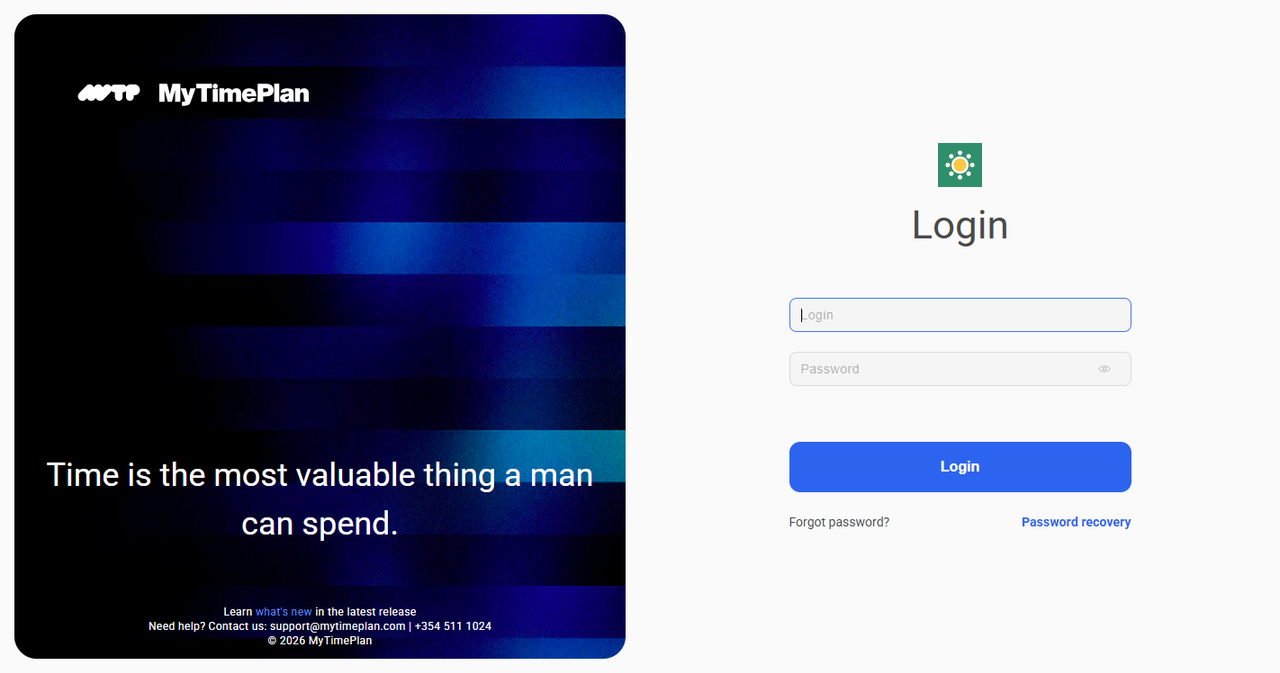
Open the address of your company's MyTimePlan in your browser. The login page shows two fields, Login and Password.
-
Step 2: Type your login and password
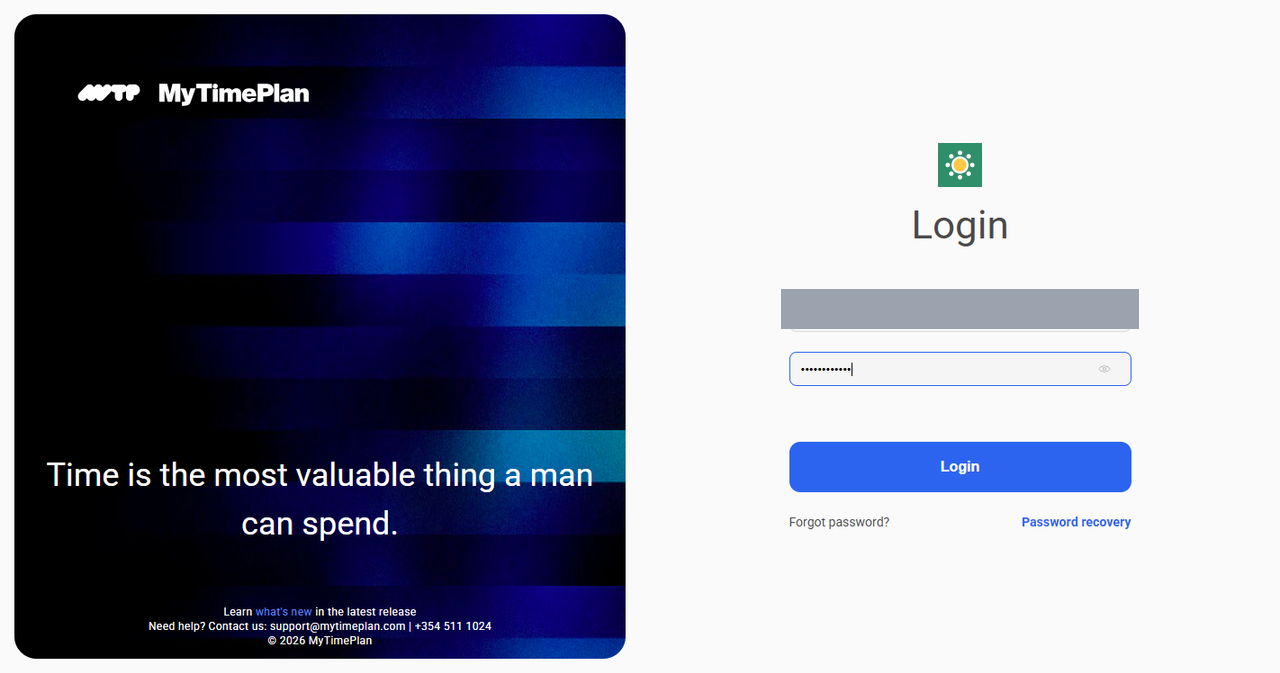
Type your login in the first field and your password in the second one. The password is shown as dots.
Tip: Forgot your password? Click Password recovery under the form and type your email - you get a link to set a new one.
-
Step 3: You land on your dashboard
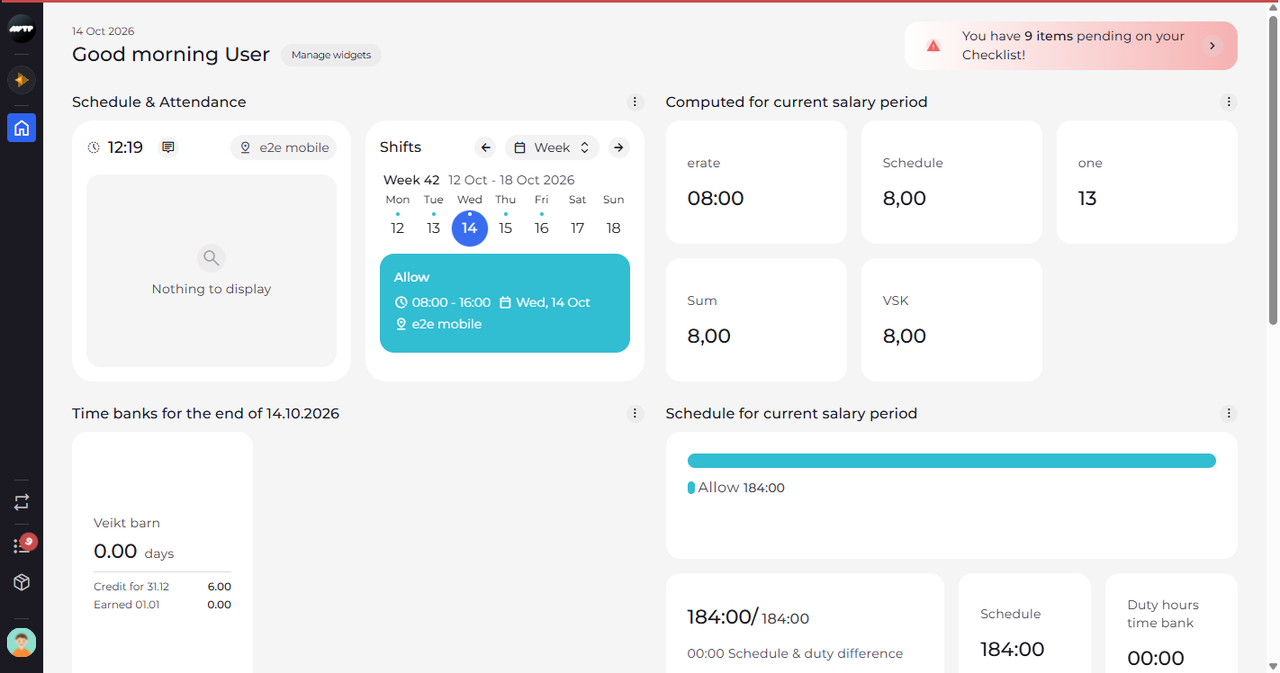
Click Login. After a moment the web app opens on your dashboard, which greets you by your first name.
What happens next
You are signed in and can use the web app, for example the side menu on the left.
Good to know
- After a while without activity you are signed out and the login page says "SESSION EXPIRED". Sign in again to continue.
Questions
Password recovery says my account has no email. What now?
The recovery link is sent by email, so it needs an email address on your account. Ask your manager or administrator to add one or to set a new password for you.