


Find an employee in My Team
My Team lists the employees of the units you manage, with their status and scheduled shift for the day. Use the search box to find one of them by name.
Before you start
You need:
- Access to My Team (the people icon in the side menu)
- At least one unit you manage
New to the app? Start with Sign in to the web app.
When to use it
When you want to check who works in your units today, or look up one employee.
Step by step
-
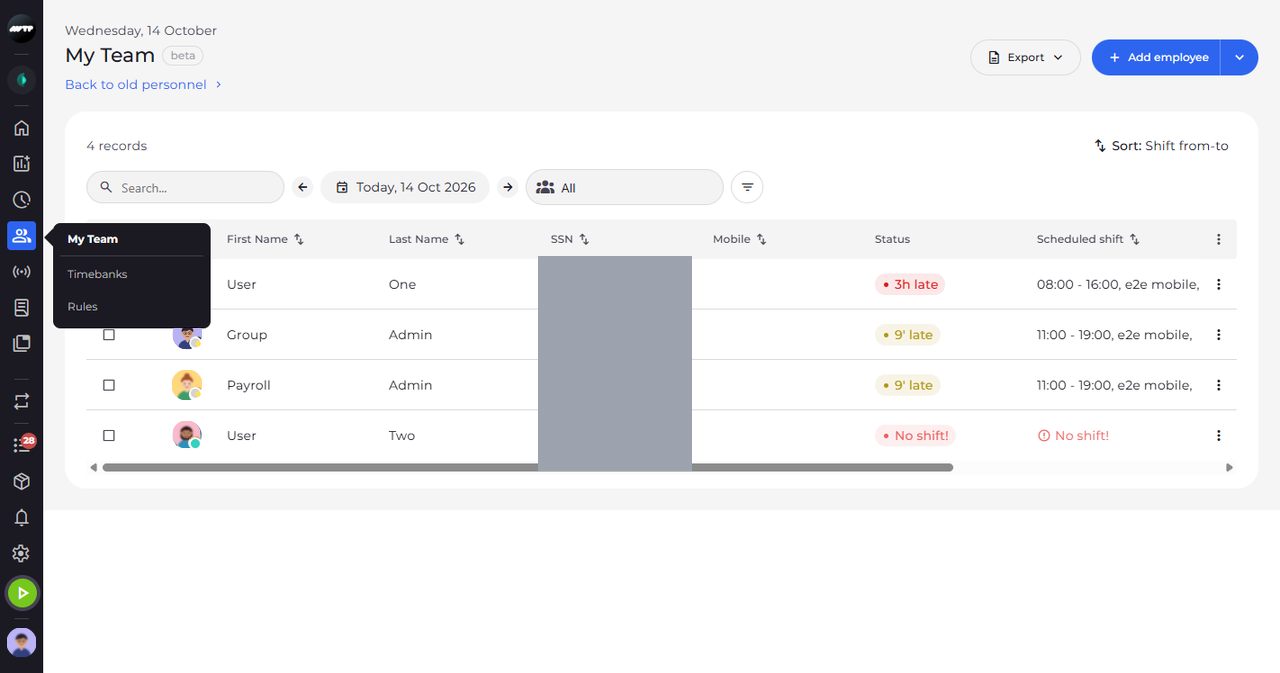
Step 1: Open My Team from the side menu
In the side menu on the left, click the people icon. The My Team page opens, and a small menu with My Team at the top appears next to the icon.
Tip: Timebanks and Rules in the same small menu open the classic pages of the web app.
-
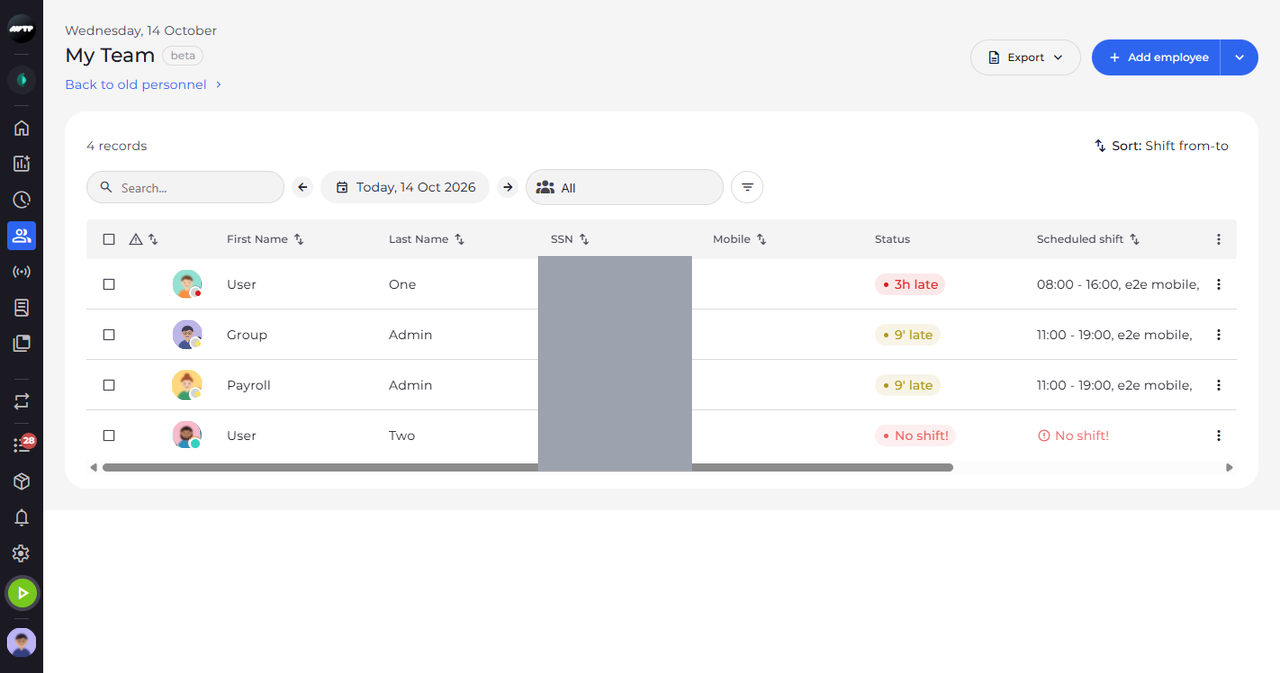
Step 2: See the employees of your units
Click anywhere on the page to close the small menu. The table shows one row per employee with their name, status and scheduled shift for today, and the number of records above it.
Tip: The Status column compares the time now with the employee's shift, e.g. "55' late", "Starts later" or "No shift!".
Tip: The arrows next to Today move the list one day back or forward.
-
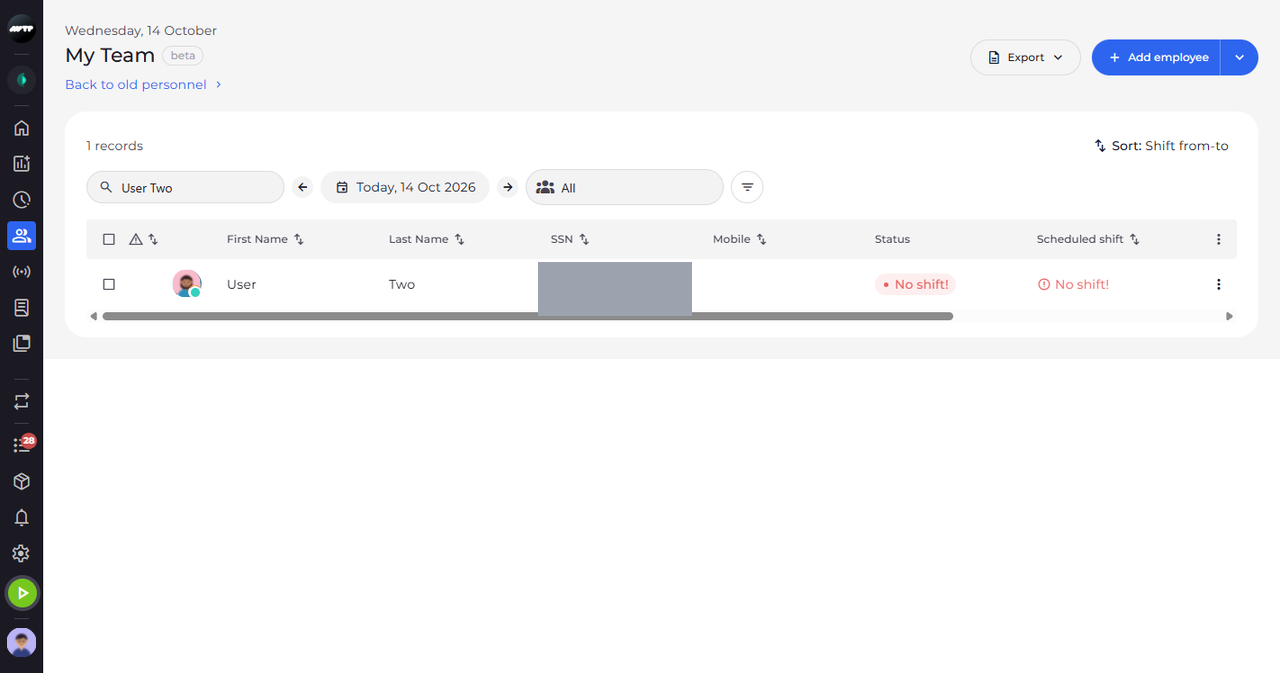
Step 3: Search for an employee by name
Click the search box above the table and type the employee's name. The table narrows to the matching employees, and the number above it shows how many are left.
Tip: The list updates a moment after you stop typing - there is no button to press. Clear the box to see everyone again.
What happens next
You see the employee you were looking for, with their status and scheduled shift for the selected day.
Good to know
- You only see employees of the units you are allowed to manage. If someone is missing, ask your administrator to check your units.
- The Status of an employee stays empty when you may not see their attendance.
- Back to old personnel under the title opens the classic employee list.
Questions
Why do I not see My Team in the side menu?
The side menu only shows My Team to users with access to the employee list - usually managers. Ask your administrator if you need it.