


Choose the columns of My Team
Choose which columns My Team shows, for example to add the employees' email addresses.
Before you start
You need:
- Access to My Team (the people icon in the side menu)
New to the app? Start with Sign in to the web app.
When to use it
When you need a piece of information the list does not show, such as an email address, or want a shorter list.
Step by step
-
Step 1: Open Table columns
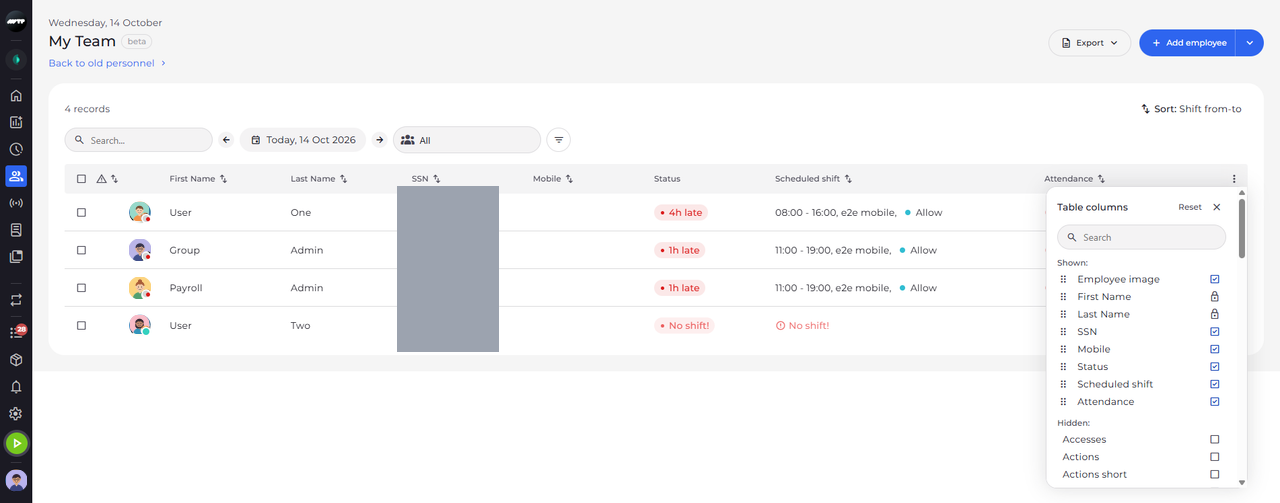
Click the ⋮ button at the right end of the table header. The Table columns panel opens with the columns that are shown and the ones that are hidden.
Tip: First Name and Last Name cannot be hidden - they show a lock instead of a checkbox.
Tip: Drag a column by its handle to change the order of the columns.
-
Step 2: Find the column and click it
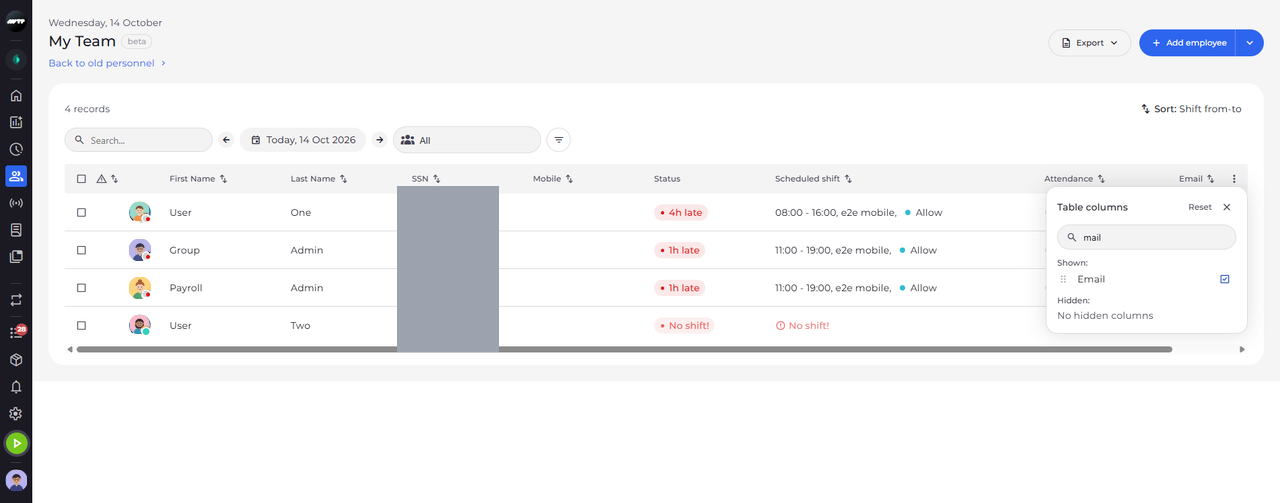
Type part of the column's name in the search box of the panel, then click the column. A ticked box means the column is shown.
-
Step 3: The column is added at the end of the table
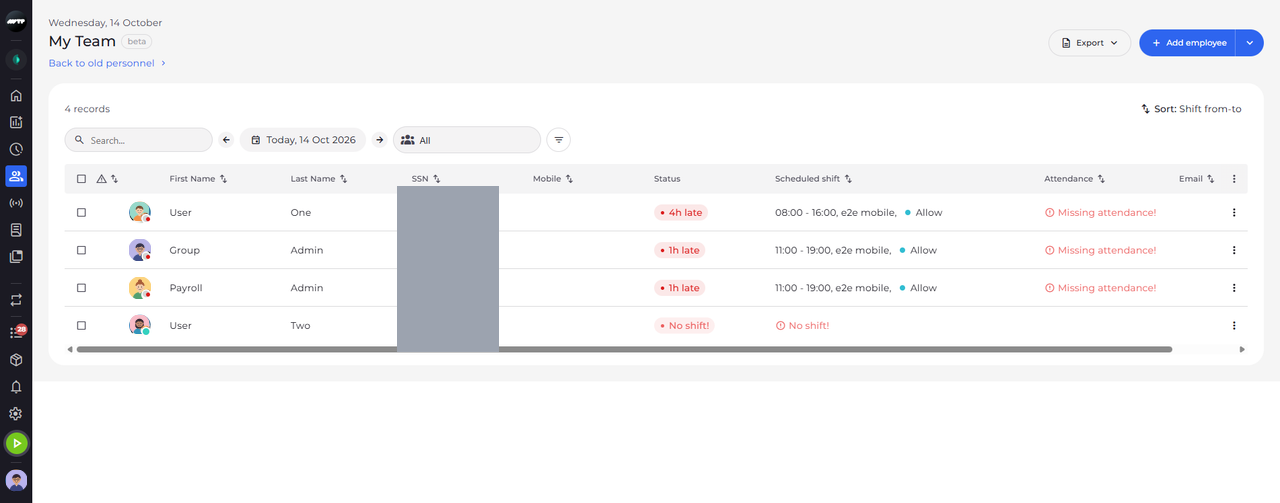
Click anywhere outside the panel to close it. The new column appears at the end of the table.
What happens next
The list shows the columns you chose, in this browser.
Good to know
- Your columns are remembered in this browser only. On another computer or browser the list starts with the default columns.
- Reset in Table columns brings back the default columns.
- Hiding the column the list is sorted by also removes that sort.