


Open an employee's details
Open an employee's details card from My Team to see their contact details, units and planning information.
Before you start
You need:
- Access to My Team (the people icon in the side menu)
New to the app? Start with Sign in to the web app.
When to use it
When you need an employee's phone number or units, or want to check their shifts and time banks.
Step by step
-
Step 1: Find the employee in My Team
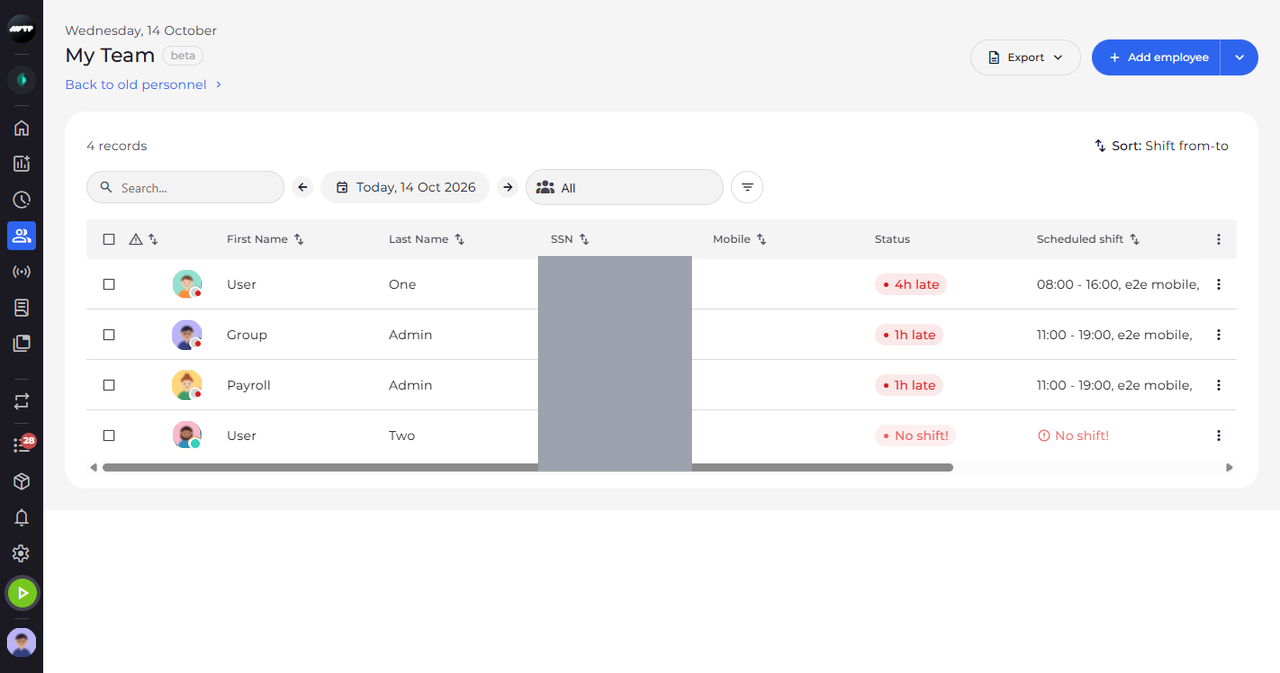
Open My Team and find the employee in the list.
-
Step 2: Click the employee to open the details card
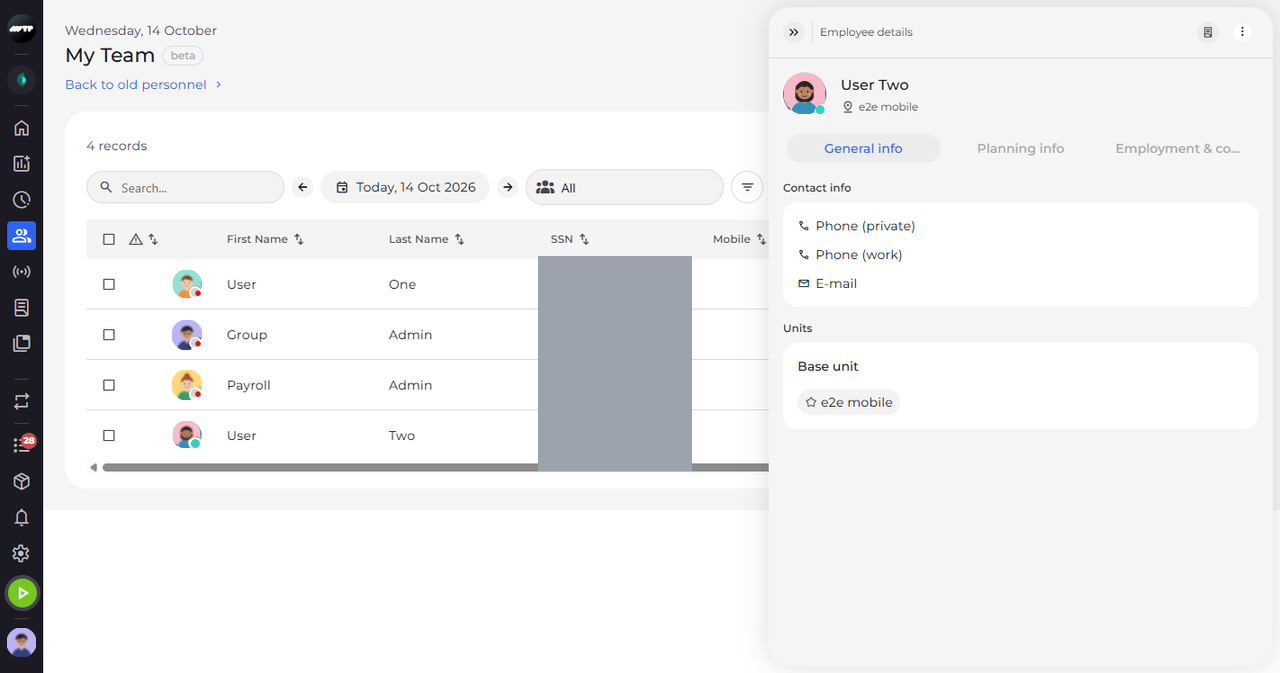
Click the employee's name. The Employee details card opens on the right with their name, base unit and contact details.
Tip: General info shows the contact details, the units and the base unit.
-
Step 3: Switch between the tabs of the card
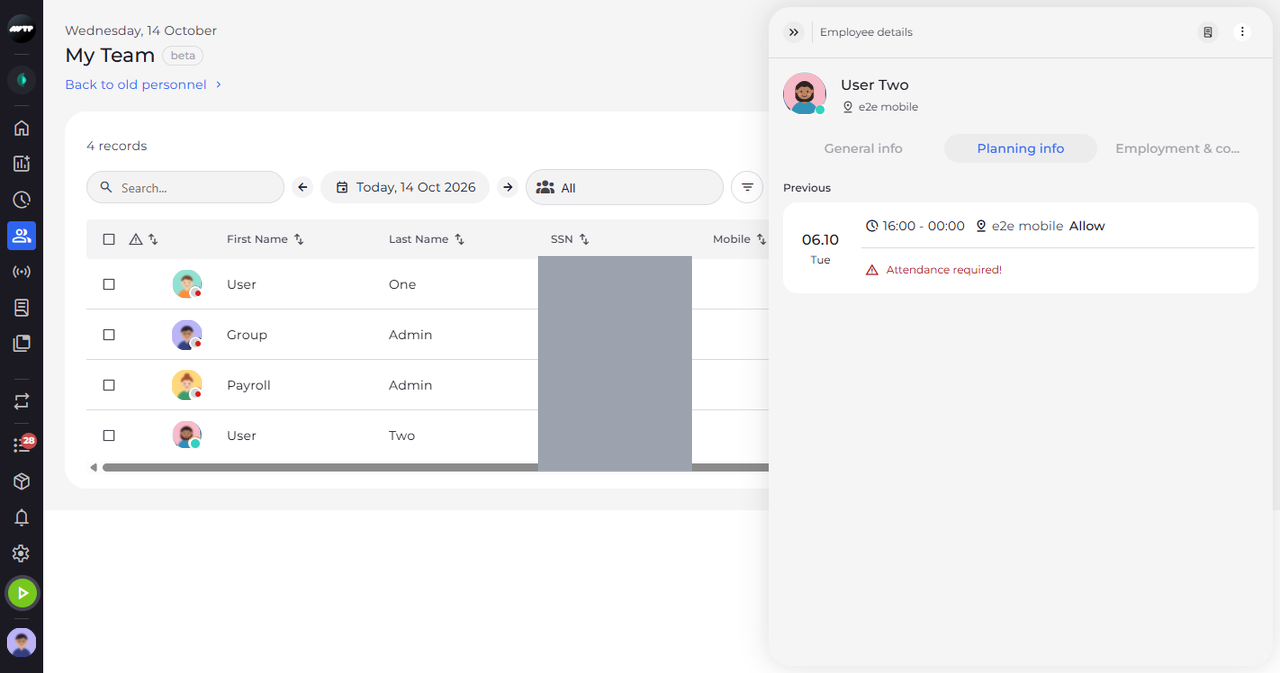
Click a tab at the top of the card to see more, for example their shifts on the second tab.
Tip: Planning info shows the shifts, skills and time banks; you can edit a shift or attendance from here, or add a missing attendance.
What happens next
You see the employee's details next to the list. The list stays as it was.
Good to know
- When the employee has reports, a report icon in the card's header opens them.
- The card always opens on General info.