


Export the employee list
Download the employees of My Team as a file you can open outside MyTimePlan.
Before you start
You need:
- Access to My Team (the people icon in the side menu)
New to the app? Start with Sign in to the web app.
When to use it
When you need the list outside MyTimePlan, for example for a report or a spreadsheet.
Step by step
-
Step 1: Open the Export menu
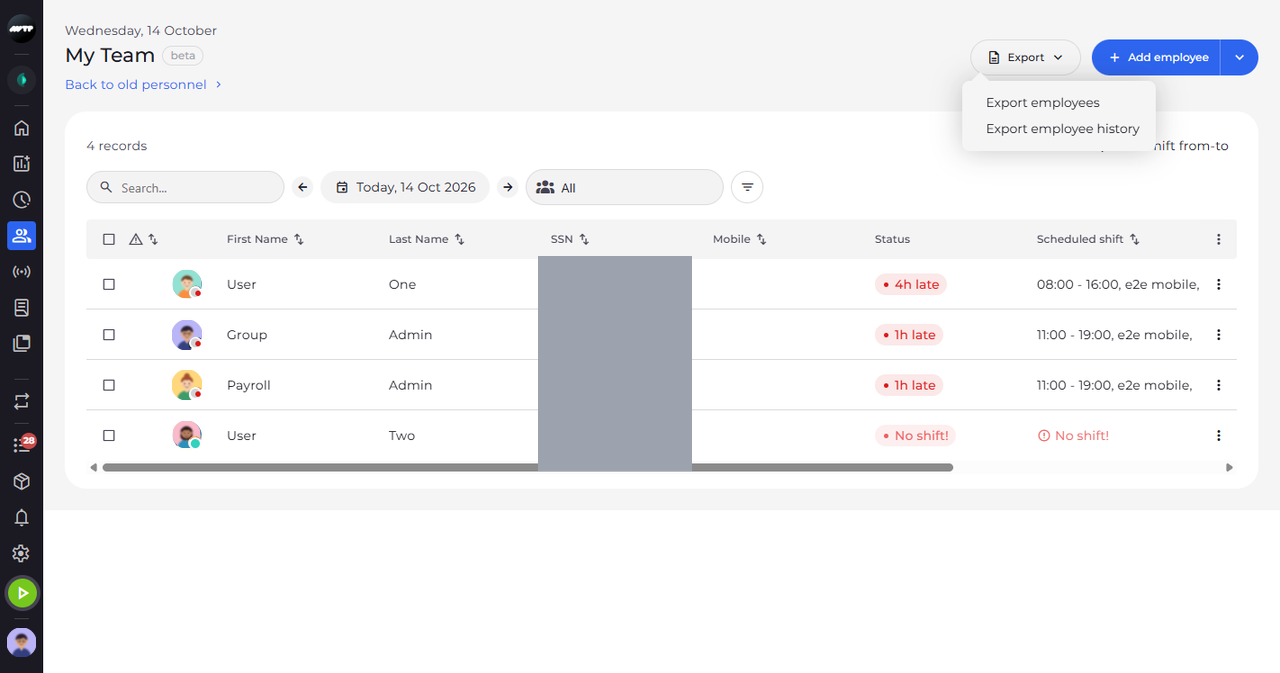
Click Export at the top right of the page. A menu opens with two kinds of export.
-
Step 2: Choose the file format and the fields
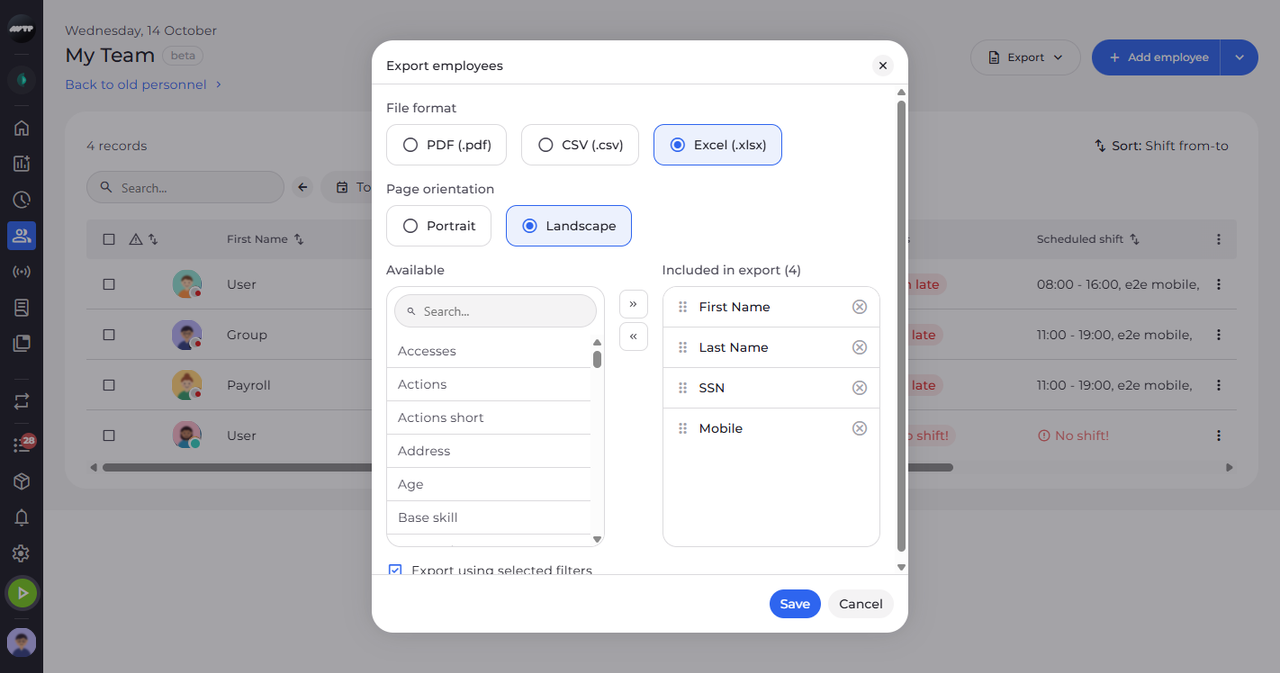
Click Export employees. A window opens where you choose the file format and the fields that go into the file.
Tip: Move fields between Available and Included in export with the arrows or the × next to a field. Drag the included fields to set the column order of the file.
Tip: With Export using selected filters ticked, the file contains only the employees the list shows now (filters and search).
What happens next
Click Save to download the file with the chosen fields. Cancel closes the window without exporting.
Good to know
- The employee photo cannot be exported.
- Export employee history exports the changes of a period instead, as PDF or Excel.
Questions
The export says "Export failed". What can I do?
The file could not be generated. Try again; if it keeps failing, export fewer fields or ask your administrator.