


Sort My Team
Change the order of the employees in My Team with the Sort menu or by clicking a column header.
Before you start
You need:
- Access to My Team (the people icon in the side menu)
New to the app? Start with Sign in to the web app.
When to use it
When you want to see first who has no shift or no attendance, or find someone by name.
Step by step
-
Step 1: Open the Sort menu
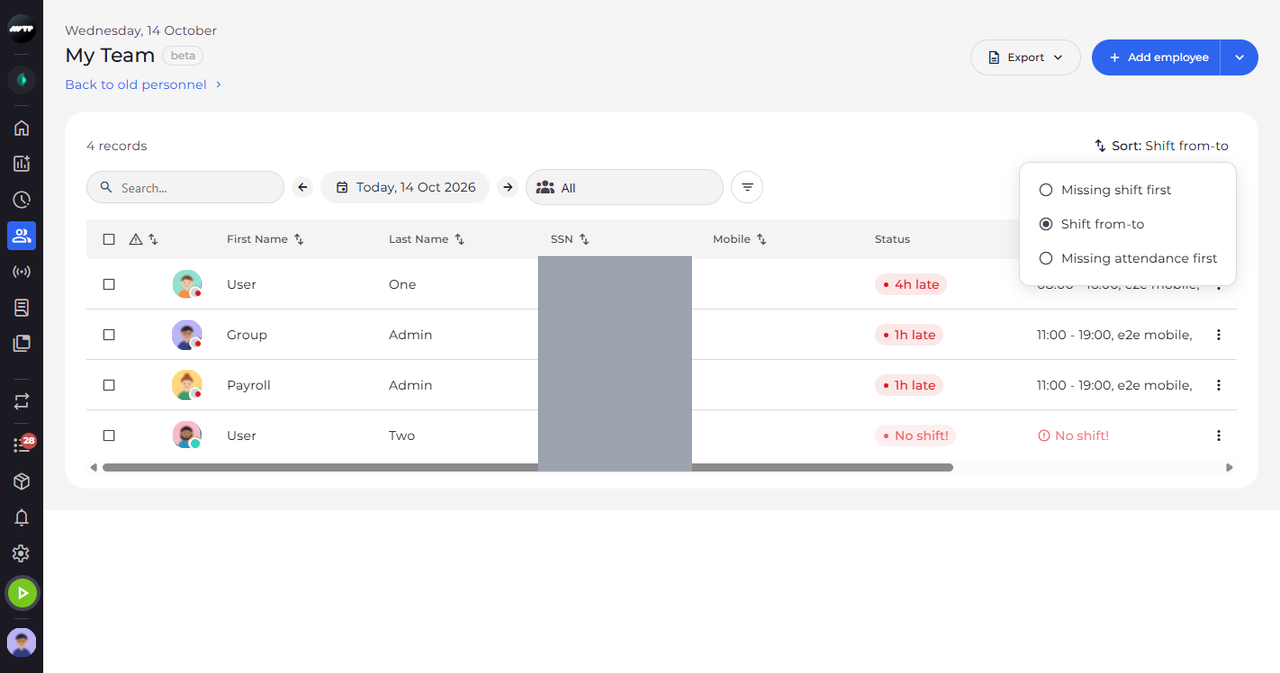
Click Sort at the top right of the list. A menu opens with the orders you can choose; the current one is marked.
Tip: Shift from-to is the default: employees in the order their shifts start.
-
Step 2: Choose an order
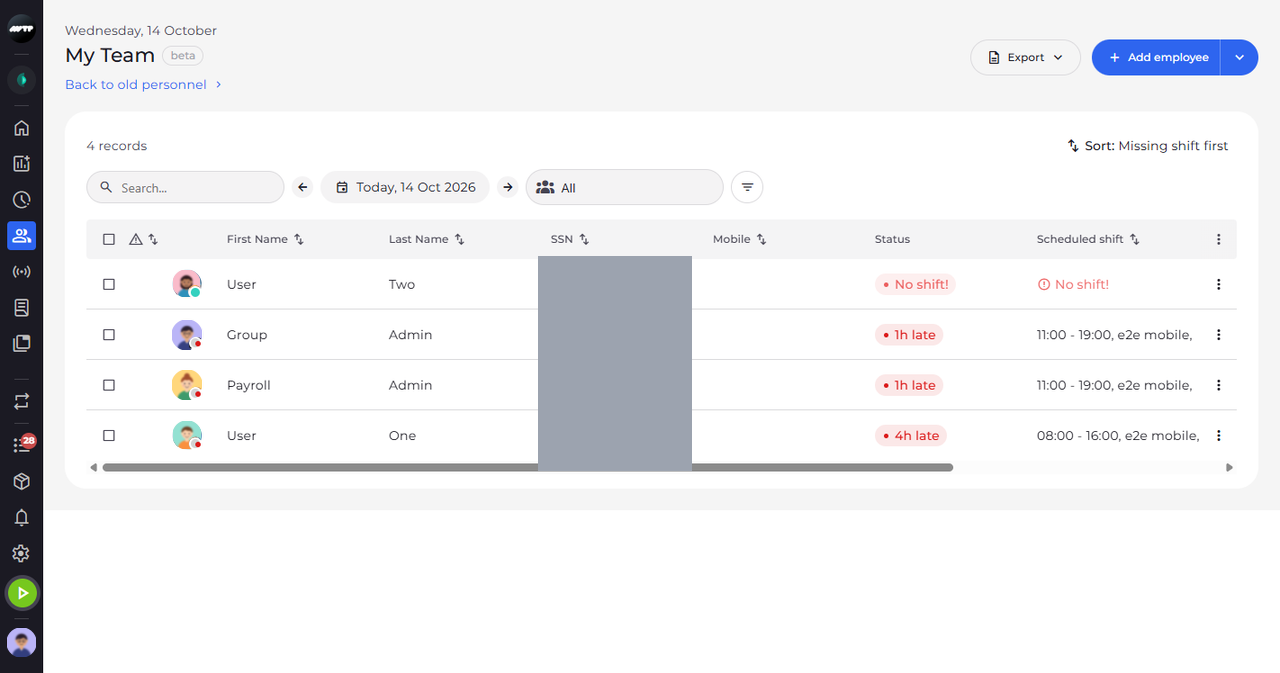
Click an order, for example Missing shift first. The list reloads in that order and Sort shows its name.
-
Step 3: Or click a column header
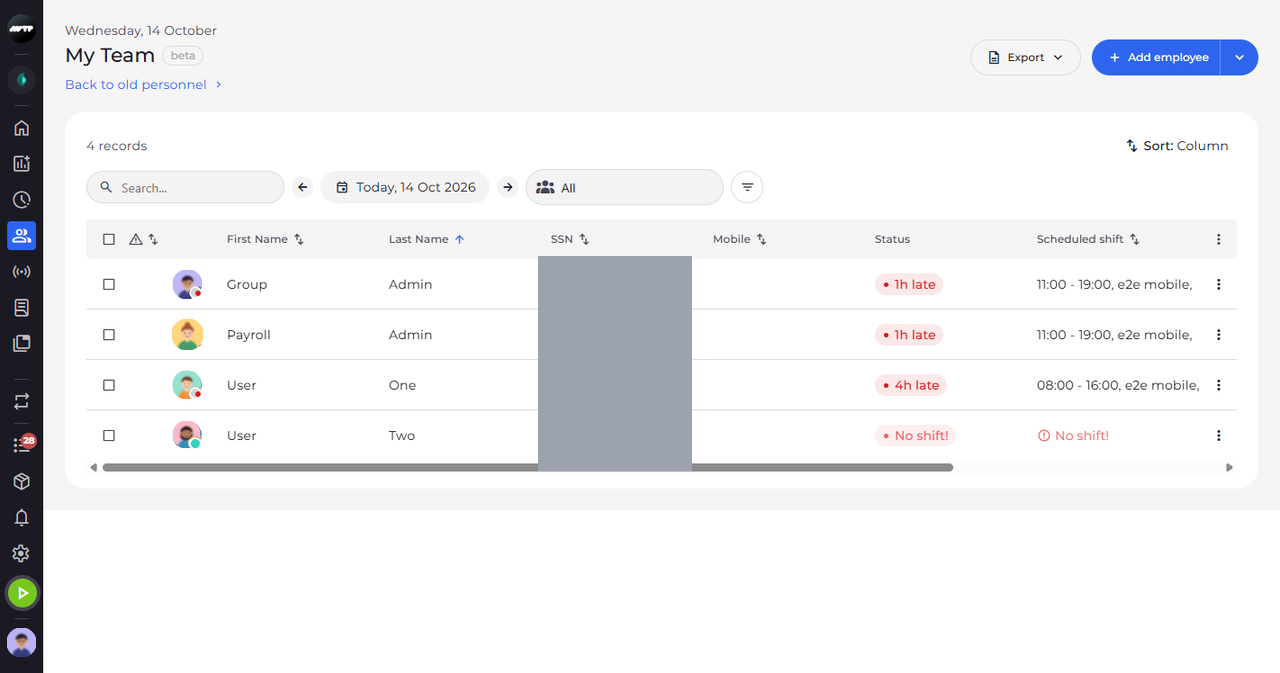
To sort by a column instead, click its header, for example Last Name. Sort then reads Column and an arrow next to the header shows the direction.
Tip: Click the same header again to reverse the order.
What happens next
The employees are listed in the order you chose until you change it or open My Team again.
Good to know
- The warning icon in the header sorts employees with warnings first; click it again for warnings last, and a third time to go back to the default order.
- Choosing an order in the Sort menu replaces a column sort.