


Filter My Team by weekly hours
Show only the employees of My Team whose full-time weekly hours fall in a range you choose.
Before you start
You need:
- Access to My Team (the people icon in the side menu)
New to the app? Start with Sign in to the web app.
When to use it
When you want to see only full-time or only part-time employees.
Step by step
-
Step 1: Choose Full time weekly hours in the filters
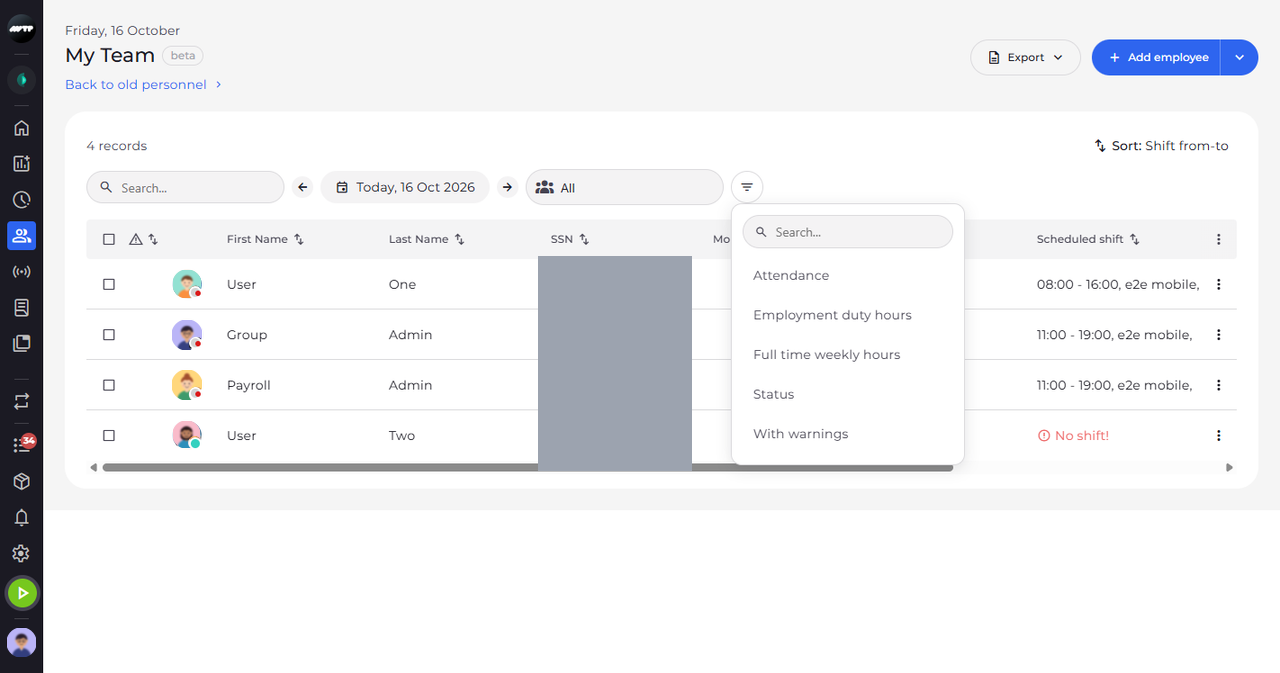
Click the filter button right of the units. In the list of filters that opens, click Full time weekly hours.
-
Step 2: Type the range of hours
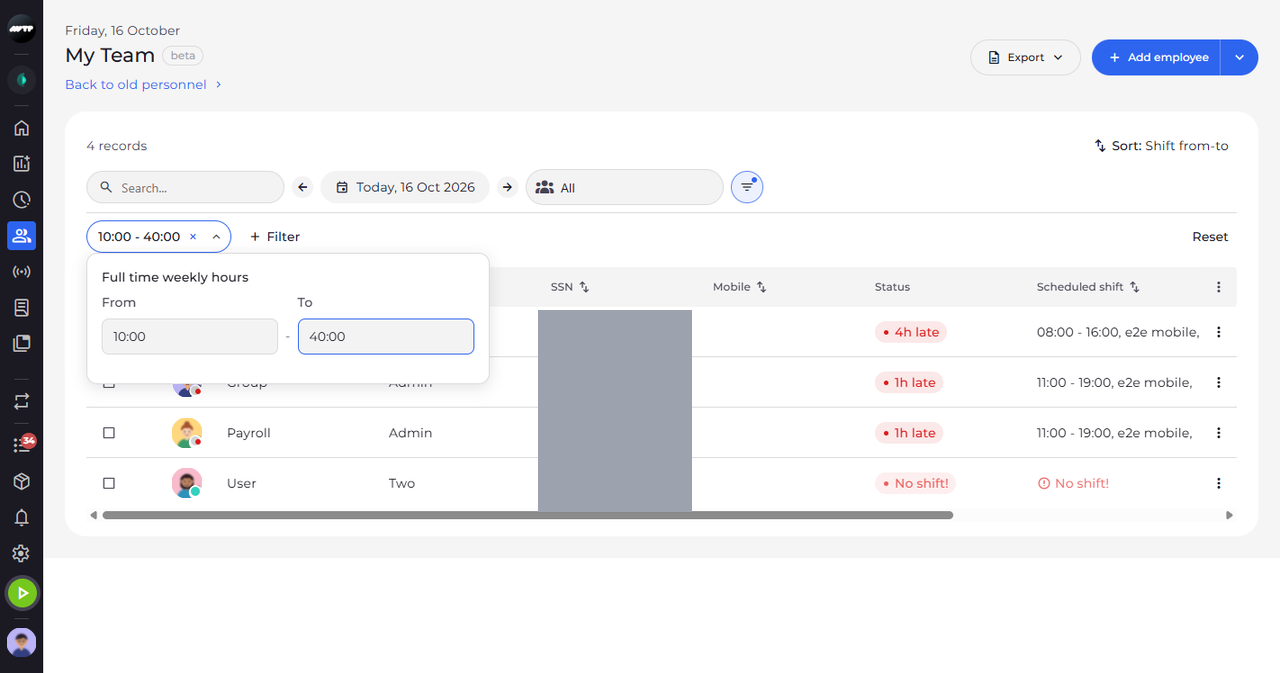
The filter appears as a pill above the list and its panel opens. Click From and type the lowest number of hours, then click To and type the highest. The pill shows the range.
Tip: Type the hours as HH:MM, for example 37:30. You can fill in only From or only To.
-
Step 3: The list shows the employees in that range
Click anywhere outside the panel to close it. The list reloads with the employees in that range, and the pill keeps the range.

What happens next
The list shows only the employees whose full-time weekly hours are in your range. Click Reset to see everyone again.
Good to know
- "From must not be later than To." means the range is the wrong way round. It is not applied until you fix it.
- The filter uses the full-time weekly hours stored in the employment, not the hours scheduled this week.
- The × on the pill removes the filter; Reset removes all filters.