


Find the employees with warnings
Bring the employees with warnings to the top of My Team, or show only them, so you can deal with them first.
Before you start
You need:
- Access to My Team (the people icon in the side menu)
New to the app? Start with Sign in to the web app.
When to use it
When you want to deal first with the employees whose day has a problem, for example a missing attendance.
Step by step
-
Step 1: Sort the employees with warnings first
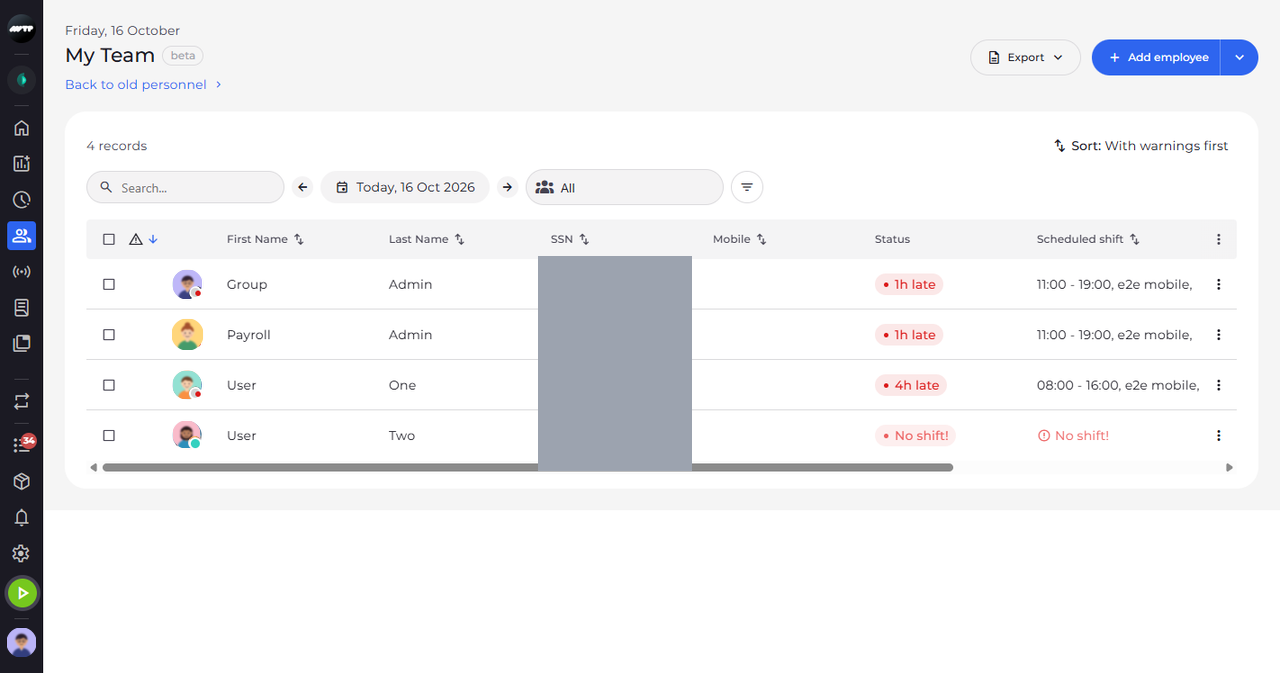
Click the warning icon at the left end of the table header. The employees with warnings move to the top, and Sort at the top right reads With warnings first.
Tip: Click the icon again for warnings last, and a third time to go back to Shift from-to.
Tip: The icon works from the keyboard too - press Enter or Space when it has the focus.
-
Step 2: Choose With warnings in the filters
To hide everyone else, click the filter button right of the units and click With warnings in the list that opens.
Tip: With warnings applies at once, without a panel. Click its pill to turn it off and on again.

What happens next
The list shows the employees with warnings first, or only them when the With warnings filter is on.
Good to know
- When nobody in the selected units has a warning, the filtered list is empty.
- The × on the pill or Reset removes the filter and shows everyone again.