


See My Team for another day
My Team shows the employees for one day at a time. The arrows next to the date move the list to another day.
Before you start
You need:
- Access to My Team (the people icon in the side menu)
New to the app? Start with Sign in to the web app.
When to use it
When you plan ahead or check how a past day went.
Step by step
-
Step 1: The list shows today
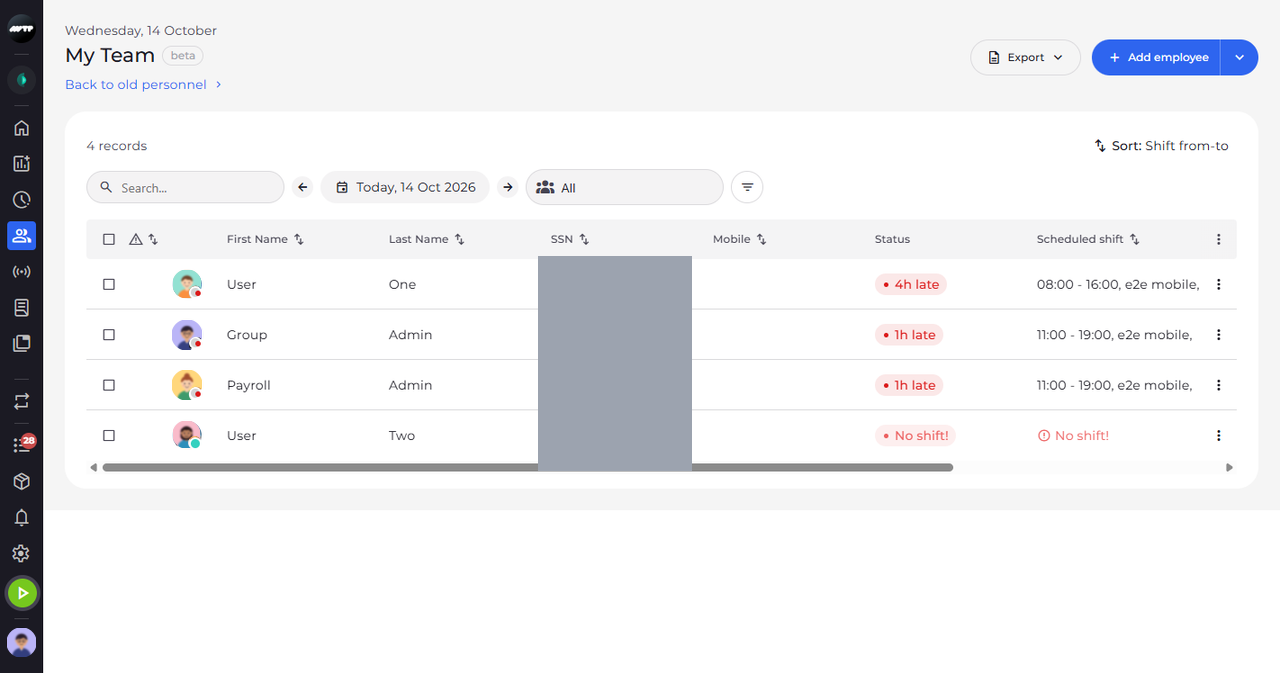
Open My Team. The date above the list reads Today and the list shows today's statuses and shifts.
Tip: Click the date itself to pick a day from a calendar.
-
Step 2: Go to the next day
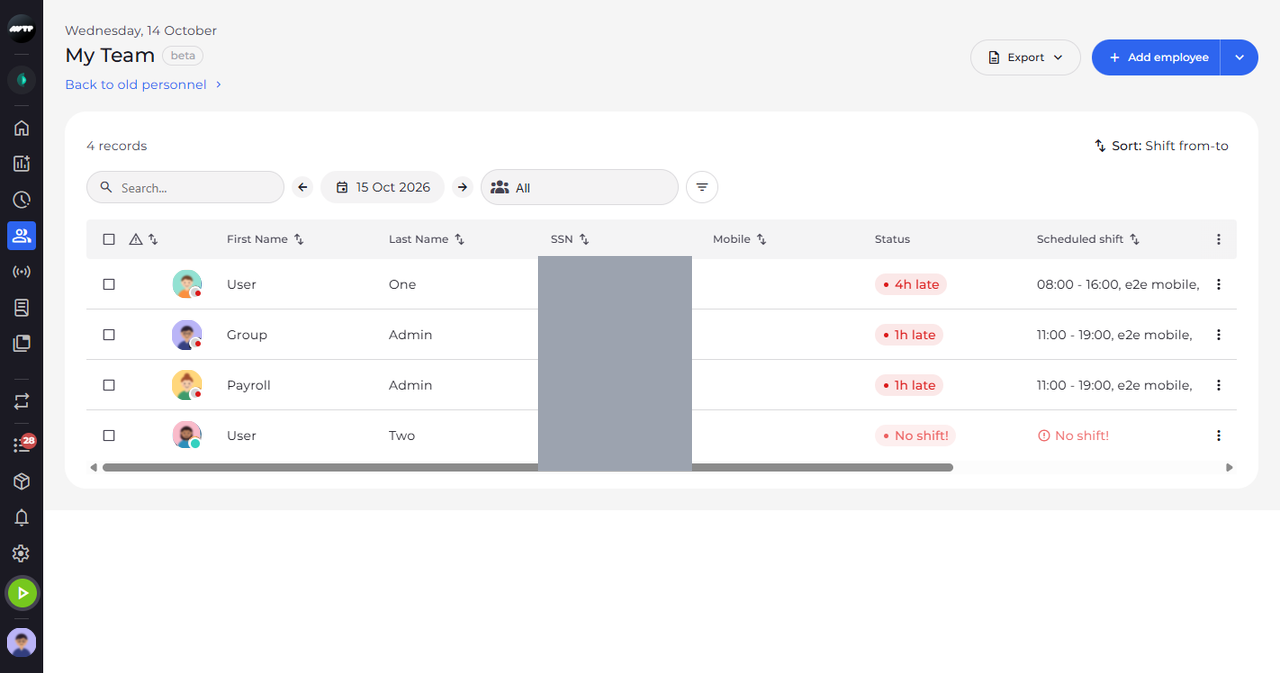
Click the arrow right of the date. The date changes to the next day and the list reloads with that day's shifts.
-
Step 3: Go back a day
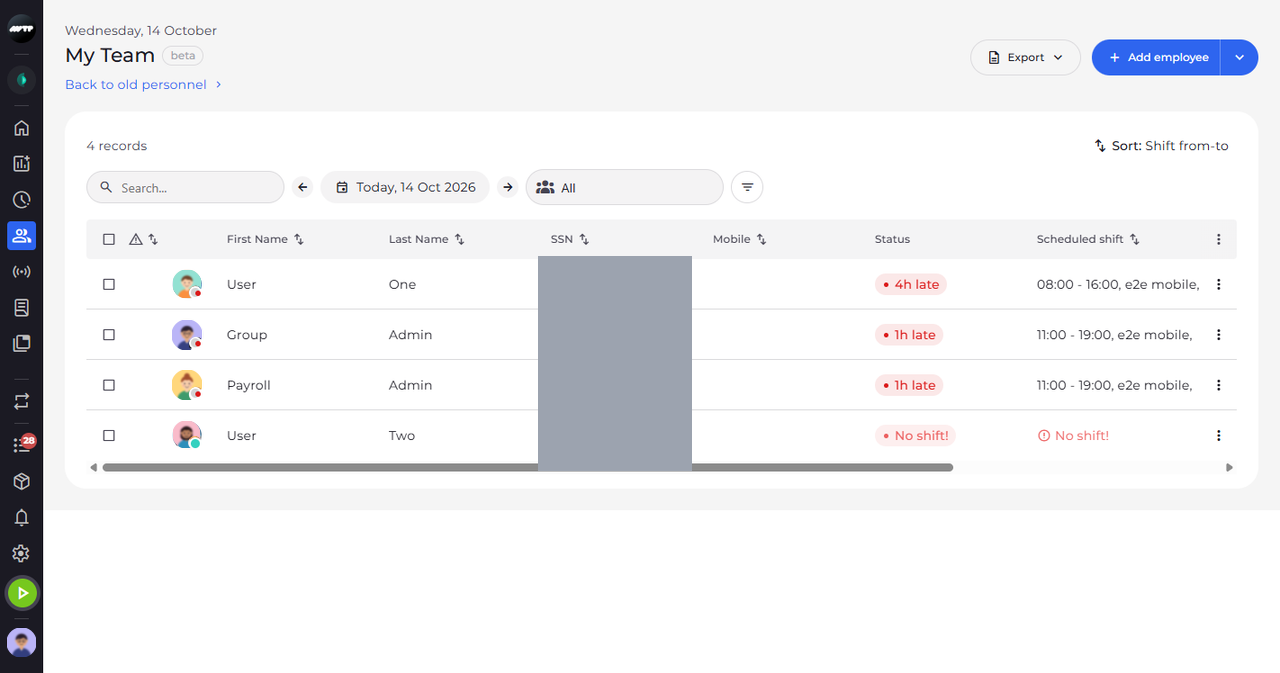
Click the arrow left of the date to go back one day. Here the list is back on today.
What happens next
The list shows the employees of your units for the day you chose.
Good to know
- The day is not remembered - when you open My Team again, it starts on today.