


Add an employee
Add a new employee to My Team: type their SSN, choose their units, then give their name and choose how to set them up.
Before you start
You need:
- Access to My Team (the people icon in the side menu)
- The new employee's SSN
New to the app? Start with Sign in to the web app.
When to use it
When a new person starts working in one of your units.
Step by step
-
Step 1: Click Add employee and type the SSN
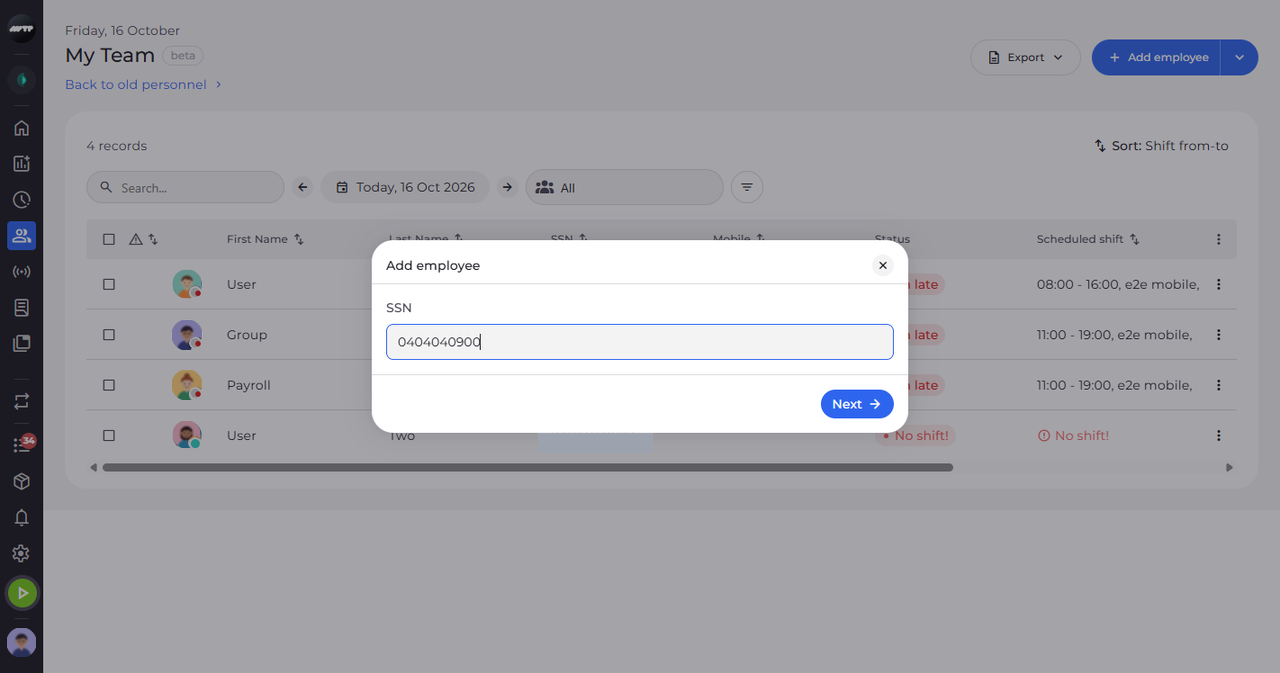
Click Add employee at the top right of the page. The Add employee dialog opens and asks for the SSN. Type it and click Next.
Tip: Next works once an SSN is typed. An SSN that already belongs to someone is refused with their name - adding an existing employee is not available yet.
-
Step 2: Choose the units the employee works in
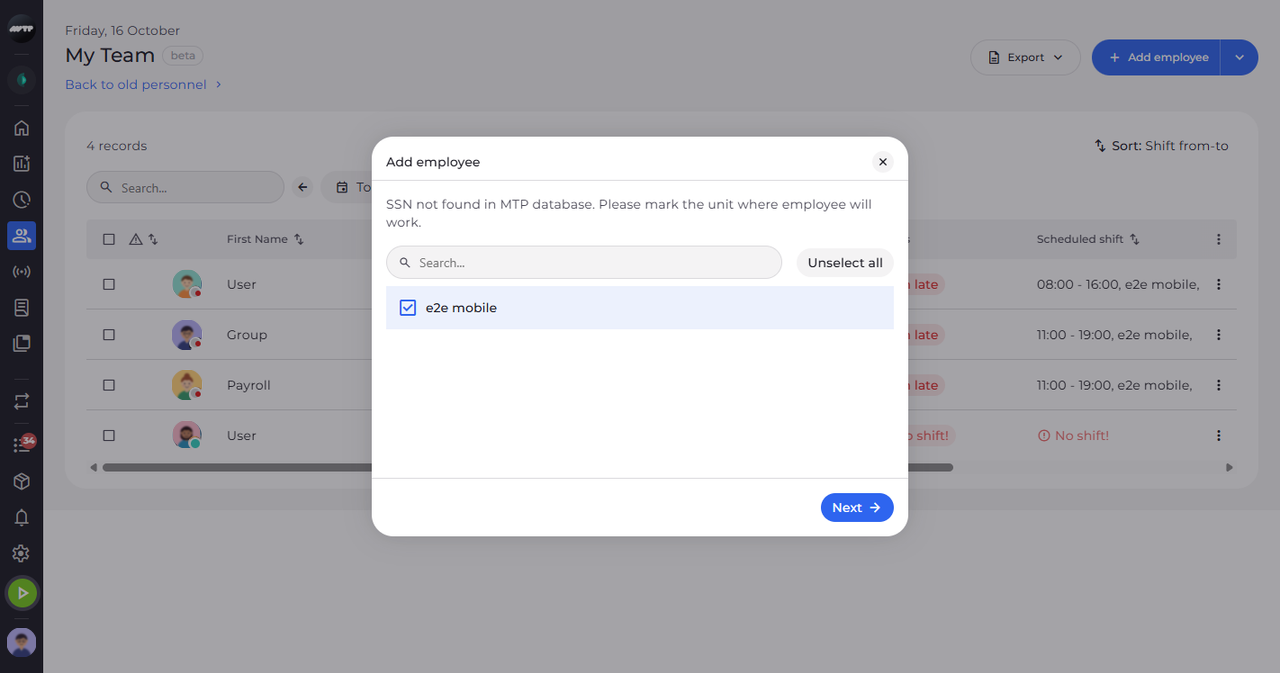
When the SSN is not in MyTimePlan yet, the dialog lists the units you can manage. Tick the units where the employee will work and click Next.
Tip: Tick at least one unit. The search box above the list helps when there are many.
-
Step 3: Type the name and choose how to start
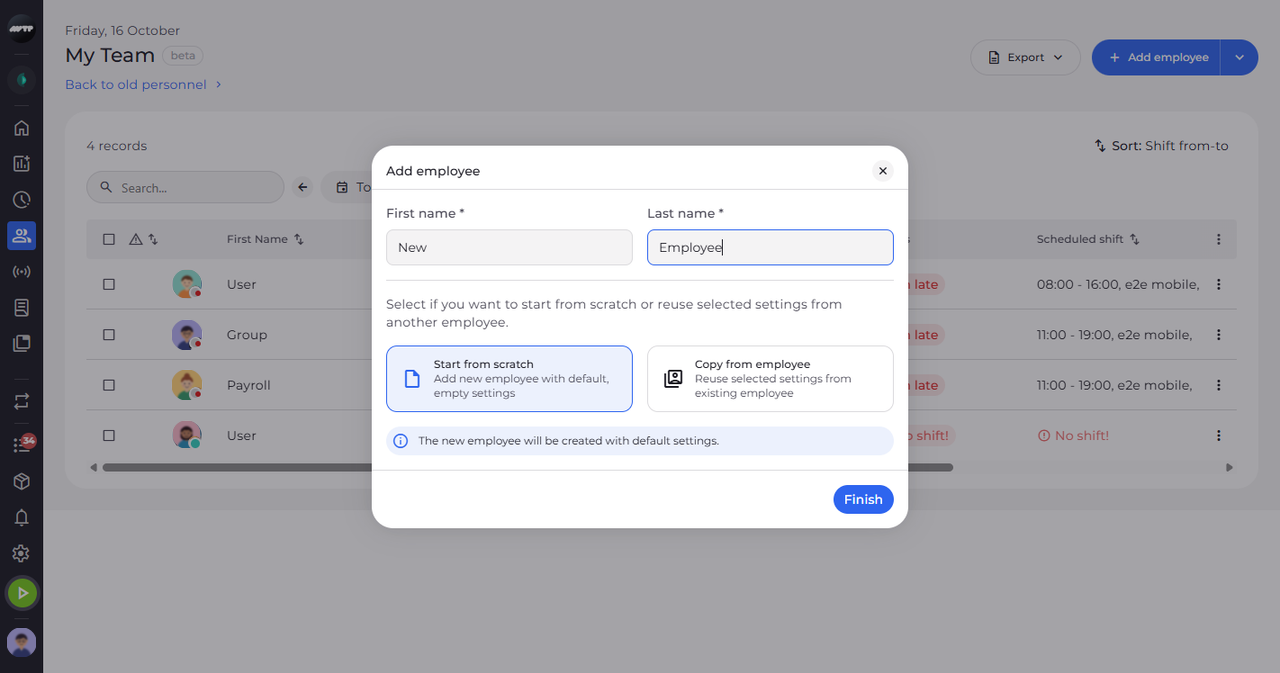
Type the First name and Last name. Below them, Start from scratch is already selected, so the employee starts with default settings. Click Finish to add the employee.
Tip: First name and Last name are required.
-
Step 4: Or copy settings from another employee
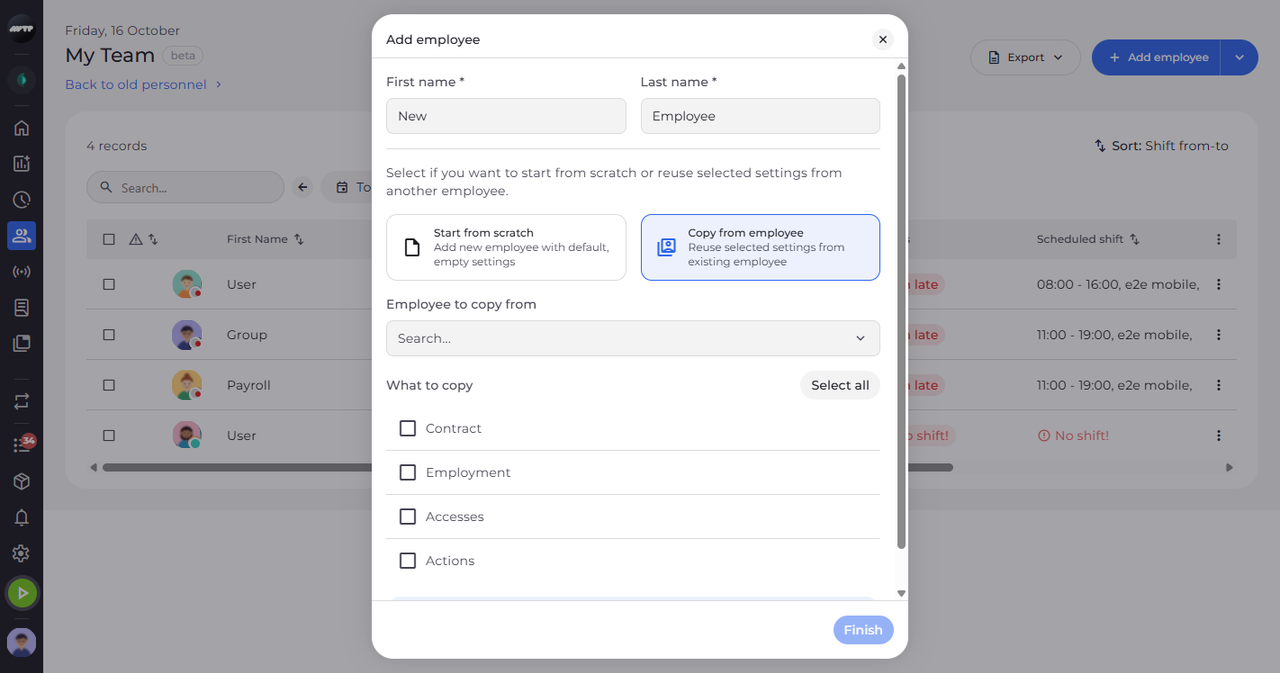
To reuse settings of an existing employee instead, click Copy from employee. Choose the employee under Employee to copy from, tick what to copy under What to copy, then click Finish.
Tip: Choose the employee to copy from and at least one area under What to copy before you click Finish.
What happens next
After Finish, the new employee is added to the units you chose.
Good to know
- "Employee added" confirms the new employee. If some of what you asked for could not be granted, a message lists it.
- An employee without an employment is hidden from My Team by its default filter. Copy the employment, or add one, so they show up in the list.