


Correct a time sheet from the Checklist
The Checklist shows what does not add up in a time sheet and lets you fix it from there, for example by adding a missing attendance.
Before you start
You need:
- The buttons that fix an item appear only if you may change that person's attendances or shifts
- A timesheet correction on your Checklist
New to the app? Start with Sign in to the web app.
When to use it
When the Checklist lists a shift without an attendance or another time sheet problem.
Step by step
-
Step 1: Each item says what is missing in the time sheet
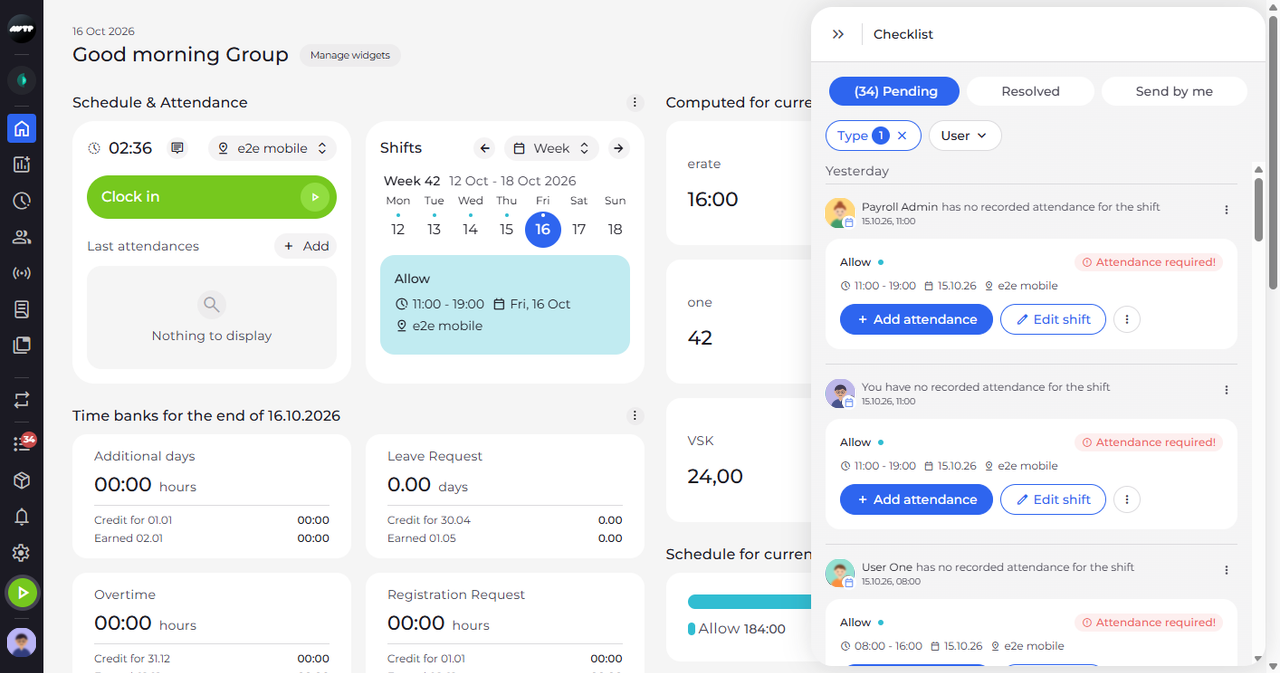
In the side menu on the left, click the list icon with the red counter to open the Checklist, then choose Timesheet correction under Type on the Pending tab. Each item starts with a line that names the person and says what is missing. The card below it shows the shift with its hours, date and unit, and the buttons that fix the item: Add attendance and Edit shift.
Tip: The red label on each item says what is wrong: Attendance required! (a shift without an attendance), Shift required! (an attendance without a shift), Clock-out required! (still clocked in past the maximum shift duration), Attendance too long! (an attendance longer than the maximum shift duration) or Confirm clock-out! (the clock-out time needs confirming).
Tip: The ⋮ next to Edit shift holds Delete shift. It asks "Are you sure you want to delete this shift?" and deletes the shift only after you click Delete.
-
Step 2: Add attendance opens the attendance editor with the shift's hours
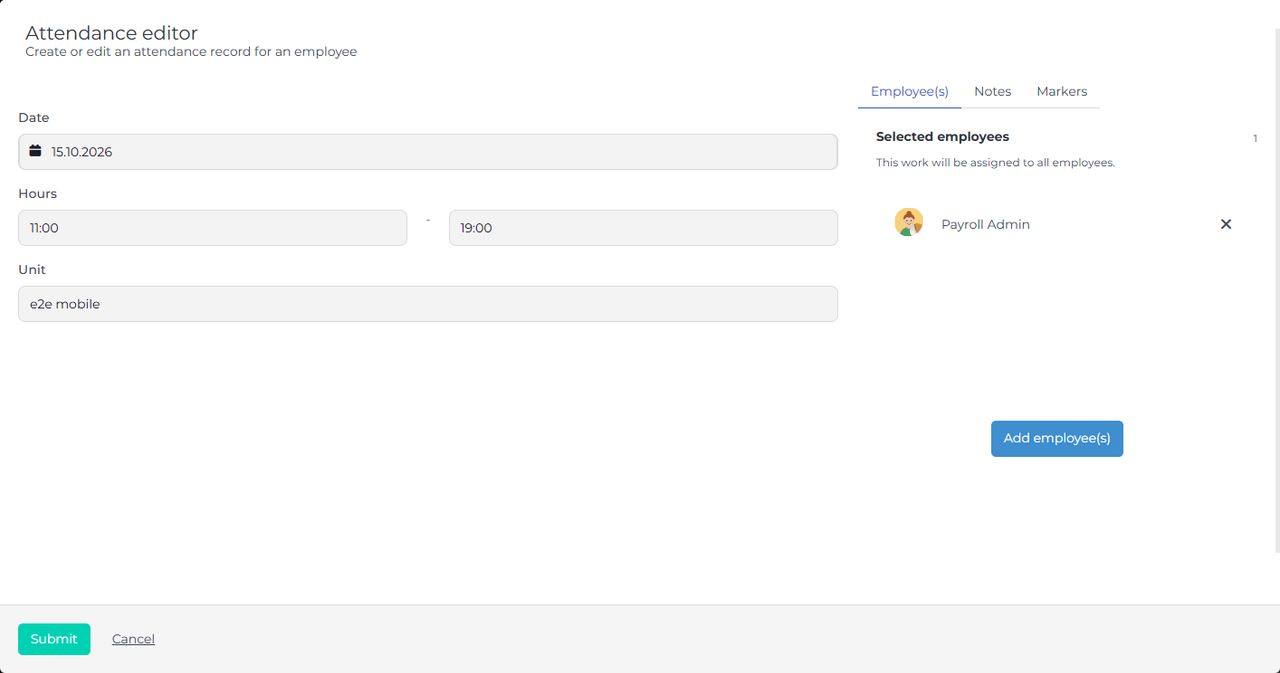
Click Add attendance on the item. The Attendance editor opens with the shift's Date, Hours and Unit filled in and the employee under Selected employees. Check the details and click Submit to save the attendance.
Tip: Cancel closes the editor without saving anything, and the item stays on your Checklist.
Tip: After Submit the Checklist reloads without closing, and the item drops off it once the problem is fixed.
What happens next
You know what is missing in the time sheet and where to fix it. When you are done, close the Checklist with the double arrow at the top left of the panel.
Good to know
- A Shift required! item has Add shift under it instead, if you may add shifts. It opens the Shift editor filled in from the attendance.
- Items labelled Clock-out required!, Attendance too long! or Confirm clock-out! have no buttons. Click the item to open that attendance in the Attendance editor and correct its times.