


Open the Checklist from the dashboard
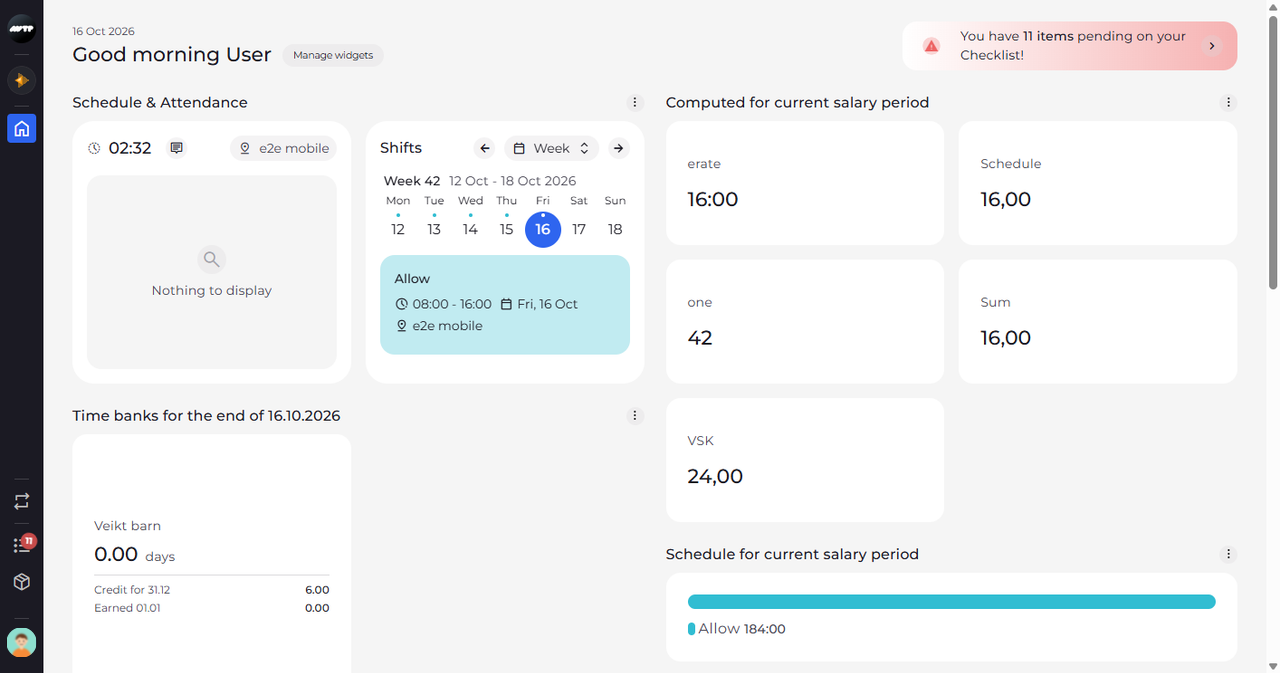
A banner on your dashboard tells you how many items wait for you on your Checklist, and clicking it opens them.
Before you start
You need:
- At least one item waiting on your Checklist
New to the app? Start with Sign in to the web app.
When to use it
When you land on the dashboard and see the red banner at the top right.
Step by step
-
Step 1: The banner on your dashboard counts the items waiting for you
At the top right of your dashboard, a red banner with a warning sign says how many items are pending on your Checklist.
Tip: The number is the same as the red number on the list icon in the side menu and the count on Pending.
Tip: The number is updated each time you open the dashboard.
-
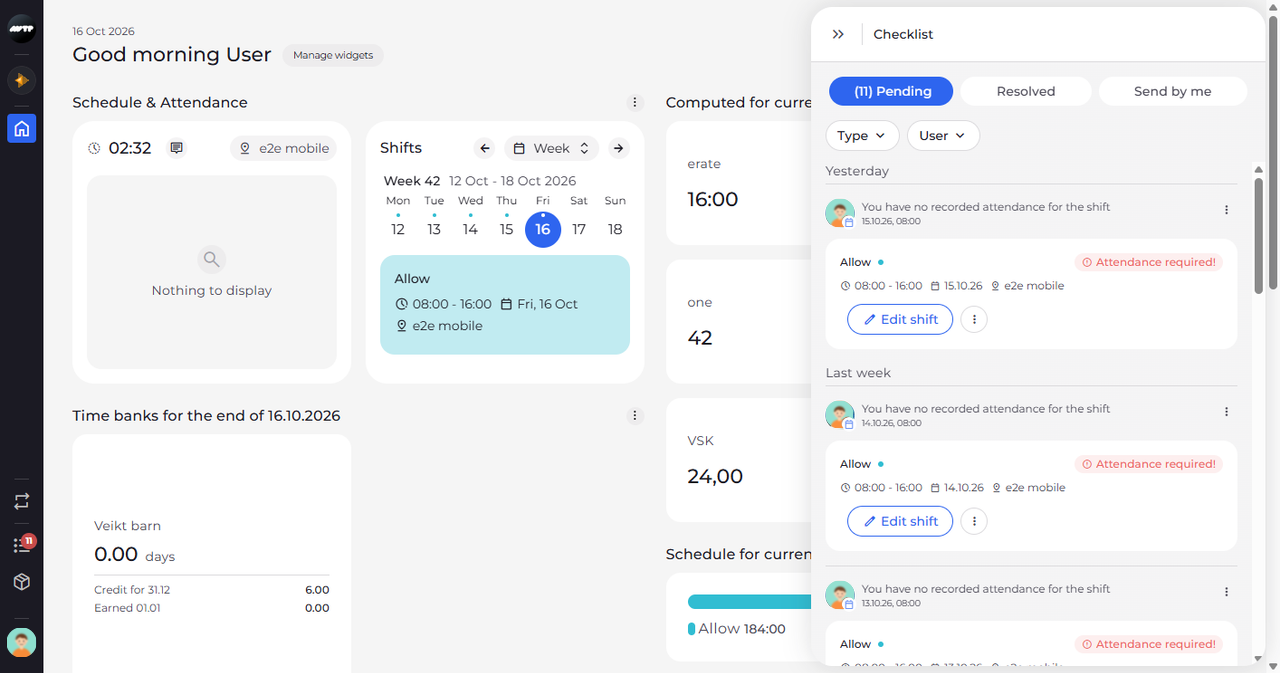
Step 2: The Checklist opens on the Pending tab
Click the banner. The Checklist opens as a panel on the right and lists the items waiting for you. Each item says what is needed, for example a shift with no recorded attendance.
Tip: The banner opens the Checklist as you left it - on the tab and with the filters you chose before, until you reload the page. If another tab is selected, click Pending.
What happens next
The Checklist is open with your pending items. To close it, click the double arrow at the top left of the panel.
Questions
Why is there no banner on my dashboard?
The banner shows only while at least one item waits for you on the Checklist. You can open the Checklist at any time with the list icon in the side menu.