


Review a colleague's request
As a manager, you open a colleague's registration request from your Checklist, check what they asked for in Request details and decide it with Accept or Reject.
Before you start
You need:
- You decide registration requests for other people
- A colleague's registration request that waits for a decision
New to the app? Start with Sign in to the web app.
When to use it
When a colleague's registration request waits for your approval.
Step by step
-
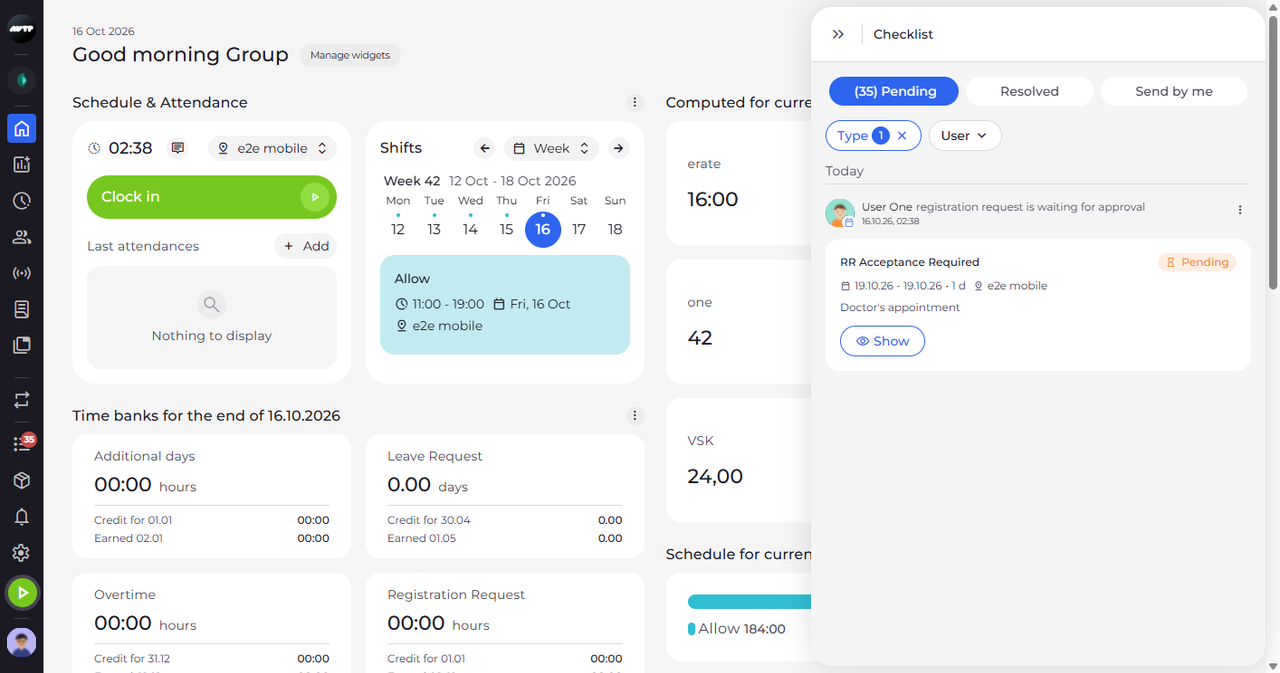
Step 1: A colleague's request on Pending shows who asked for what
In the side menu on the left, click the list icon with the red badge to open the Checklist. On the Pending tab, click Type and choose Registration request. The request has a line naming the colleague who sent it, and a card with the action, the requested dates, the unit and their note.
Tip: A request over several days shows as one card, from its first to its last day.
-
Step 2: Check the request, then Accept or Reject it at the top
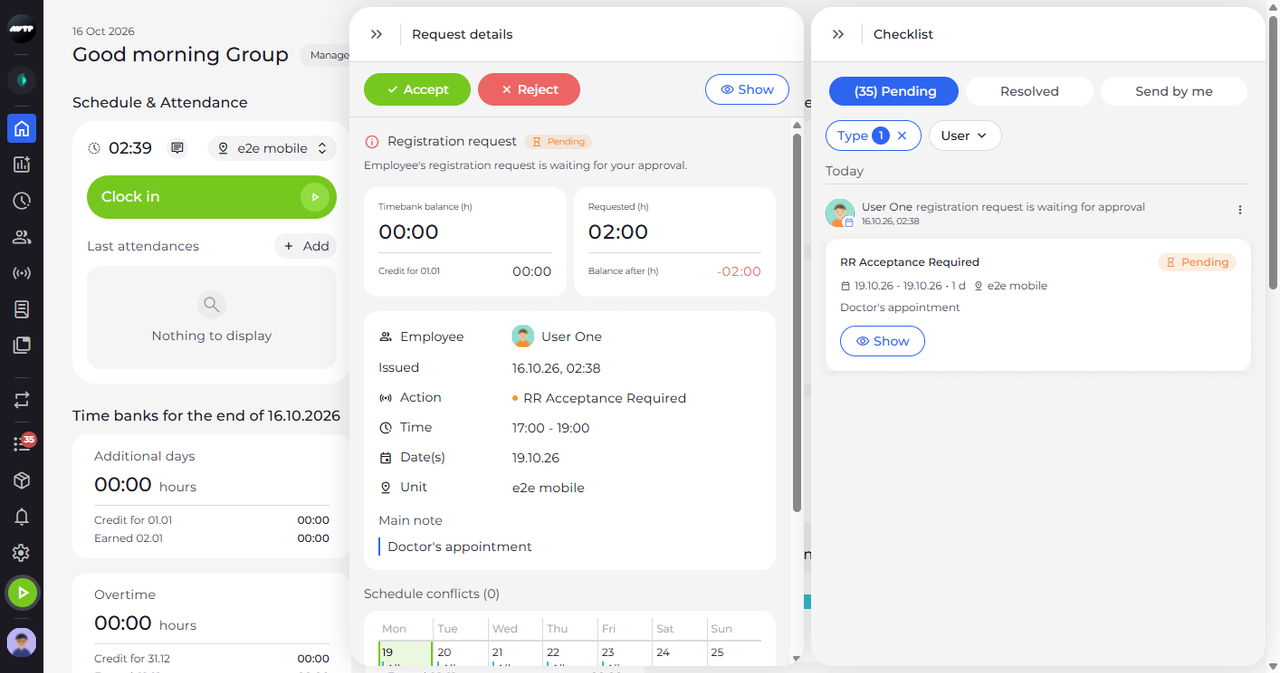
Click the card. Request details opens next to the Checklist and says that the request is waiting for your approval. Under Timebank balance (h) and Requested (h), it lists the Employee, Issued, Action, Time, Date(s), Unit and Main note, followed by Schedule conflicts.
Tip: Balance after (h) turns red when the time bank would be below zero after the request.
Tip: The time bank cards appear only when the requested action uses a time bank, and only while the request waits for your decision. For a time bank counted in days they show days instead of hours.
Tip: The number after Schedule conflicts counts the employee's shifts that overlap the request; the calendar under it shows their shifts in the weeks the request covers.
What happens next
You have checked the request. To leave without deciding, click the double arrow at the top left of Request details: the panel closes, the request stays on Pending and the Checklist stays open.
Good to know
- After Accept or Reject you see "Request accepted successfully" or "Request rejected successfully", the request leaves the Pending tab and Request details closes.
Questions
Why can't I click Accept?
The request overlaps a shift the employee already has, and When overlapping other shifts is set to Don't change - the red message "There are other shifts in given time period." says so. Choose Replace, Overwrite or Insert there, and Accept becomes available.
Why are there no Accept and Reject buttons?
They appear only while the request is pending and was sent by someone else. Your own requests, and requests that are already decided, open without these buttons.