


Filter your Checklist
Use the Type filter on the Pending tab of your Checklist to show only the kinds of item you are looking for.
When to use it
When the Pending list is long and you want to see only some of it, for example only timesheet corrections.
Step by step
-
Step 1: Click Type and choose the kinds of item to show
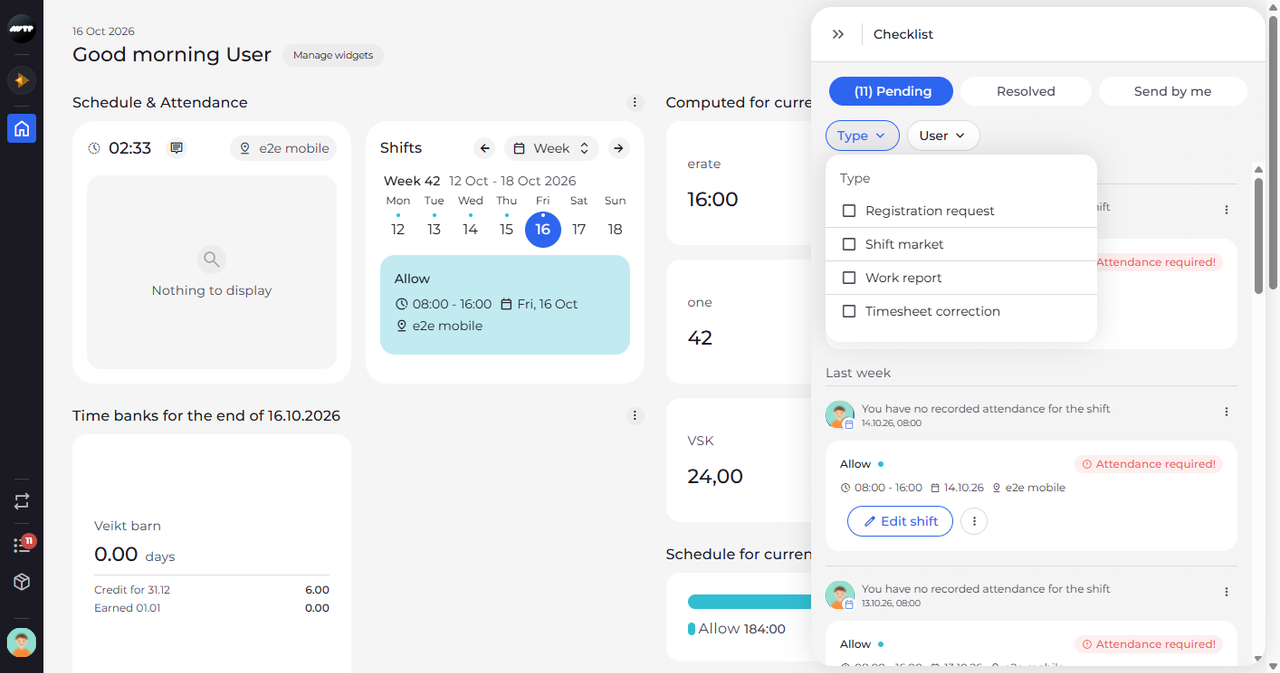
Open the Checklist with the list icon in the side menu. On the Pending tab, click Type. A list of item types opens, with a checkbox for Registration request, Shift market, Work report and Timesheet correction.
Tip: Each type applies as soon as you tick it, and you can tick several - there is no button to confirm. Click anywhere outside the list to close it.
-
Step 2: With a type chosen, the list shows only those items
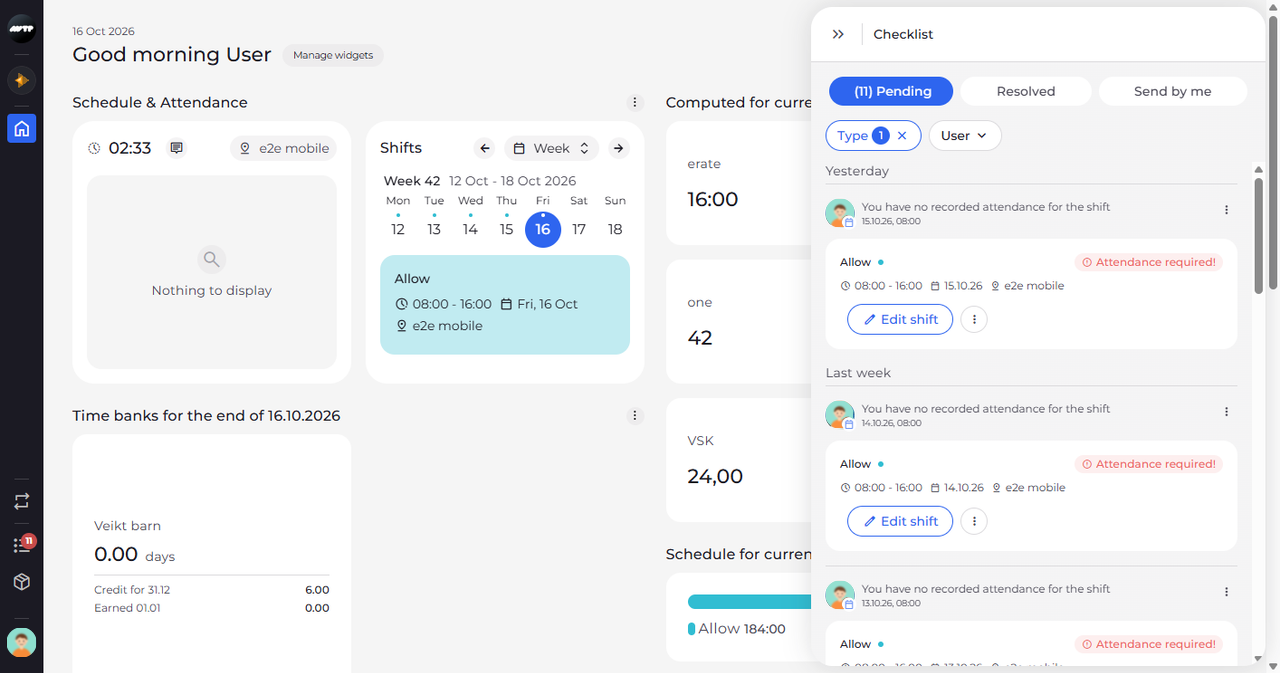
Tick Timesheet correction, then close the list. The Type chip now shows how many types are chosen, and Pending lists only the timesheet corrections.
Tip: Click the cross on the chip to clear that filter. Clear at the top of the open list does the same but keeps the list open.
Tip: The number on Pending keeps counting every pending item while a filter is in use.
What happens next
Pending shows only the items of the types you chose.
Good to know
- User lists the people behind the items on Pending; its search box finds them by name or by unit.
- The filters work on Pending only - Resolved and Send by me always list every item. Your choices stay while you switch tabs or close the Checklist, until you reload the page.
Questions
Why does the list say "Nothing to display" after I chose a type?
No pending item is of the types you chose. Tick another type, or clear the filter to see the other items again.