


See a request in Time management
Show on a colleague's registration request in your Checklist opens Time management for that employee and the days of the request.
Before you start
You need:
- Access to Time management
- A colleague's registration request that waits for a decision
New to the app? Start with Sign in to the web app.
When to use it
Before you decide a request, to see it next to the employee's shifts.
Step by step
-
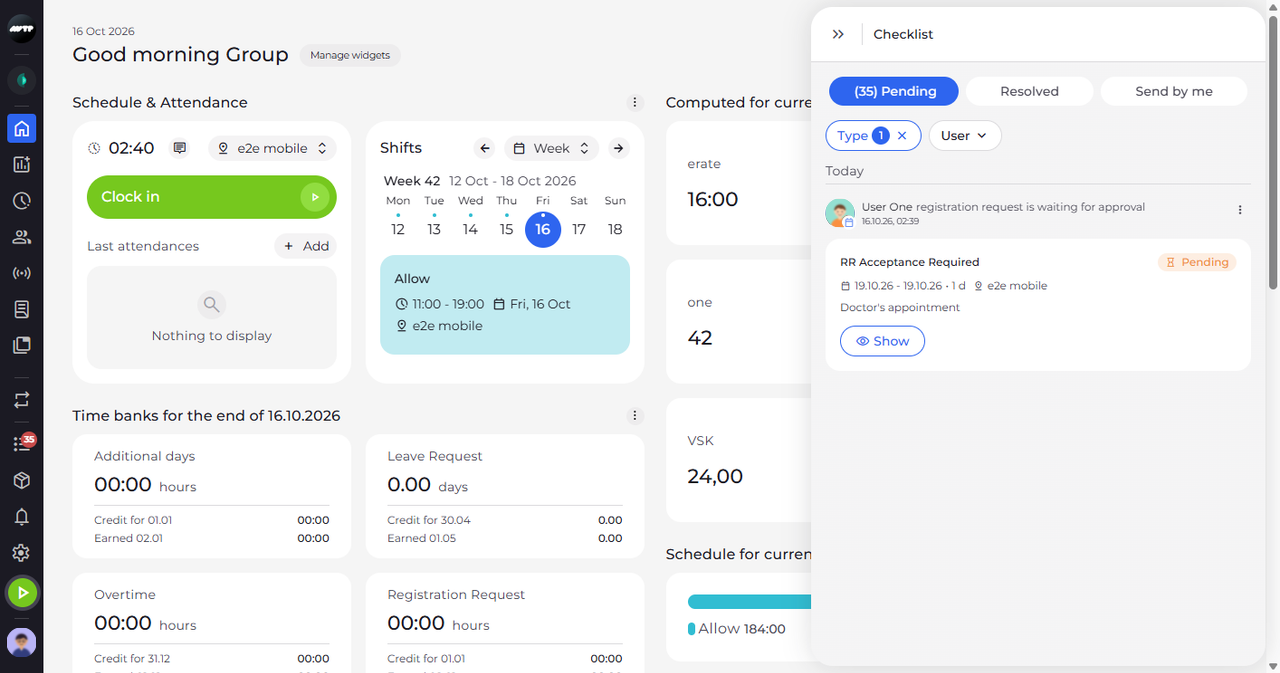
Step 1: Click Show under the request
In the side menu on the left, click the list icon with the red badge to open the Checklist. On the Pending tab, click Type and choose Registration request. Show is at the bottom of your colleague's card, under the requested dates, the unit and the note.
Tip: Only request cards on the Pending tab have Show.
Tip: Click Show itself - a click anywhere else on the card opens Request details instead.
-
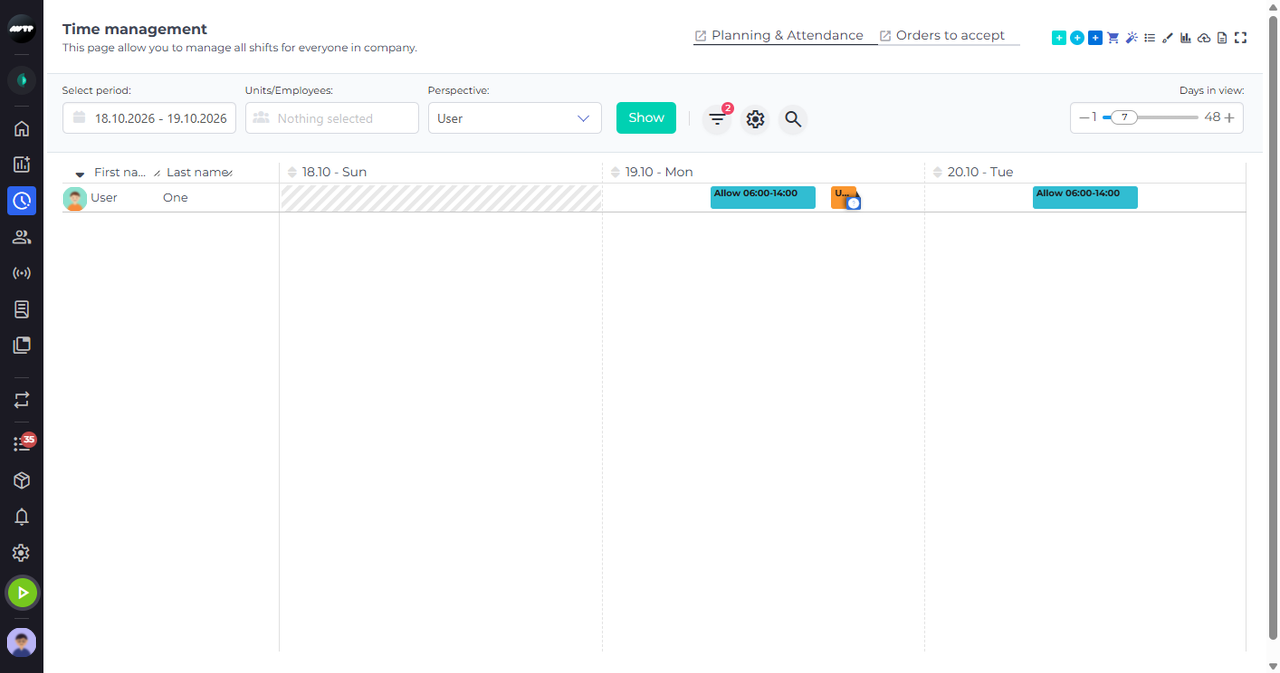
Step 2: Time management shows the request next to the employee's shifts
Time management opens with one row in the grid: the colleague who sent the request. The requested time is the block with a small round icon in its corner; the other blocks in the row are the shifts they already have.
Tip: The grid shows the request's days with one day before and one day after, so you see the shifts around it.
Tip: The Checklist stays open and covers the right part of the grid; close it with the double arrow at its top left, or press Esc, to see the whole grid.
What happens next
You see the requested time in the employee's schedule. Showing it does not decide anything: the request stays on the Pending tab of your Checklist.
Good to know
- Request details has the same Show button at the top, so you can also open Time management from there - for a request on Resolved or Send by me too.
Questions
Why does nothing happen when I click Show?
Show opens Time management, which needs an access of its own. Without it the page does not open - ask your administrator for access to Time management.