


Filter your Checklist
On the Pending tab of the Checklist, the filter bar narrows the list to one kind of item or to the people the items are about.
Step by step
-
Step 1: The filter bar above the list narrows it by item type and by person
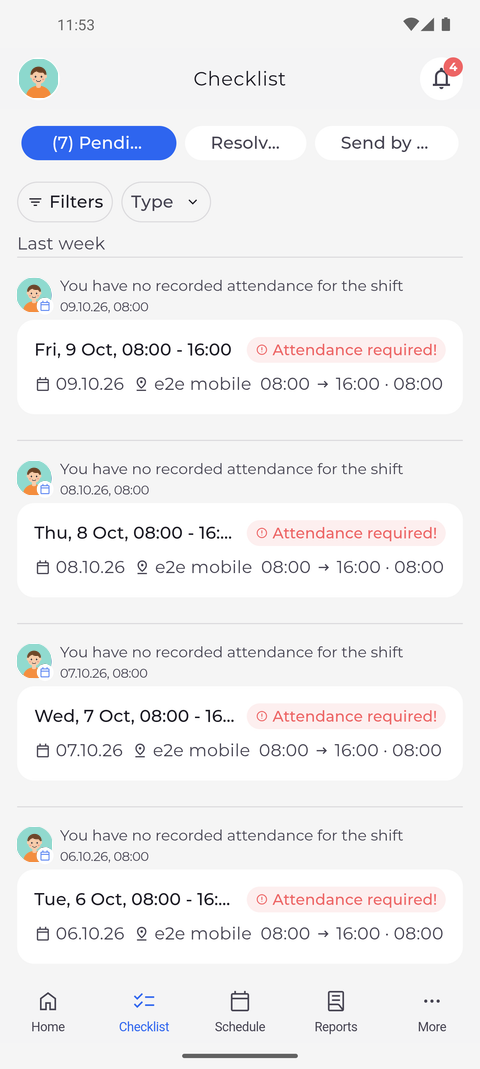
Tap Checklist in the bottom bar. The Pending tab opens with the filter bar above the list: Filters and Type.
Tip: Tap Type to choose one or more kinds of item, then tap Done.
Tip: Filters shows every filter at once, including User. Make your choices and tap Show results; the back arrow leaves without changing the list, and Clear empties all choices.
Tip: User lists only the people who have an item on Pending right now.
-
Step 2: With a type chosen, the list shows only those items
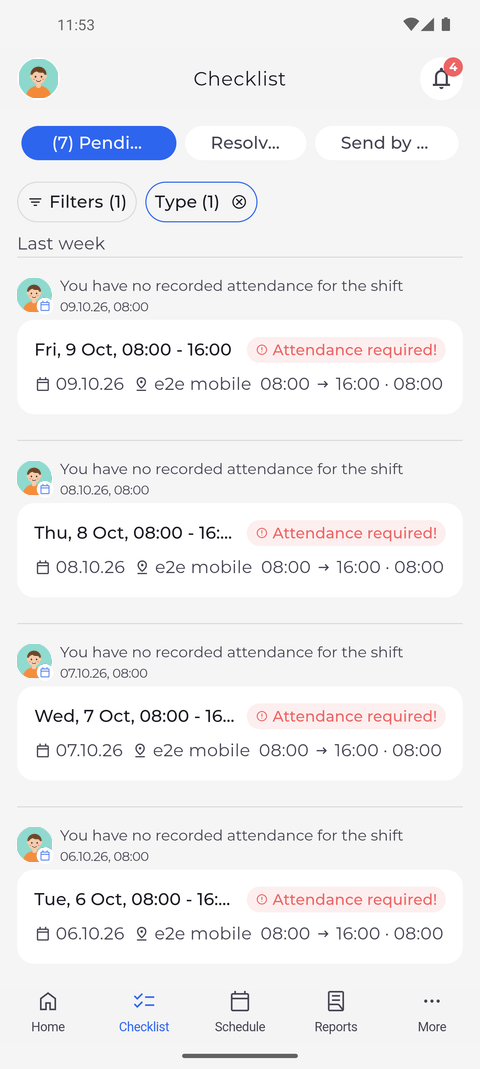
Under Type, choose Timesheet correction. The list now shows only the time sheet corrections, such as shifts marked Attendance required!.
Tip: A chip with a filter in use shows how many choices it holds, for example "Type (1)". Tap the cross on the chip to show all items again.
Tip: Type always has its own chip; User gets one only after you pick someone under Filters. The number on Filters counts how many filters are in use, for example "Filters (1)".
Tip: The list shows 20 items at a time. When more items match, tap Load more at the bottom.
What happens next
The Pending list shows only the kind of item you chose until you clear the filter.
Good to know
- The filters work on Pending only - Resolved and Send by me always show everything, and the filter bar is not shown there.