


Review a colleague's request
As a manager, you open a colleague's registration request from your Checklist, check what they asked for and decide it with Accept or Reject.
Before you start
You need:
- You decide registration requests for other people - without that right a request opens without Accept and Reject
- A colleague's registration request that waits for a decision
New to the app? Start with Sign in to the MyTimePlan app.
Step by step
-
Step 1: A colleague's request shows who asked for what, with a Review button
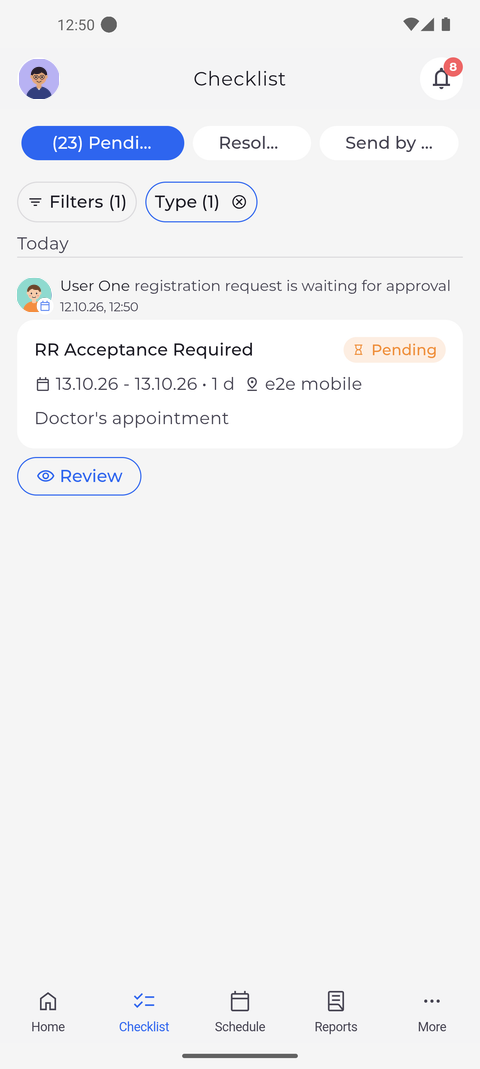
On the Pending tab of the Checklist, choose Registration request under Type to see only registration requests. Each card names the colleague, says that the registration request is waiting for approval and is marked Pending.
Tip: The card shows the action, the dates with the number of days, the unit and the employee's note. Review opens the request; tapping the card does the same.
-
Step 2: Check the details, then Accept or Reject at the bottom
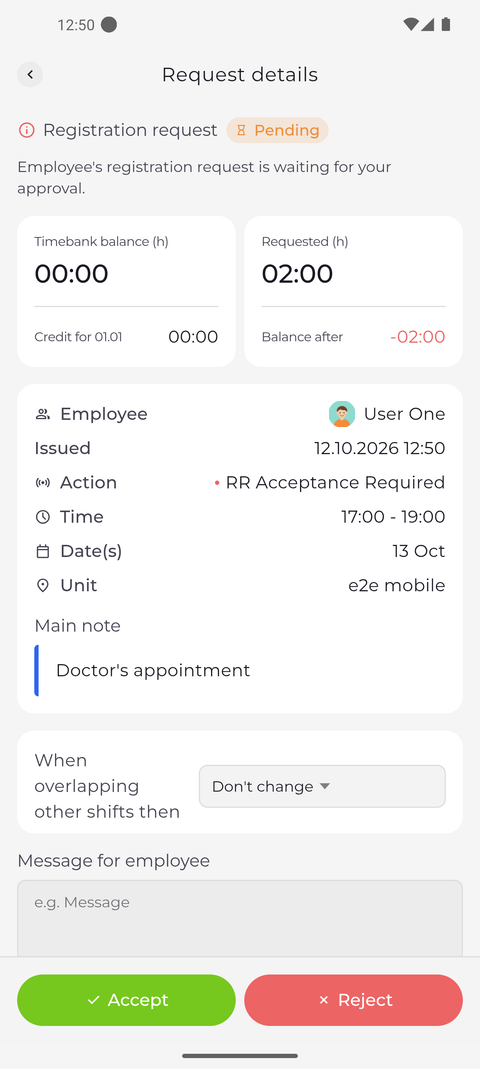
Tap Review. Request details shows who asked for which action, time, dates and unit, with the Main note. Below them are When overlapping other shifts then and Message for employee, and Accept and Reject are at the bottom.
Tip: When the request uses a time bank, two cards at the top show the employee's Timebank balance now, the hours Requested, and the Balance after you accept. The balance after turns red when it would go below zero.
Tip: Schedule conflicts lists the employee's other shifts on the requested days. Under When overlapping other shifts then choose what Accept does with them: Don't change, Overwrite or Insert, and for some actions Replace. While Don't change is chosen over a clash, Accept may stay greyed out.
Tip: What you type under Message for employee goes to the employee with your decision, whether you tap Accept or Reject.
Tip: Accept stays greyed out for a moment while the app checks the requested days against the schedule, and both buttons are greyed out while your decision is being sent.
Tip: Accept and Reject take effect at once - the app does not ask you to confirm, and a decision cannot be undone in the app.
What happens next
You have checked the request. Once you decide it with Accept or Reject, the app goes back to the Checklist and the request leaves Pending. To leave without deciding, tap the back arrow at the top left.
Good to know
- When a request covers several days and some are already decided, each day is listed with its status, and your decision applies only to the days still pending.
- Pull down on Request details to load the request again, for example to see whether someone else has decided it in the meantime.
Questions
What does "Someone already reviewed this request. The details were refreshed." mean?
Another person decided the request while you had it open. The page now shows its current status, and there is nothing left for you to decide.
A Shift warnings window opened after I tapped Accept. What now?
If it offers Overwrite and Insert, the request clashes with other shifts: choose one to accept it anyway, or Don't change to go back. If it only offers OK, the request was accepted and the window just lists warnings.