


Correct a time sheet from the Checklist
The Checklist lists what does not add up in a time sheet, such as a shift without an attendance. From each item you can open the shift or attendance it is about and fix it.
Before you start
You need:
- The buttons that fix an item appear only if you may change that person's attendances or shifts
- A timesheet correction on your Checklist
New to the app? Start with Sign in to the MyTimePlan app.
Step by step
-
Step 1: Each item says what is missing in your time sheet
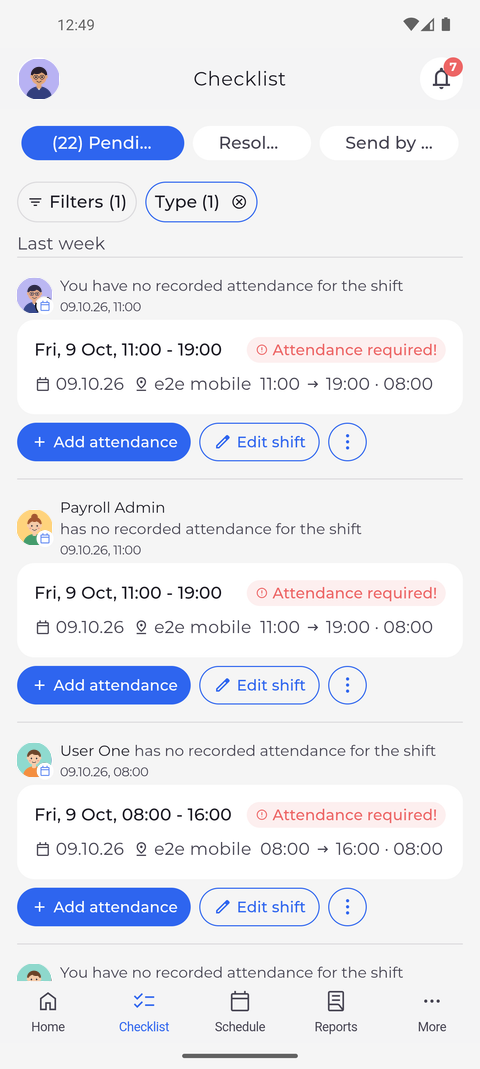
On the Pending tab of the Checklist, choose Timesheet correction under Type. Each item names the person and says what is missing, for example that they have no recorded attendance for the shift. The card shows the shift's date, unit and hours, and the buttons to fix the item are below it.
Tip: The label on each item says what is wrong: Attendance required! (a shift without an attendance), Shift required! (an attendance without a shift), Clock-out required! (still clocked in past the maximum shift duration), Attendance too long! or Confirm clock-out!.
Tip: Your own items read "You have no recorded attendance for the shift"; a colleague's item starts with their name.
Tip: Under an Attendance required! item, Add attendance records the missing attendance: the shift's hours are filled in under From - to, adjust them and save. Edit shift and the ⋮ menu with Delete shift appear when you may change that shift.
Tip: Delete shift asks "Are you sure you want to delete this shift?" before anything is deleted.
Tip: In Add attendance, Save stays greyed out while From - to is empty, and while the attendance is being saved, so a second tap does not add it twice.
-
Step 2: Tap an item to see the shift or attendance it is about
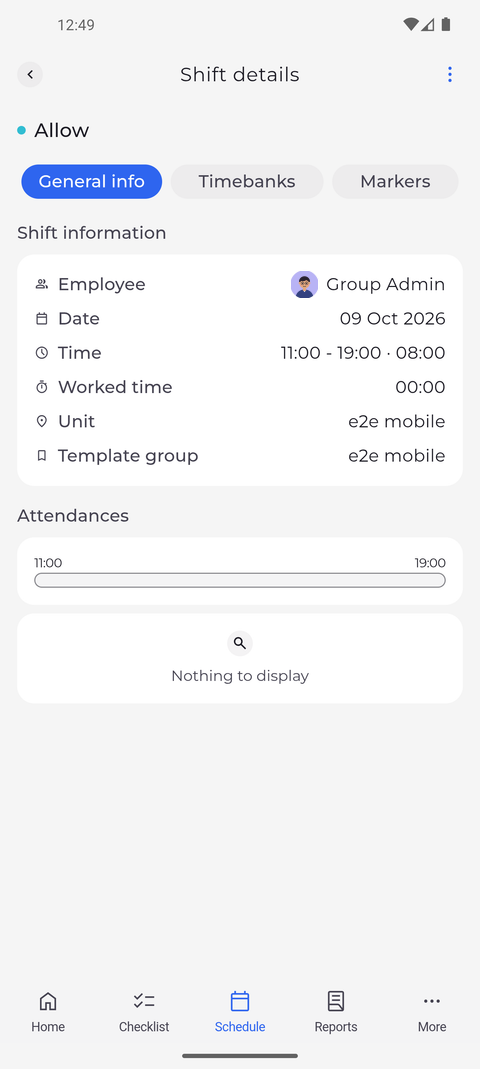
Tap the card of an item. Here the shift opens on General info: Shift information lists the employee, date, time, worked time, unit and template group, and Attendances shows Nothing to display because no attendance is recorded.
Tip: An Attendance required! item opens the shift in Shift details. Items about an open or too long attendance open Attendance details.
Tip: A Shift required! item does not open. Use Add shift under it, which appears when you may plan a shift for that person on that day.
Tip: The ⋮ menu at the top of Shift details offers Edit, Delete and Add attendance when you may do that for this person. Add attendance is not offered for a shift on a later day.
What happens next
You know what is missing in the time sheet and where to fix it. Go back to return to the Checklist, where your filter is still applied.