


Your reports
The Reports tab shows your current work report and lets you browse your finished and upcoming reporting periods.
Step by step
-
Step 1: Reports opens on your current report and the ones before it
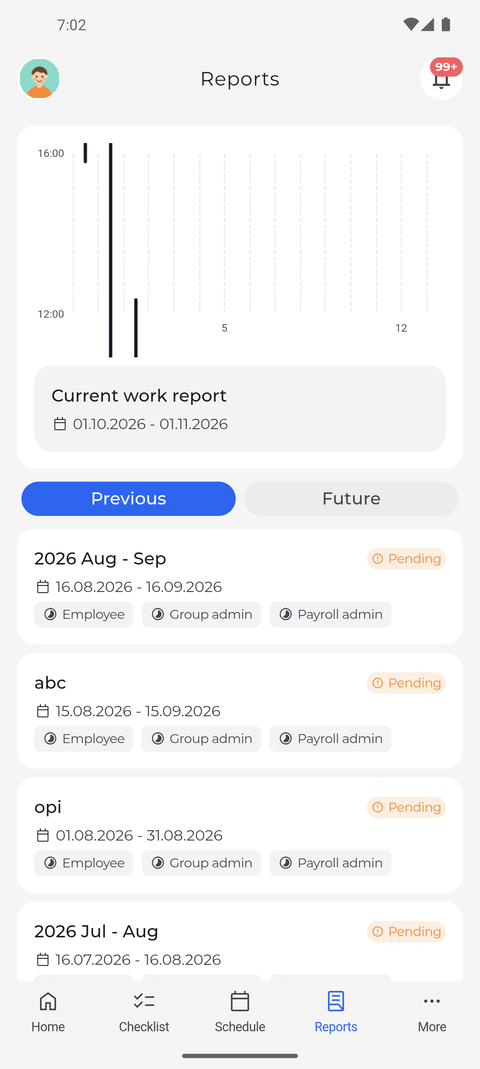
Tap Reports in the bottom bar. At the top you see a chart and the Current work report card with the period it covers. Below it, Previous is selected and lists your finished reports, newest first, each with its name, its period and a status such as Pending.
Tip: The chart above your current report shows your shifts and attendances in the running period. When nothing is planned or recorded yet, it says "Nothing to display".
Tip: Under each finished report, Employee, Group admin and Payroll admin are its confirmation stages. A green label with a double check mark is confirmed; a grey one is still open.
-
Step 2: Future lists the reporting periods that have not started yet
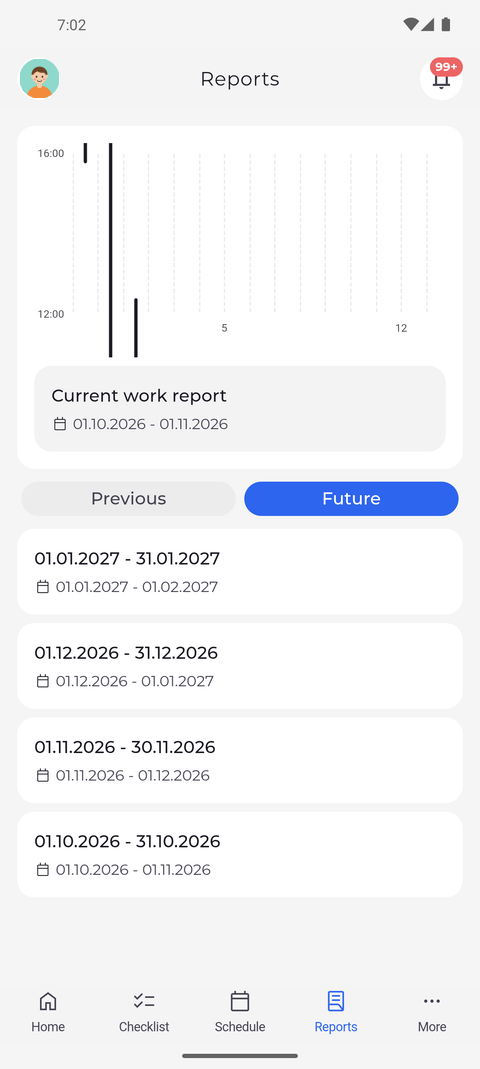
Tap Future. The current work report stays on top, and the list below switches to the reporting periods ahead, each with the dates it covers. The period you are in now can be one of them.
Tip: Upcoming periods have no confirmation labels - there is nothing to confirm until a period is over.
Tip: Future lists up to four reporting periods.
What happens next
You know where to find your current work report, your finished reports under Previous and the upcoming periods under Future. Tap a report to see its details and status.
Good to know
- If Reports shows only the Previous tab and no current report on top, your account is not set up to see running and upcoming periods. Your finished reports are still listed; ask your manager if you need the others.
- When you open a finished report, its Confirmation section lists the stages. An Accept button appears next to Employee only if your company lets you confirm your own reports; otherwise the stage shows Pending until it is confirmed, and then Approved.