


Open and confirm a previous report
A finished report under Previous shows its figures, the report document and who has confirmed it.
Before you start
Step by step
-
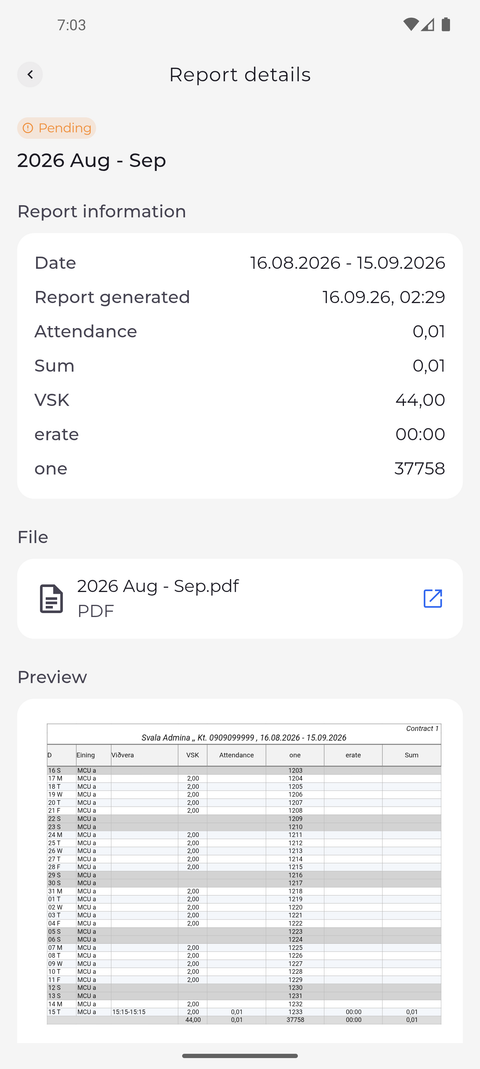
Step 1: A previous report shows its period, when it was generated and its file
On the Reports tab, tap a report under Previous. Report details shows the report's status and name at the top, then Report information, the report as a PDF under File and a Preview of the document.
Tip: Report information starts with the period under Date and Report generated, followed by the totals of the report.
Tip: If File and Preview are missing, your account may not view report documents. The figures under Report information are still yours to see; ask your manager if you need the document.
-
Step 2: Confirmation shows who has approved the report and where your Accept is
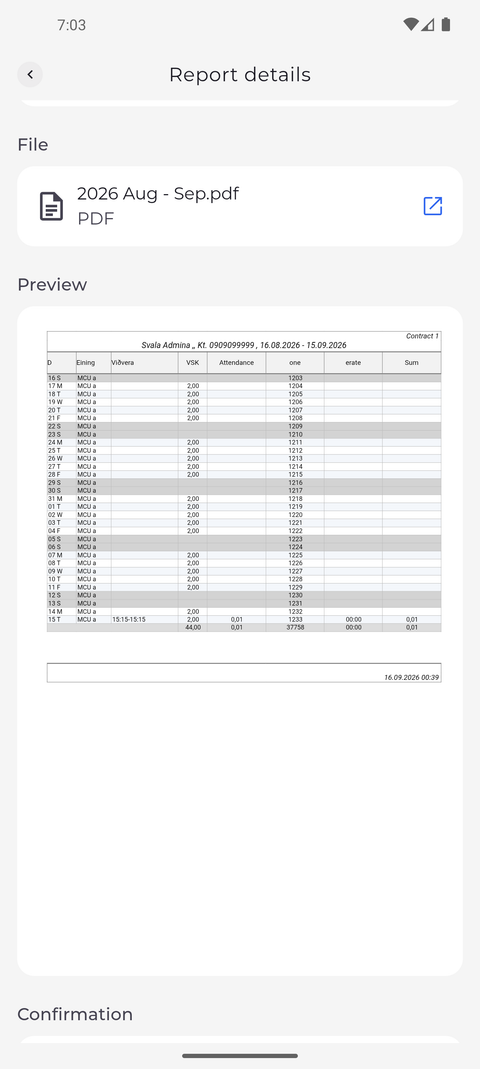
Scroll down past File and Preview to the Confirmation section at the bottom of the page. It lists each stage of confirming the report and whether it is done.
Tip: A stage that is done shows Approved. On your own report only the Employee stage can have an Accept button; Group admin and Payroll admin show Pending until they confirm.
Tip: Accept confirms your stage at once - the app does not ask again, and you cannot take a confirmation back in the app. It then says "Report successfully accepted".
What happens next
You know what the report says and where its confirmation stands.
Questions
Why does the app say "Report acceptance failed"?
The report could not be confirmed, for example because your stage is not open for confirmation yet. The page reloads and shows where the confirmation stands; ask your manager if it stays open.
What does "This report has no data to display." mean?
The report exists, but its figures are not available. Ask your manager to check it. If the page says "This report no longer exists." instead, the report was removed.