


Look ahead at a coming period
Under Future on the Reports tab you can look ahead at a reporting period and see what is planned for it so far.
Before you start
You need:
- Access to running and upcoming periods - without it, Reports has no Future tab
New to the app? Start with Sign in to the MyTimePlan app.
Step by step
-
Step 1: A coming period shows what is planned for it so far
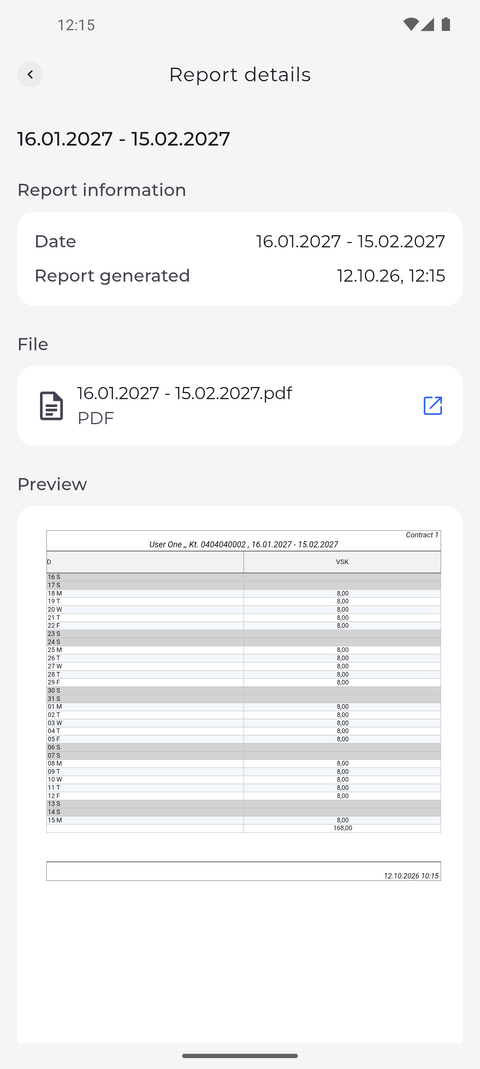
On the Reports tab, tap Future, then tap one of the periods listed. Report details shows the period under Report information, the period as a PDF under File and a Preview of the document.
Tip: The period is worked out from your schedule as it is now, so what it shows changes when your plan changes. Pull the page down to work it out again.
Tip: A coming period has no Confirmation section - there is nothing to confirm before a period has ended.
Tip: Under File, tap the open icon to open the period as a PDF in your phone's PDF viewer.
What happens next
You can check the hours planned for a coming period before it starts.
Good to know
- You can look up to four periods ahead.
- If there is no Preview section, your account may not view rendered reports. You can still open the PDF under File.