


Read your notifications
Notifications collects the messages the app sends you and the registration requests that wait for a decision. You open it from the bell at the top right.
Step by step
-
Step 1: The bell at the top right counts your unread notifications
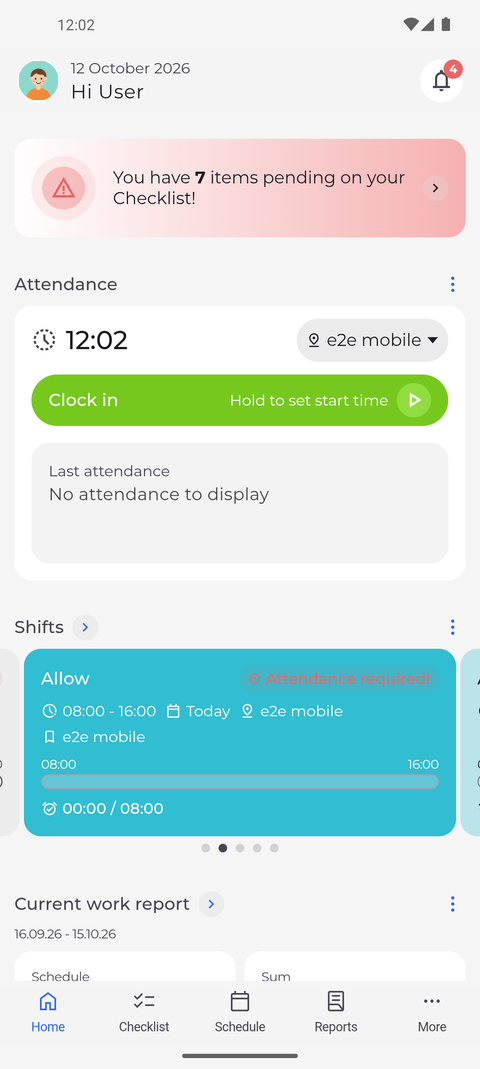
After you sign in, the app opens on Home. The bell is at the top right of the header; here it has a red badge.
Tip: The number on the bell is the count of unread notifications. From 100 on it shows "99+".
-
Step 2: All notifications lists the latest messages first
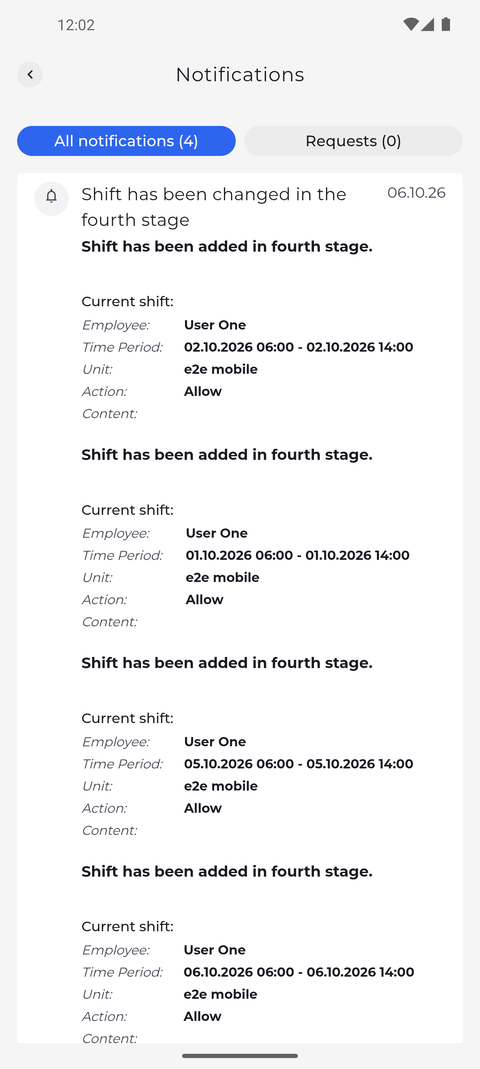
Tap the bell. Notifications opens on the All notifications tab. Each card has a title and a date, followed by the details of what it is about, for example the employee, time period, unit and action of a changed shift.
Tip: Unread notifications are shown in bold, and the number next to All notifications counts them.
Tip: Tapping a notification marks it as read - it does not open the shift or request it is about, and you cannot mark it unread again.
Tip: The list loads 20 notifications at a time. Scroll to the end and tap Load more for older ones; the button is gone when there are no more.
-
Step 3: Requests lists the registration requests that wait for a decision
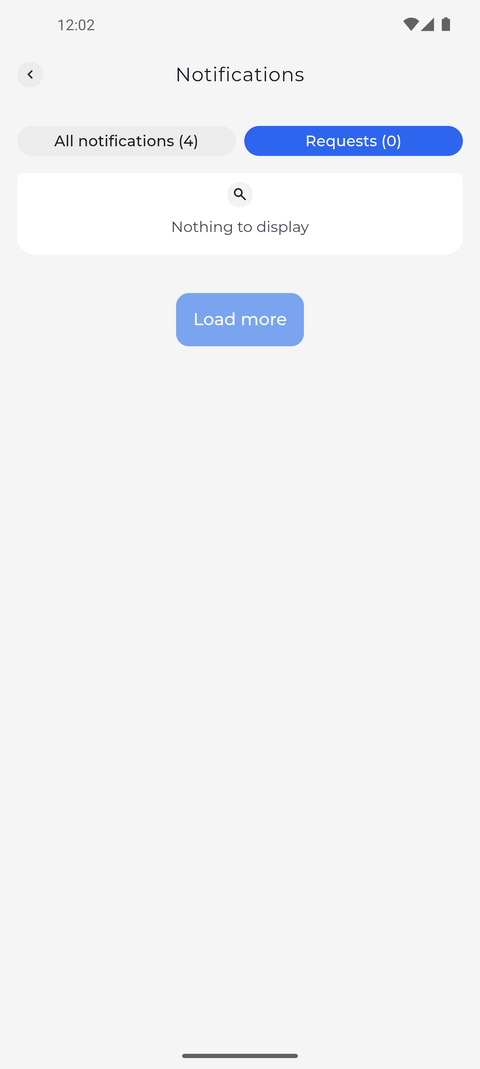
Tap Requests. The registration requests that wait for a decision are listed here, under the name of the person who sent them. When there are none, the tab says Nothing to display.
Tip: Tap one of your requests to open its details. While it is pending you can change or cancel it there.
Tip: The list goes period by period: the "Period:" line under it shows which days are loaded. Load more adds the next period and is greyed out when there is none.
What happens next
You have read your messages under All notifications and know which registration requests are still open under Requests.
Good to know
- If there is no All notifications tab, notifications are not enabled for your account - the bell then opens Requests directly. Ask your manager if you need them.