


Requests waiting for your decision
As a manager, you find the registration requests that wait for your decision under Requests in Notifications, grouped by person, and open each one to decide it.
Before you start
You need:
- You decide registration requests for other people - without that right a colleague's request opens without Accept and Reject
- Registration requests of your colleagues that wait for a decision
New to the app? Start with Sign in to the MyTimePlan app.
Step by step
-
Step 1: Requests groups the pending requests by person - tap a name to fold or unfold its requests
Tap the bell at the top right, then Requests. Every card reads Registration request waiting for review and shows the action, the dates, the Pending status, the person and the unit.
Tip: Your colleagues' requests are grouped under each person's name. Your own requests are listed as single cards, without a name above them.
Tip: The number next to Requests counts the requests loaded so far, so it can grow after Load more.

-
Step 2: A request opens with its details and Accept / Reject at the bottom
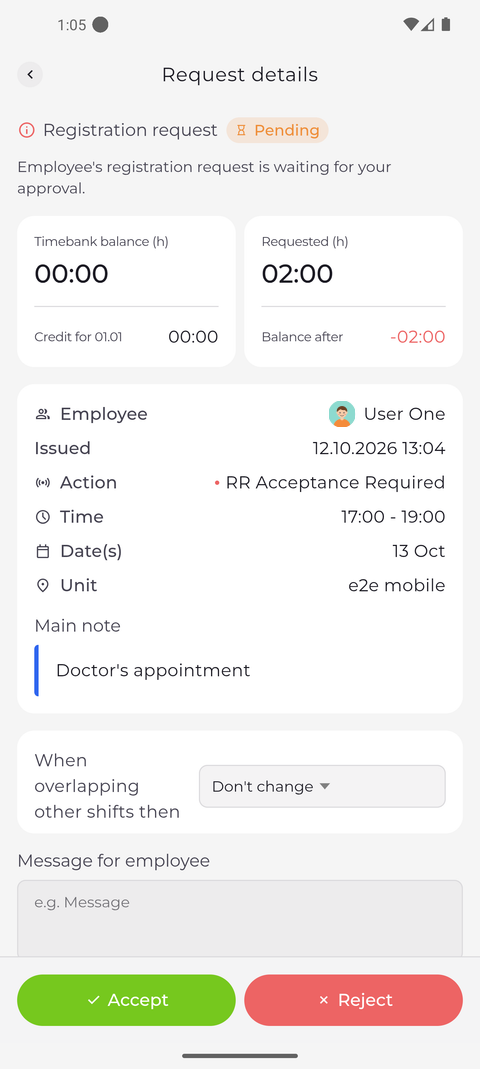
Tap a request. Request details shows the Timebank balance, the hours Requested and the Balance after, then the employee, action, time, dates, unit and Main note. Below them is a field for a Message for employee, and Accept and Reject are at the bottom.
Tip: Under When overlapping other shifts then, choose what Accept does with the employee's other shifts on those days: Don't change, Overwrite or Insert, and for some actions Replace.
Tip: If the request overlaps the employee's other shifts while Don't change is chosen, Accept can be greyed out under the note "There are other shifts in given time period. Change property above for replace, overwrite or insert." Pick another option, or tap replace in the note. This choice does not affect Reject.
Tip: Accept and Reject take effect at once, without asking you to confirm. The app then says "Request accepted successfully" or "Request rejected successfully" and goes back to the list.
What happens next
You see the open requests of the people you are responsible for and can open each one to decide it. To leave a request without deciding, tap the back arrow at the top left.
Good to know
- The list starts with the current period; the "Period:" line under it shows the days loaded. Tap Load more to reach later periods - it is greyed out when there are no more.
Questions
What does "Someone already reviewed this request. The details were refreshed." mean?
Another person decided the request while you had it open. The page shows its current status now; there is nothing left for you to decide.