


The Checklist
The Checklist collects everything that needs a decision, whether the decision is yours or someone else's. It has three tabs: what is still waiting (Pending), what has already been decided (Resolved) and the requests you sent yourself (Send by me).
Step by step
-
Step 1: Everything waiting for your decision is on the Pending tab
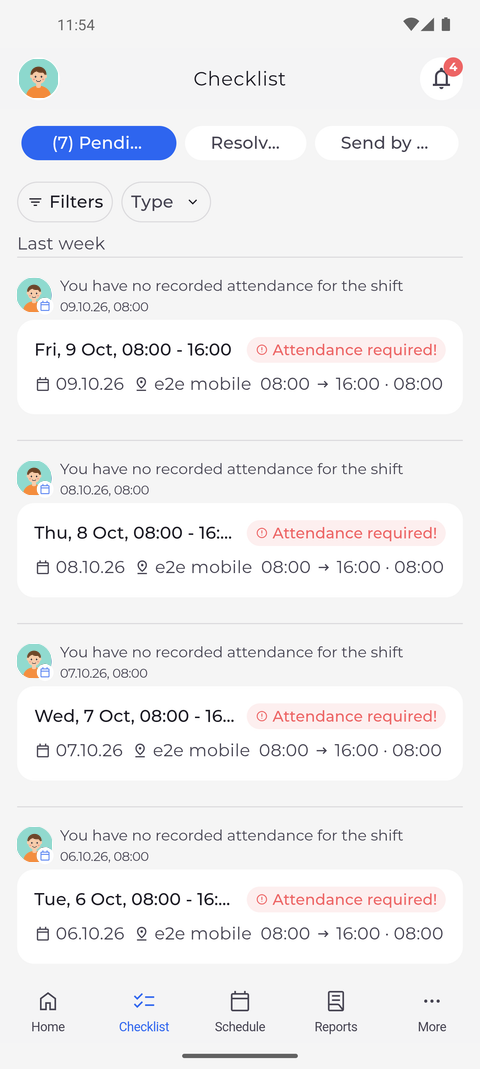
Tap Checklist in the bottom bar. It opens on the Pending tab, which lists the items waiting for a decision, grouped by date. Each card says who the item is about and what is needed. For example, a shift with no recorded attendance is marked Attendance required!.
Tip: When items are waiting, the tab shows how many, for example "(3) Pending".
Tip: Only Pending has filters: Type (Registration request, Shift market, Work report, Timesheet correction) and User.
Tip: An Attendance required! item shows Add attendance and Edit shift under it only if you may change your own attendances and shifts. Without them, tap the item to see the shift and ask your manager to correct your time sheet.
Tip: Under an admin order sent to you, Apply for shift opens the order, where you send your offer. The Checklist itself does not accept or reject shift exchange orders.
Tip: A work report waiting for your confirmation has Accept under it. The button stays greyed out while the confirmation is being sent, and the report leaves Pending once you have nothing left to confirm on it.
-
Step 2: Resolved shows the items you have already handled
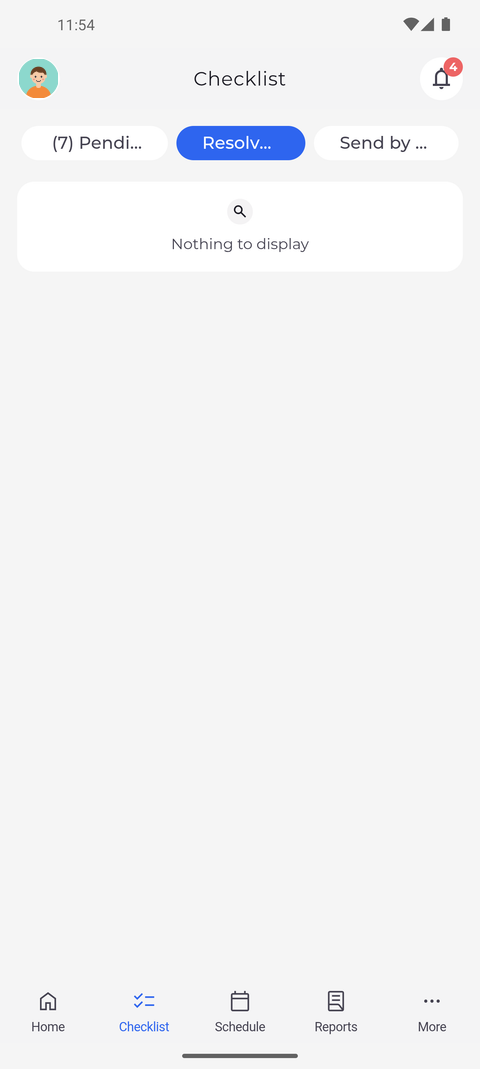
Tap Resolved. This tab lists the items that have already been handled. Here nothing has been handled yet, so the tab is empty.
Tip: On Resolved, a registration request carries the tag Resolved instead of its outcome. Tap it to open Request details, which shows whether it was accepted or rejected.
-
Step 3: Send by me shows the requests you started yourself
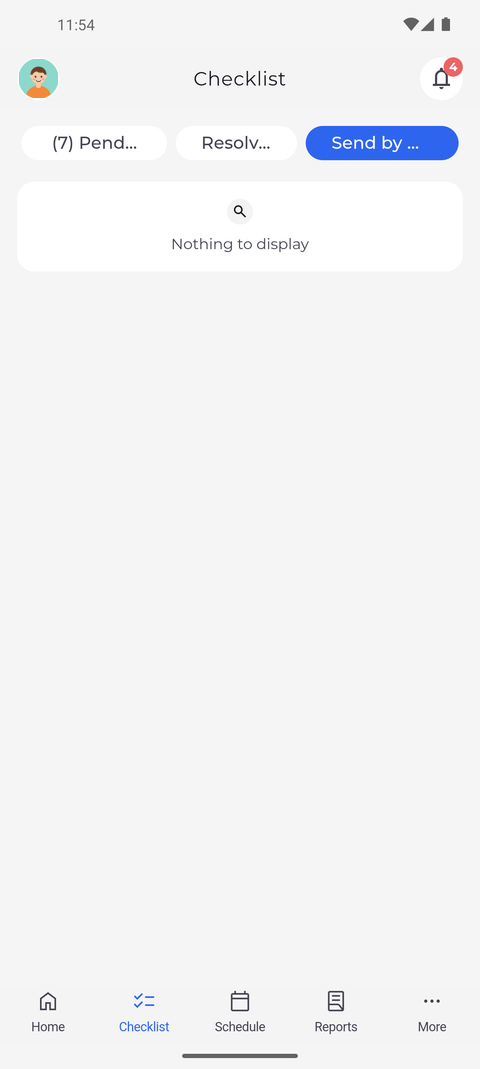
Tap Send by me. This tab lists the requests and orders you started yourself that are still waiting for approval. Here you have not sent anything, so the tab is empty.
What happens next
You know where to find the items waiting for a decision, the ones that have already been handled, and the requests you sent yourself.
Good to know
- An empty tab shows "Nothing to display" - that is normal when nothing is waiting.
- Swipe an item to the left to hide it. Hiding is permanent and applies on all your devices - the app has no way to show a hidden item again.
- Pull down on the list to refresh it. The Checklist also reloads every time you open it.
Questions
What does "Couldn't hide the item. Please try again." mean?
The app could not save the hide, so the item is back in the list. Check your connection and swipe it again.