


See the details of a shift
Shift details shows everything recorded for a shift: its time, unit and attendances, what it adds to the time banks, and its markers.
Before you start
You need:
- A shift - tap a shift card on Home
- in the schedule or in a Checklist item to open it
New to the app? Start with Sign in to the MyTimePlan app.
Step by step
-
Step 1: General info shows the shift's time, unit and action, and its attendances
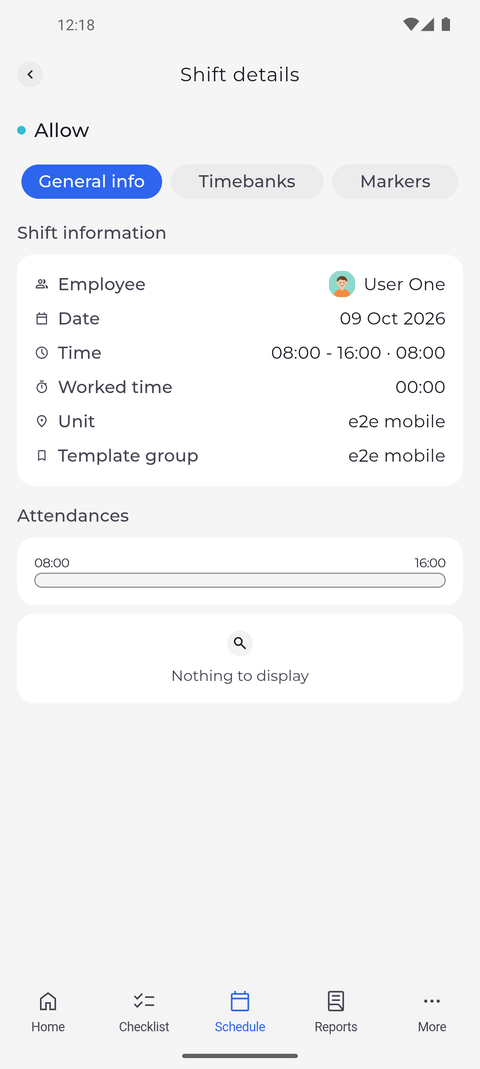
Tap a shift card to open it. Shift details shows the action at the top and three tabs, starting on General info. Shift information lists the Employee, Date, Time, Worked time, Unit and Template group, and Attendances below it shows the planned hours as a bar.
Tip: Under Shift information, Time shows the planned hours with their length, and Worked time how long was worked on the shift so far.
Tip: Tap an attendance under Attendances to open its details.
Tip: If nobody has clocked in for the shift yet, Attendances shows an empty bar and "Nothing to display", and Worked time reads 00:00.
-
Step 2: Timebanks shows what the shift adds to the employee's time banks
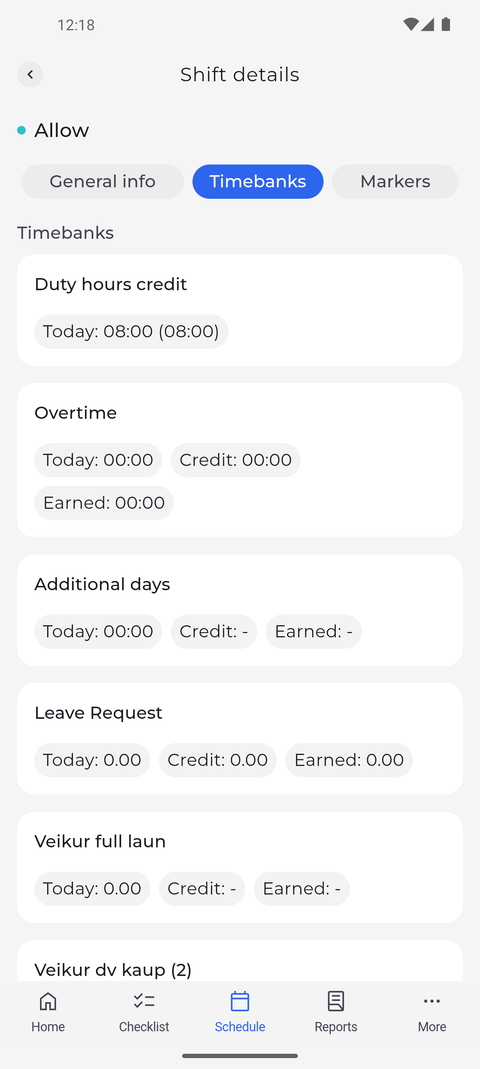
Tap Timebanks. Each time bank has its own card with its values for this shift. Scroll down to see them all.
Tip: Each time bank card shows Today, Credit and Earned for the shift. A dash means there is no value.
Tip: When the shift itself adds to or takes from a time bank, its card also shows Shift with that amount.
Tip: Duty hours credit shows your balance at the end of the shift, with the share of this shift in brackets.
-
Step 3: Markers lists the extra information recorded for the shift
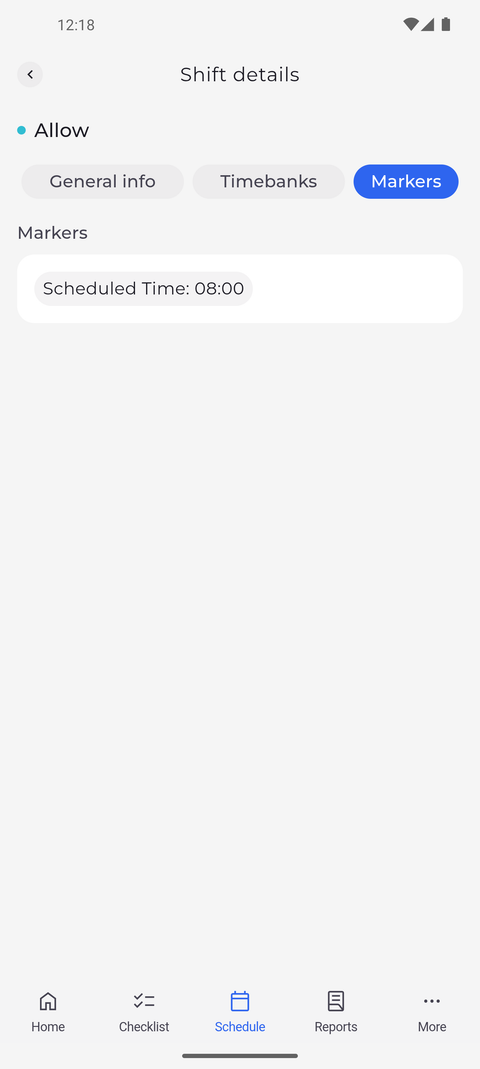
Tap Markers to see the markers recorded for the shift, each with its value.
Tip: A shift without markers says "Nothing to display".
What happens next
You know everything that is recorded for the shift. Tap the back arrow at the top left to leave Shift details.
Good to know
- A ⋮ menu at the top offers only what you may do with this shift - Edit, Delete, Add attendance, Create shift exchange order. If none of them is allowed, the page has no ⋮ menu.
- Add attendance is only offered for a shift of today or earlier, and Create shift exchange order only for your own shift from today on.