


Your schedule
The Schedule tab lists what is planned for you, day by day, under a calendar strip. It opens on your own schedule, so you can see at a glance which days have a shift and which are free.
Step by step
-
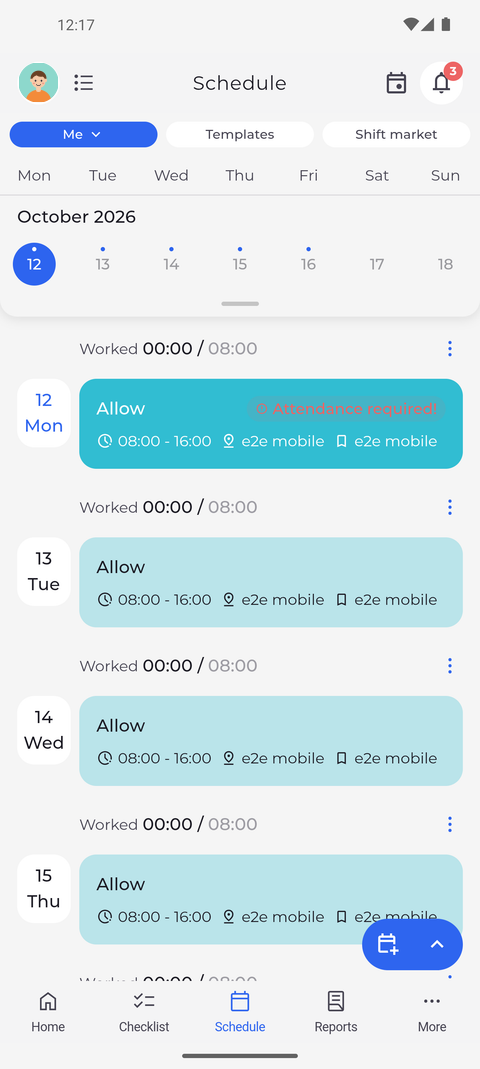
Step 1: Your own days one by one under the week strip - a shift, or Nothing planned
Tap Schedule in the bottom bar. The tab opens on your own schedule in the Agenda view, with Me selected at the top and the week strip below it. Under the strip there is one row per day, showing either a planned shift or Nothing planned.
Tip: The icon to the left of Schedule at the top switches between Agenda, Day and Month. The app remembers the view you picked last.
Tip: A day with planned work shows Worked with the time you worked against the time planned, for example 06:30 / 08:00.
Tip: "Attendance required!" on a shift means the shift has already started and no attendance is registered for it yet.
Tip: The calendar icon at the top right scrolls the list back to today.
Tip: To refresh the schedule, pull down on the header at the top of the screen.
Tip: Of the two round buttons at the bottom right, the arrow opens a list with Add registration request, plus Add shift and Add attendance if you may add those. The other button opens Add registration request straight away, or Add shift if you may plan your own shifts.
What happens next
You can see what is planned for you on each day and open any day for details.
Good to know
- Tap Me and choose My team to see your team's schedule. That view is read-only, without the add buttons, and the app remembers it - choose Me again to get back to your own shifts.
- The Shift market pill next to Templates only appears if the shift market is enabled for your account.