


Switch between Agenda, Day and Month
The Schedule tab can show your schedule in three ways: Agenda lists it day by day, Day shows one day hour by hour and Month shows the whole month at once.
Step by step
-
Step 1: The icon at the top left switches between Agenda, Day and Month
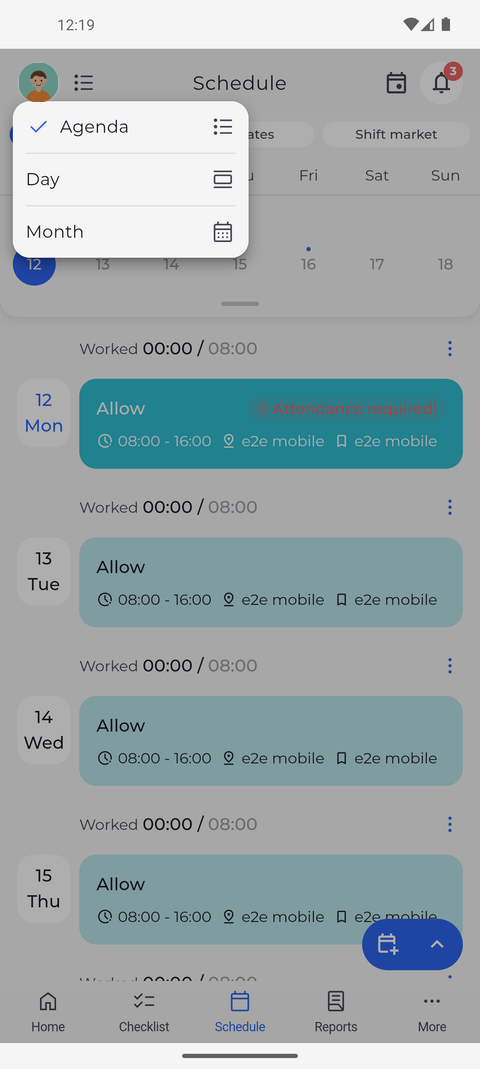
On the Schedule tab, tap the icon to the left of Schedule at the top. A menu opens with Agenda, Day and Month.
Tip: The icon shows the view you are in, and the menu marks it with a tick. The app remembers the view on this phone the next time you open the schedule.
Tip: Only My schedule has these views. Templates, Shift market and the My team view are always shown as a list.
-
Step 2: Day shows one day hour by hour; swipe sideways for the next or previous day
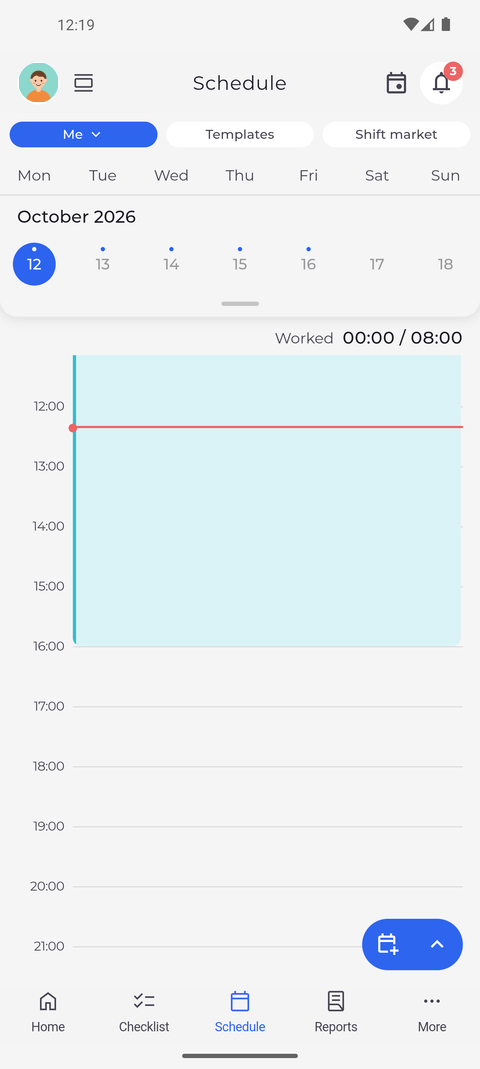
Tap Day. The day selected in the week strip is laid out hour by hour, with each planned entry as a block across its hours.
Tip: Tap an entry in the grid to open the shift, or the attendance if it has no shift.
Tip: Above the grid, Worked shows the time you worked that day against the time planned.
Tip: Today opens at the current time, marked by a red line. Other days open at their first entry, or at 08:00 when nothing is planned.
Tip: Holidays and your registration requests, except rejected ones, are listed above the grid marked all day.
-
Step 3: Month shows the whole month; tap a day to see what is planned
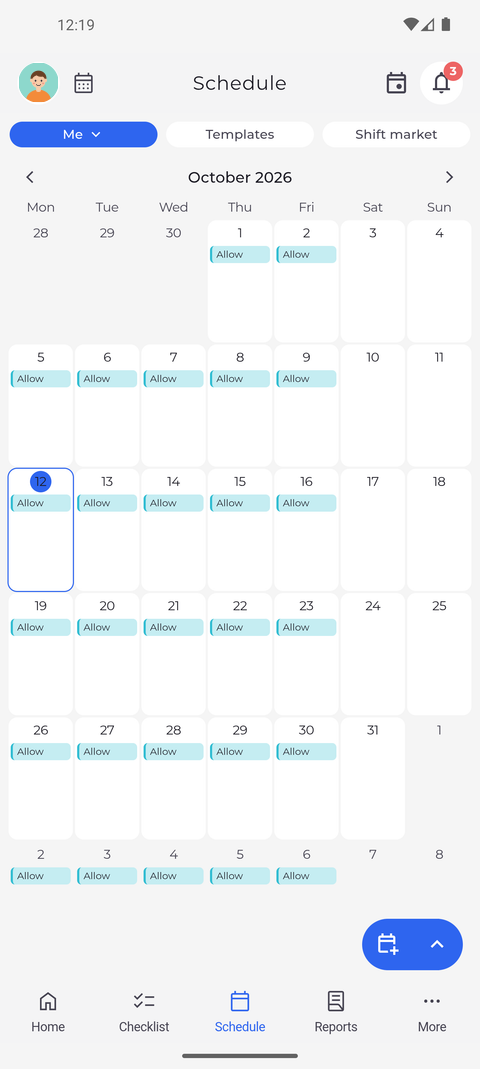
Tap the icon again and choose Month. The month is shown as a grid with today outlined. Planned entries appear as small labels inside their day.
Tip: Tapping a day opens it in Day. To see the whole month again, choose Month in the view menu.
Tip: The arrows next to the month name page to the previous or next month.
Tip: When a day has more entries than fit, it says how many more, for example "2 more...".
What happens next
The schedule is laid out the way you find easiest to read.