


Add to a particular day
Each day in the schedule has its own menu. What you add from it goes on that day straight away.
Step by step
-
Step 1: The menu of a day adds straight to that day
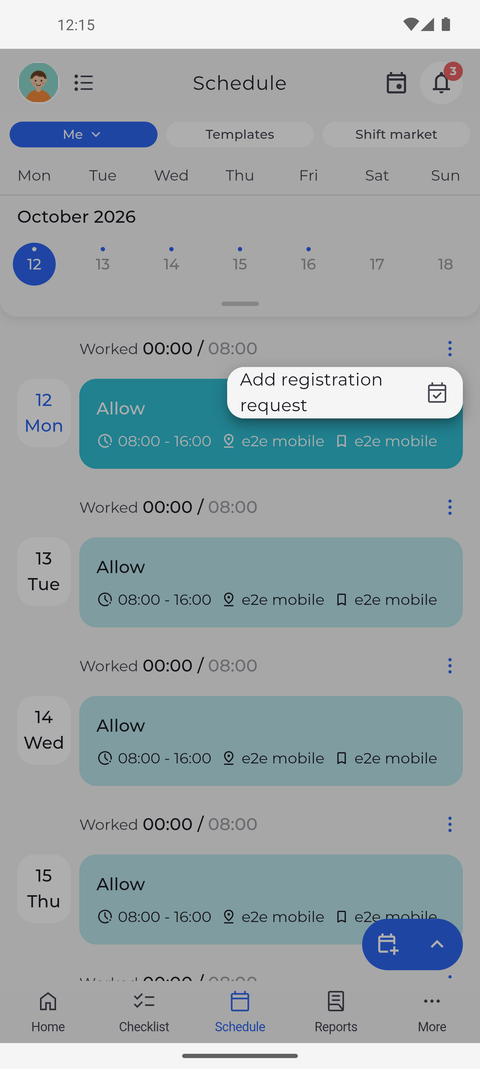
On the Schedule tab, find the day in the list and tap the three dots at the right, just above its row. A menu for that day opens - here for today, with Add registration request. Tap the option you need.
Tip: The ⋮ menu of a day always offers Add registration request. Add attendance is there for today and past days, if your account may add attendances.
Tip: The calendar icon next to the ⋮ adds a shift on that day. It only appears on days you may plan a shift for yourself.
Tip: The form opens with that day already selected.
What happens next
The request, attendance or shift is added on the day you picked.
Good to know
- A row such as "2 available" under a day means templates or shift market offers for that day. Tap it to open Templates or Shift market on that day.