


Send a registration request and cancel it
A registration request asks your manager to accept a change on a day: an action for the hours you choose. You send it from your Schedule, and you can take it back while it is still Pending.
Before you start
You need:
- An action that needs a manager's acceptance
New to the app? Start with Sign in to the MyTimePlan app.
Step by step
-
Step 1: Pick the action, the hours and one or more days, and add a note for your manager
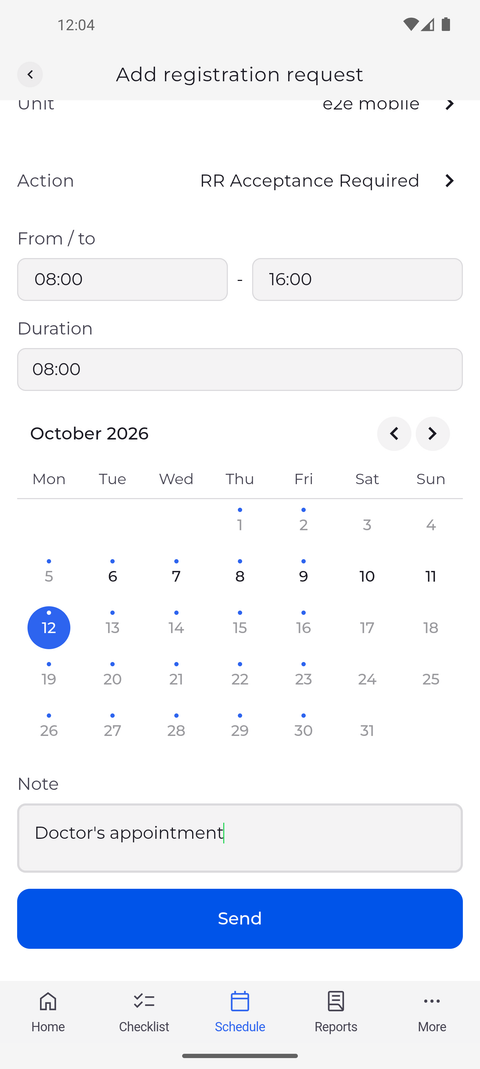
On the Schedule tab, tap the arrow button at the bottom right and choose Add registration request. Tap Action, pick the action you need and tap Confirm. Then tap the two times under From / to to set the hours (Duration shows how long that is), pick the days in the calendar - the day you were looking at is already marked, and you can tap more days to send the same request for each of them - and write a message for your manager under Note.
Tip: Action only lists the actions your company accepts registration requests for. If the one you need is missing, ask your manager.
Tip: Some actions require a Note. For those, Send stays greyed out until you type one.
Tip: The form opens with the day you were looking at in the schedule already selected. Every other day you tap is added to it, and Send creates one request per selected day.
-
Step 2: The request appears on the day as Pending until a manager decides
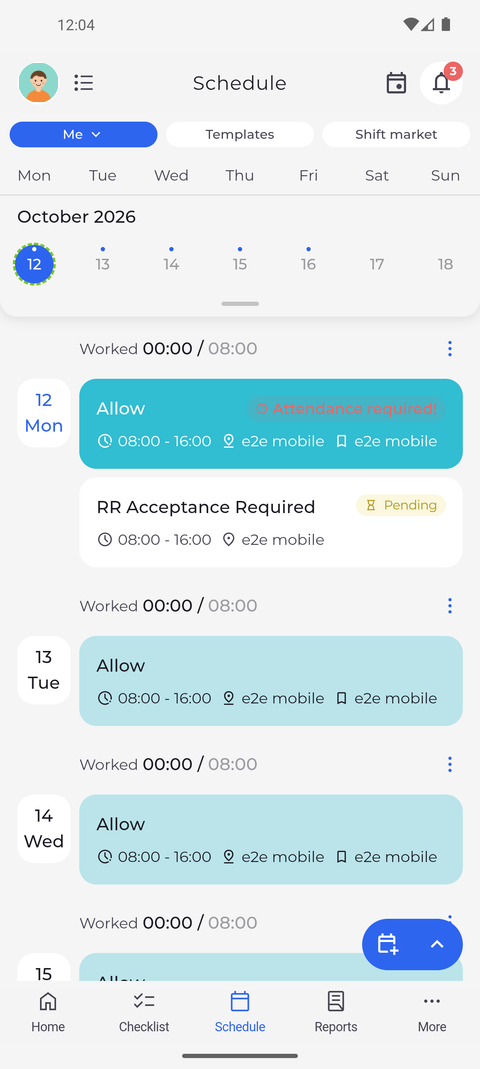
Tap Send. The request appears on that day in your schedule with the action you chose, the hours you set and the unit. It is marked Pending while it waits for a manager.
What happens next
Your request waits on the day as Pending until a manager decides. Once it is accepted, it becomes part of your schedule. While it is still Pending, you can open it and cancel it, and it disappears from the day.
Good to know
- You can cancel a request only while it is Pending: tap it on the day, open the ⋮ menu in Request details and choose Cancel. It is withdrawn at once, without a confirmation.
Questions
Why does the app say "Can't create registration request"?
The action you chose does not need a manager's acceptance, and such a request must overlap one of your shifts ("Request without required acceptance must overlap with existing shift."). Change the hours so they overlap a shift, or choose another action.
A Shift warnings window opened after I tapped Send. What now?
If it offers Overwrite and Insert, your request overlaps another shift: choose one to send it anyway, or Don't change to go back to the form. If it only offers OK, the request was sent and the window just lists warnings.