


Check the details of your request
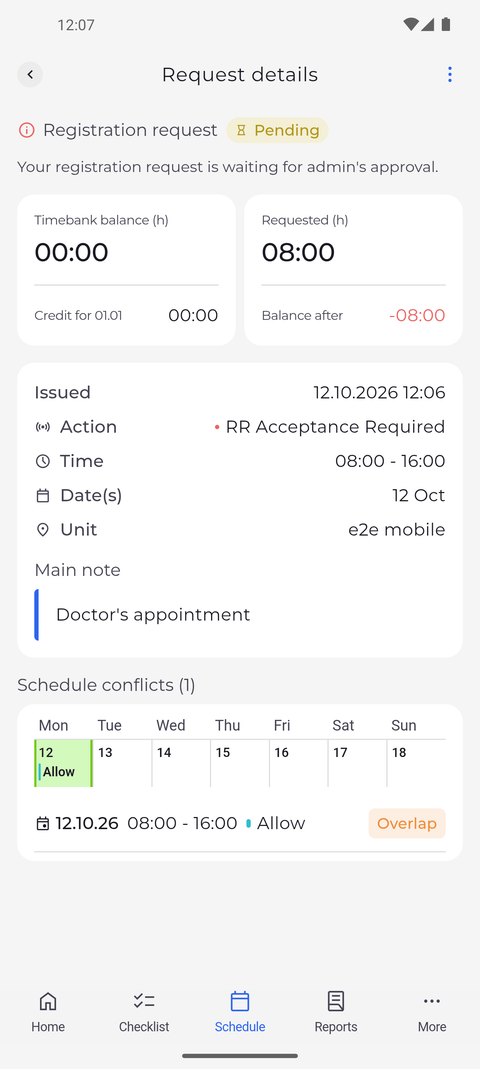
Request details shows everything about a registration request you sent: its status, when you sent it, the hours, the days and your note.
Before you start
Step by step
-
Step 1: Request details shows the status and when you sent the request
On the Schedule tab, tap your request on its day. Request details opens with Registration request and its status at the top. The Issued row shows the date and time you sent the request.
Tip: While nobody has decided, the status reads Pending with "Your registration request is waiting for admin's approval." After the decision it reads Accepted or Rejected.
Tip: If the action draws on a time bank, two cards show your Timebank balance now, what the request takes (Requested) and what it would leave (Balance after). A negative balance after is shown in red.
-
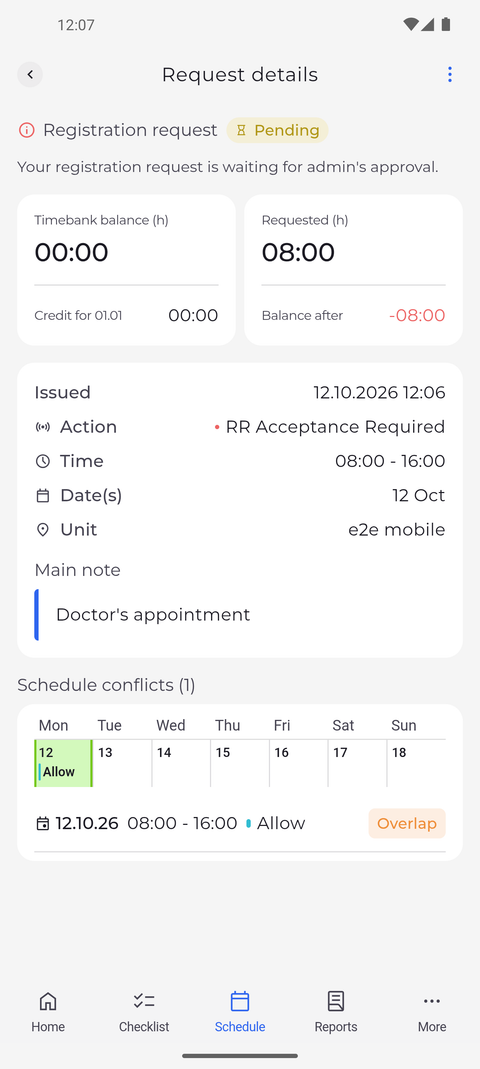
Step 2: Below are the action, the time, the days, the unit and your note
Below Issued are the Action, the Time, the Date(s) and the Unit of the request. Your note is under Main note.
Tip: Time shows the hours you asked for. A request for a whole or half day says All day, First half of the day or Second half of the day instead.
Tip: Date(s) covers all days of the request - days next to each other with the same action and hours count as one request here. When some of them are decided and others are not, each day is listed with its own status.
What happens next
You know where your request stands and exactly what you asked for.
Good to know
- If the request overlaps other shifts of yours, Schedule conflicts lists them under the details, with a small calendar of the days concerned.
- The ⋮ menu at the top offers Edit while none of the days is decided and Cancel while at least one is still pending. Once every day is decided, the menu is gone.