


Requests that need a note
For some actions your company requires a note with every registration request. The form cannot be sent until you write one.
Before you start
You need:
- An action for which your company requires a note
New to the app? Start with Sign in to the MyTimePlan app.
Step by step
-
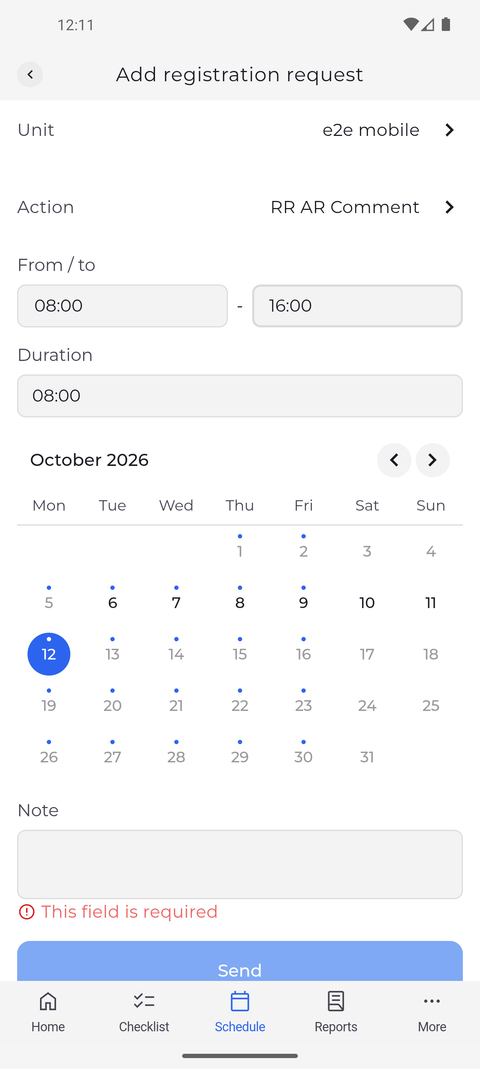
Step 1: With this action the note is required - Send stays off until you write one
On the Schedule tab, tap the arrow button at the bottom right and choose Add registration request. Pick the action and set the hours under From / to, then look at Note and Send at the bottom of the form.
Tip: Your company decides per action whether a note is required. With such an action, Send stays greyed out until Note has text.
Tip: Until you type something, Note shows "This field is required" in red.
Tip: If you switch to an action that does not need a note, Send becomes available again without one.
Tip: Send also stays greyed out while another required field is empty - for example when no day is selected in the calendar.
What happens next
Once you have written a note, Send is available and the request can go out.
Good to know
- Cancel or the back arrow leaves the form without sending anything.
- Your note is shown to whoever decides the request, and to you under Main note in Request details.