


Request several days at once
You can send the same registration request for several days in one go. Each day you pick becomes its own request.
Before you start
You need:
- An action that needs a manager's acceptance
New to the app? Start with Sign in to the MyTimePlan app.
Step by step
-
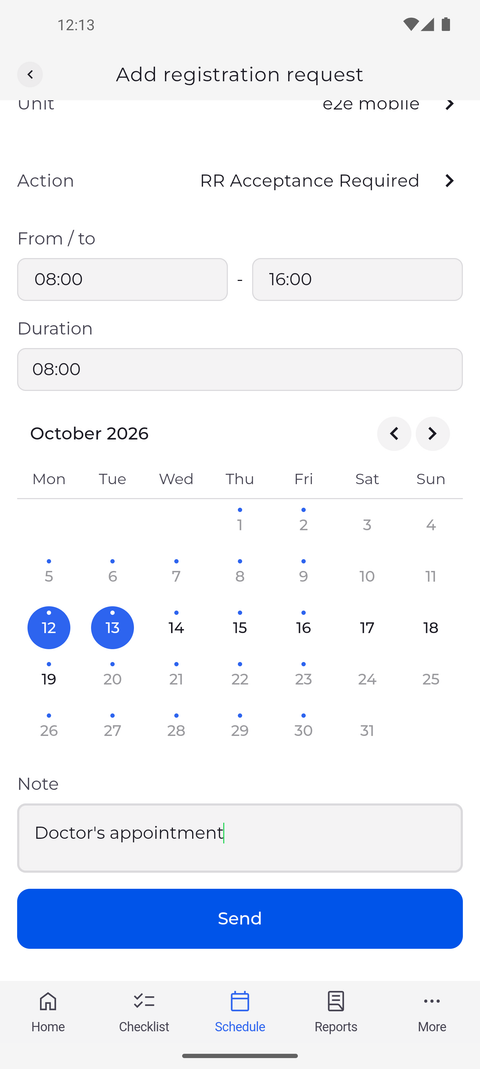
Step 1: Tap more days in the calendar - each one gets the same request
On the Schedule tab, tap the arrow button at the bottom right, choose Add registration request, and set the Action and the hours under From / to. In the calendar, keep the day that is already highlighted and tap each other day you need, so that it is highlighted too. Write your note under Note.
Tip: Every selected day gets the same action, hours and note.
Tip: Tap a highlighted day again to take it out of the request.
Tip: To select several days in a row, put your finger on the first one and swipe sideways along the week.
-
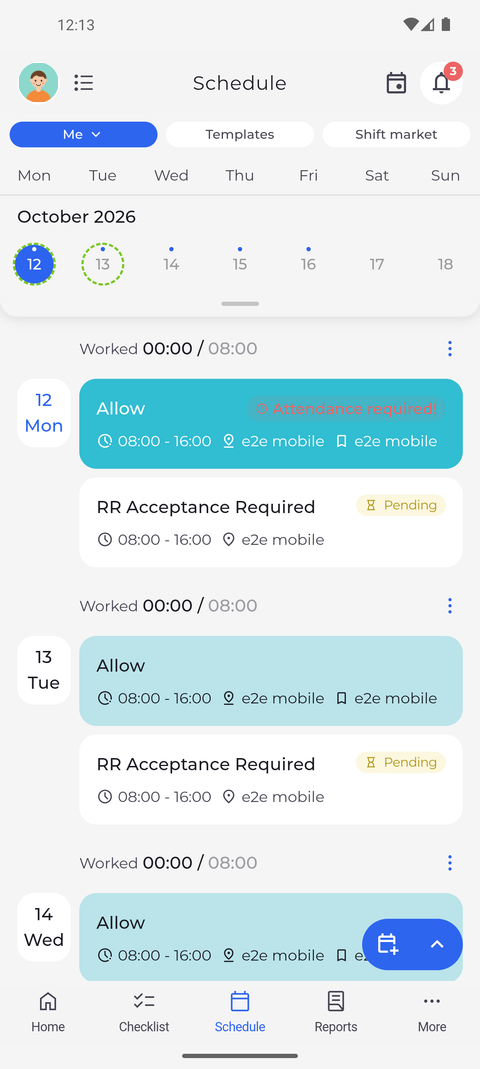
Step 2: Every day you picked now has its own pending request
Tap Send. In your schedule, each day you picked now has its own request with the action, the hours and the unit, marked Pending.
Tip: When you open one of them, Request details shows the neighbouring days with the same action and hours together under Date(s). Cancel there withdraws all of those days that are still pending.
Tip: Each day can get its own decision. When some days are decided and others are not, Request details lists every day with its status.
What happens next
Each day you picked has its own Pending request that waits for a manager's decision.
Good to know
- With an action that needs no acceptance, every selected day is changed in your schedule as soon as you send - and every one of those days must lie over one of your shifts.