


Requests that change your schedule at once
Requests for actions that need no manager's acceptance change your schedule at once, so they must lie over one of your shifts.
Before you start
You need:
- An action that your company applies without a manager's acceptance
New to the app? Start with Sign in to the MyTimePlan app.
Step by step
-
Step 1: A request that needs no acceptance must lie over one of your shifts
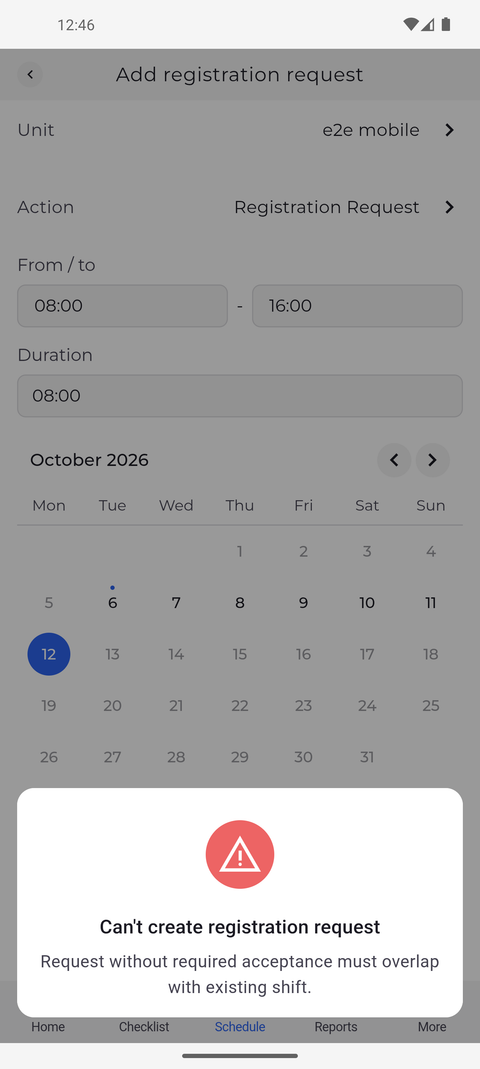
On the Schedule tab, tap the arrow button at the bottom right and choose Add registration request. Choose an action that needs no acceptance, set the hours under From / to and tap Send. If none of your shifts lies under those hours, the app refuses the request and explains why in a message.
Tip: Before such a request goes out, the app checks that it lies over one of your shifts. If it does not, the app shows "Can't create registration request" with "Request without required acceptance must overlap with existing shift." and sends nothing.
Tip: While the app checks your shifts, Send shows a spinner and cannot be tapped again, so the request is not sent twice.
Tip: Close the message, then change the hours or the day so the request lies over one of your shifts, or choose an action that needs a manager's acceptance.
What happens next
You know why the request was refused and what to change so that it can be sent.
Good to know
- A request with such an action is applied to your schedule as soon as you send it, without waiting for a manager.
- Whether an action needs acceptance is set by your company - Action lists the names only, without saying which ones are applied at once. Ask your manager if you are unsure.