


Browse the shift market
The Shift market on the Schedule tab lists the shifts on offer from today on, day by day - your own orders and the ones you can reply to.
Before you start
You need:
- Access to the shift market - without it, the Schedule has no Shift market pill
New to the app? Start with Sign in to the MyTimePlan app.
Step by step
-
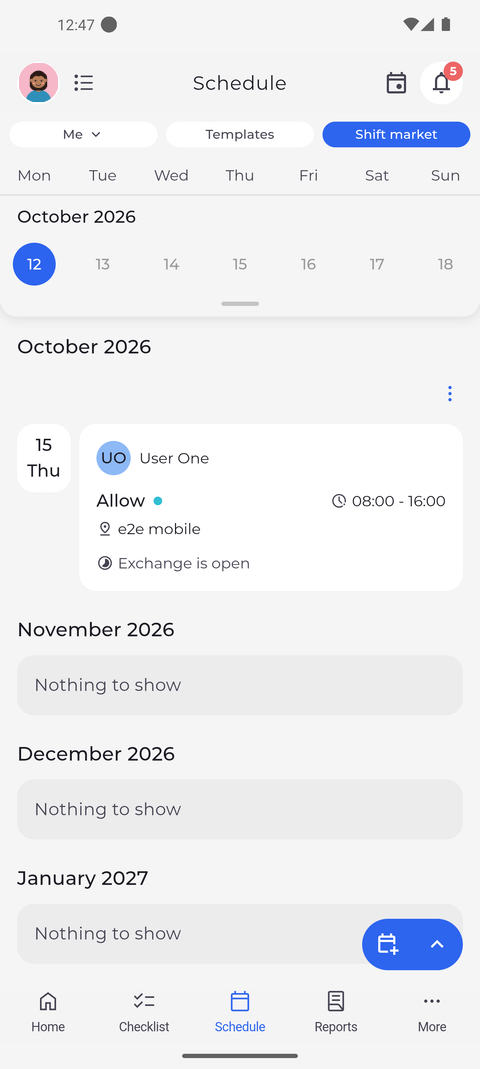
Step 1: The Shift market lists the shifts on offer, day by day
On the Schedule tab, tap Shift market at the top. The orders are listed under the month, day by day. Each card shows who posted the order, the action with its times and unit, and the state of the order at the bottom.
Tip: Your order marks an order of your own. The number at the bottom of the card counts the offers colleagues sent you for it.
Tip: Orders posted by your company are marked Admin and show how many are Available. A colleague's order says Exchange is open. Once you have replied to an order, it says Your offer is pending instead.
Tip: A warning sign on a card means the shift on offer overlaps one of your own shifts. Your own and Admin orders spell it out as Shift overlap.
Tip: Tap one of your own orders to follow it, or someone else's order to reply to it.
-
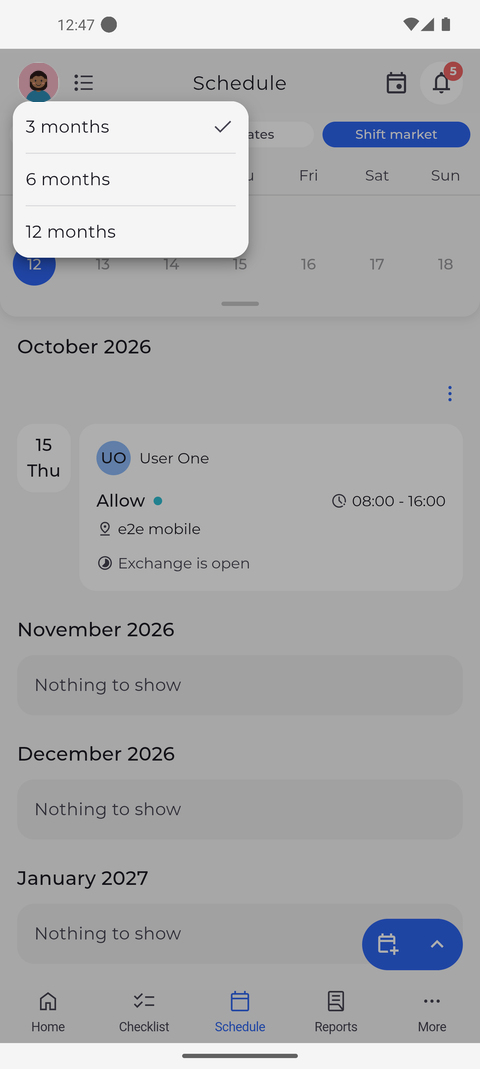
Step 2: Look 3, 6 or 12 months ahead
To change how far ahead the list reaches, tap the icon at the top left. A menu opens with 3 months, 6 months and 12 months - tap the range you want.
Tip: The list starts today and reaches 3 months ahead unless you choose 6 or 12. The menu ticks the range in use.
What happens next
You see which shifts are on offer and which of your own orders got replies.
Good to know
- Only days with an offer are listed. A month without any says "Nothing to show".