


Follow your shift exchange order
Open one of your own shift exchange orders on the Shift market to see who it went to, the shifts you offer and the replacement offers colleagues sent you.
Before you start
You need:
- Access to the shift market - without it, the Schedule has no Shift market pill
- An open shift exchange order of your own
New to the app? Start with Sign in to the MyTimePlan app.
Step by step
-
Step 1: Your order shows who it was sent to, your shifts and the offers you got
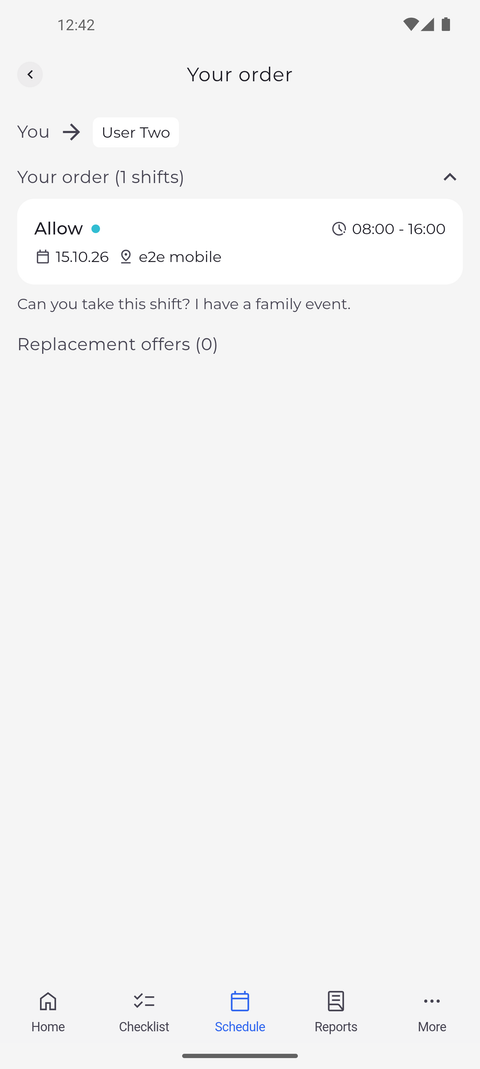
On the Schedule tab, tap Shift market, then tap a card marked Your order. The Your order page opens: at the top, an arrow leads from You to the people the order was sent to. Below, under a heading with the number of shifts, come the shifts you offer, each with its action, times, day and unit, then the message you added to the order, and at the bottom the replacement offers, one row per colleague.
Tip: The line at the top shows who the order was sent to: Everyone, or the people you chose. Tap the chip with a plus and a number to see more names, and Hide to fold them again.
Tip: Tap the heading with the number of shifts to fold or unfold the shifts you offer.
Tip: Each replacement offer shows the colleague and the shifts they offer in return. Tap one to see it next to your own shifts.
Tip: Pull the page down to reload the order and see replacement offers that came in since you opened it.
What happens next
You know who has replied to your order and with which shifts.
Good to know
- Exchange shifts on a replacement offer accepts it at once - the app does not ask you to confirm - and says "Shifts exchanged successfully".
- If the app says "Could not exchange shifts", the shifts were not swapped and you stay on the offer - tap Exchange shifts again to retry. If a window lists errors instead, nothing was exchanged; if it lists only warnings, the shifts were exchanged anyway.
Questions
How do I withdraw my order?
The app has no way to withdraw an order. Ask your manager if it has to be withdrawn.