


Offer one of your shifts on the shift market
Put one or more of your own shifts on the shift market, choose who may see the order and add a message for your colleagues.
Before you start
You need:
- Access to the shift market and the right to post your own orders - without it, the add button on the Shift market tab offers no Create shift exchange order
- At least one shift of your own from today on
New to the app? Start with Sign in to the MyTimePlan app.
Step by step
-
Step 1: A new order starts with the shift you offer
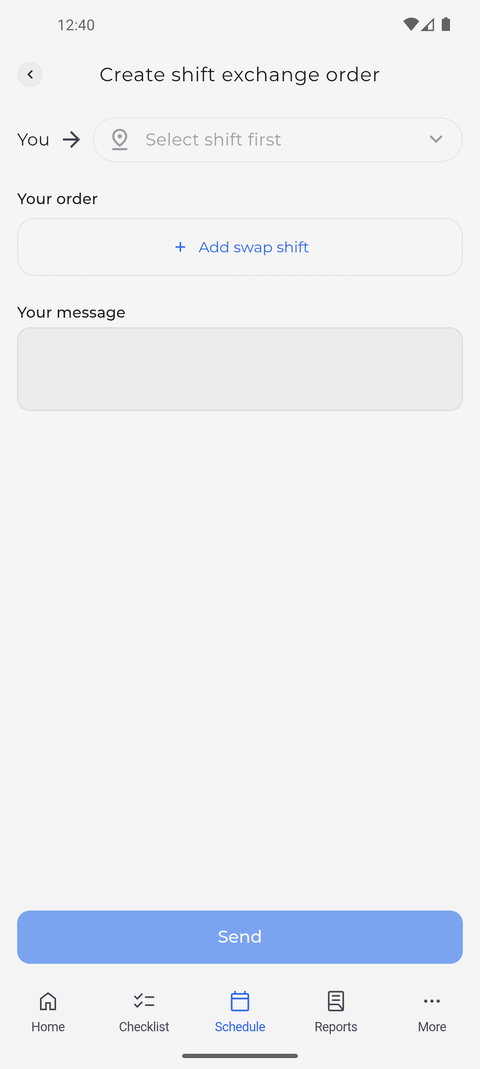
On the Schedule tab, tap Shift market at the top. Tap the blue add button at the bottom right and choose Create shift exchange order. The new order opens empty: tap Add swap shift under Your order to add the shift you want to give away.
Tip: Send and the recipient list stay off until you have added a shift; until then the list says "Select shift first".
-
Step 2: Tick the shift you want to give away
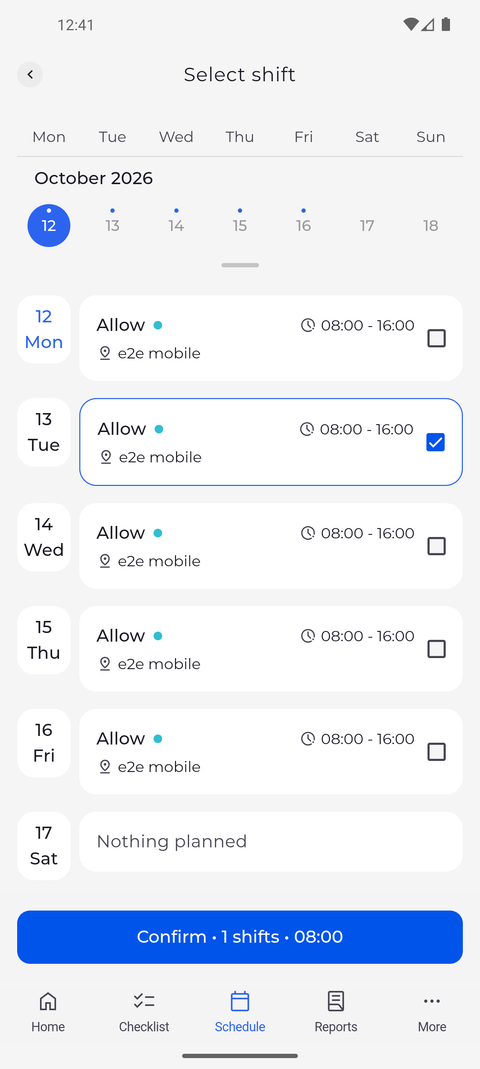
Select shift lists your shifts day by day, each with a box at its right. Tick the shift you want to give away, then tap the Confirm button at the bottom.
Tip: Only your shifts from today on are listed - past shifts cannot be offered. You can tick several for one order; Confirm counts them and adds up their hours.
-
Step 3: Send it to everyone, or untick Everyone and choose units or people
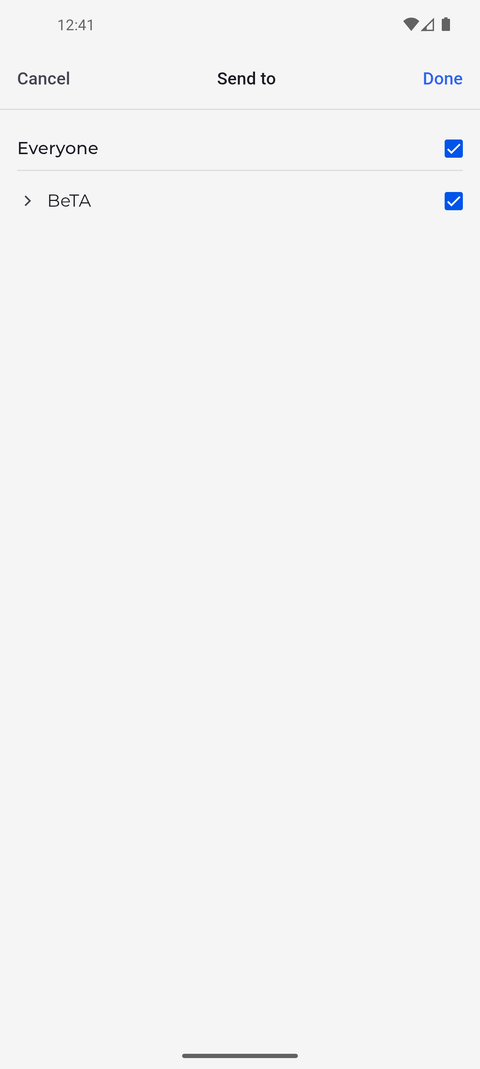
Back on the order, tap the field next to You at the top to choose who sees the order. Send to opens with Everyone and, below it, the units of your company, each with a box to tick.
Tip: Everyone is ticked at first. Tick a unit to choose all its people at once, or tap its name to open it and pick single people. Done keeps your choice, Cancel drops it.
-
Step 4: Check the order and add a message for your colleagues
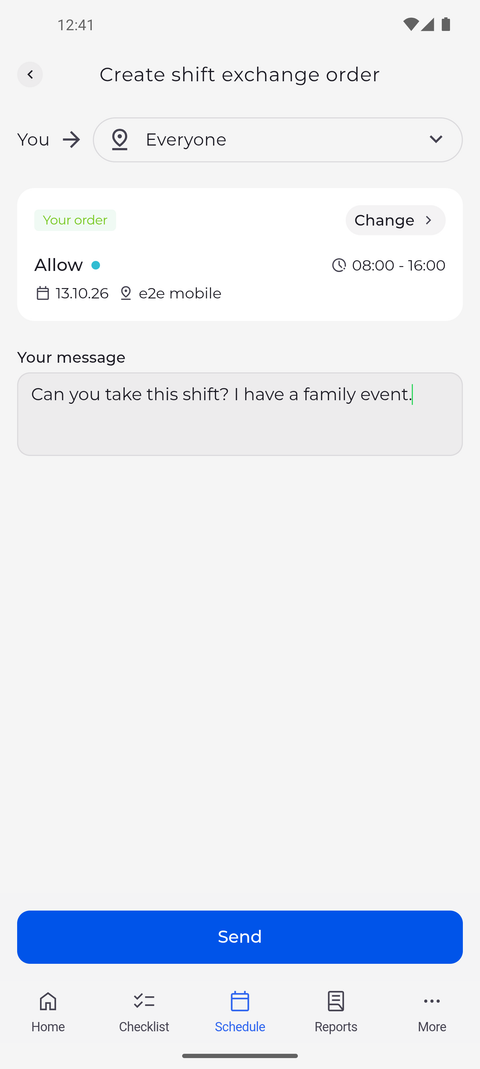
The field next to You now shows who will see the order, and the card marked Your order shows the shift with its day, times and unit. Type a note for your colleagues under Your message, then tap Send.
Tip: The message is optional. Tap Change on the shift card to pick other shifts.
-
Step 5: The order is created
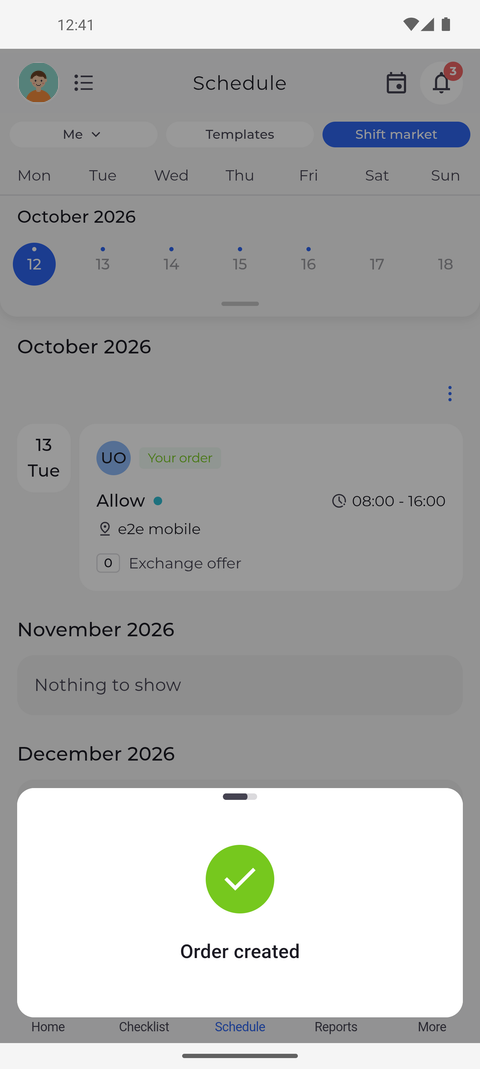
The app confirms with Order created and takes you back to the Shift market. Your order is listed on the day of the shift and marked Your order.
What happens next
Your shift is on the shift market for the colleagues you chose, and the Shift market marks it Your order.
Good to know
- If the app says "Could not create the order", nothing was posted and you stay on the order to try again.
Questions
Why does the add button not offer Create shift exchange order?
The option only shows on the Shift market tab of the Schedule, and only if your company lets you post your own orders. Ask your manager.