


Delete an attendance
If an attendance was recorded by mistake, you can delete it from its details page. The app asks you to confirm before it removes the attendance.
Before you start
You need:
- Access to your attendances
- Deleting this attendance - without it, Delete is not in the menu
- At least one finished attendance
New to the app? Start with Sign in to the MyTimePlan app.
When to use it
When an attendance was recorded by mistake, for example a clock in you did not mean to make.
Step by step
-
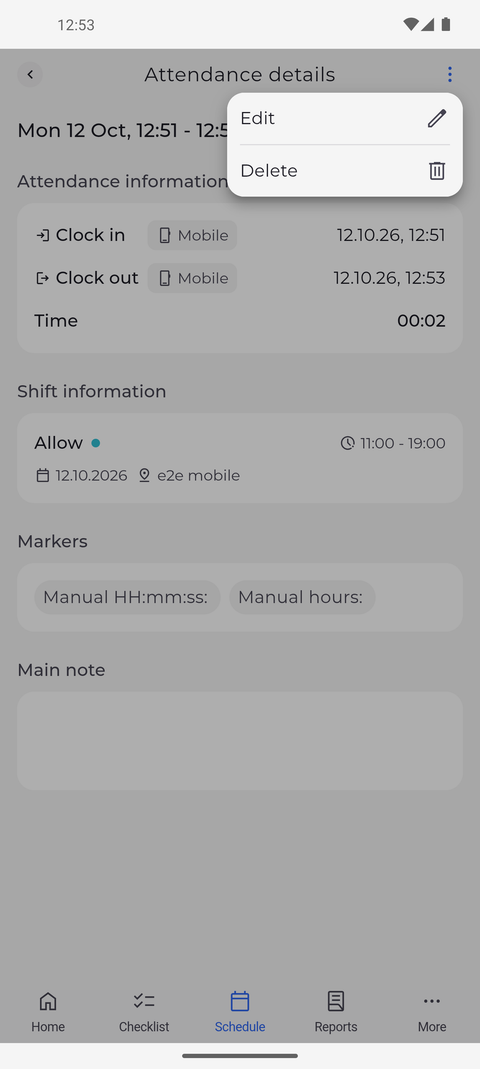
Step 1: The menu of an attendance offers Edit and Delete when you may change it
Open the details of the attendance - for your last one, tap the arrow next to Last attendance on Home. On Attendance details, tap the three dots at the top right. A menu opens with Edit and Delete.
Tip: Delete only appears if you are allowed to delete this attendance, and Edit only if you are allowed to change it - you may see one without the other.
Tip: If Delete is missing although your manager has just given you the right, pull the page down - the page reloads and checks again what you may do.
-
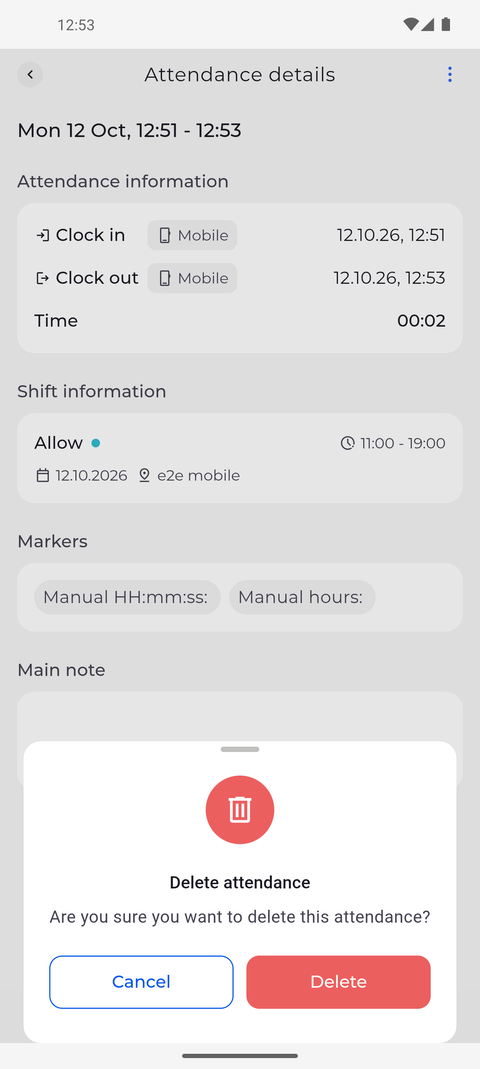
Step 2: Confirm with Delete - or Cancel to keep the attendance
Tap Delete. The Delete attendance window slides up and asks "Are you sure you want to delete this attendance?". Tap the red Delete button to remove the attendance.
Tip: Tap Cancel, or swipe the window down, to keep the attendance.
What happens next
The attendance is removed and no longer counts as your working time.
Good to know
- After the deletion the app shows "Attendance deleted" and goes back to the previous screen. Last attendance on Home is updated straight away.
- The app cannot bring a deleted attendance back. If you deleted the wrong one, add it again (press and hold Clock in) or ask your manager.
Questions
What does "Operation failed" mean after I tap Delete?
The attendance was not deleted and its details page stays open. Check your connection and try again; if it keeps failing, ask your manager.