


Hold Clock in to set a different start time
If you started work but did not clock in at the time, press and hold Clock in instead of tapping it. You set the time you really started, and the app clocks you in from that time.
Before you start
You need:
- Clock in / clock out from the mobile app
- Adding attendances yourself - without it, holding Clock in does nothing
- You are not clocked in (the card shows Clock in)
New to the app? Start with Sign in to the MyTimePlan app.
When to use it
When you started work but did not clock in at the time.
Step by step
-
Step 1: Hold Clock in - the attendance editor opens with the start time set to now
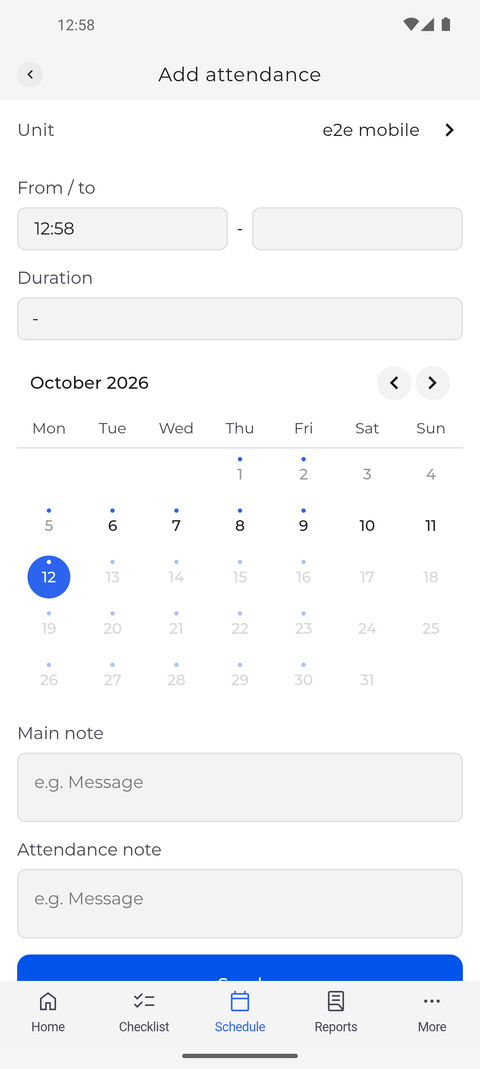
On Home, press and hold Clock in on the Attendance card - the button reads Hold to set start time on its right. Add attendance opens with the current time in the first From / to field and the second field empty. Below them you see Duration, a calendar with today selected and the note fields, starting with Main note.
Tip: The editor starts with your base unit, not the unit selected on the card. Tap Unit to choose the one you are working at.
-
Step 2: Set the time you really started, leave To empty and tap Send
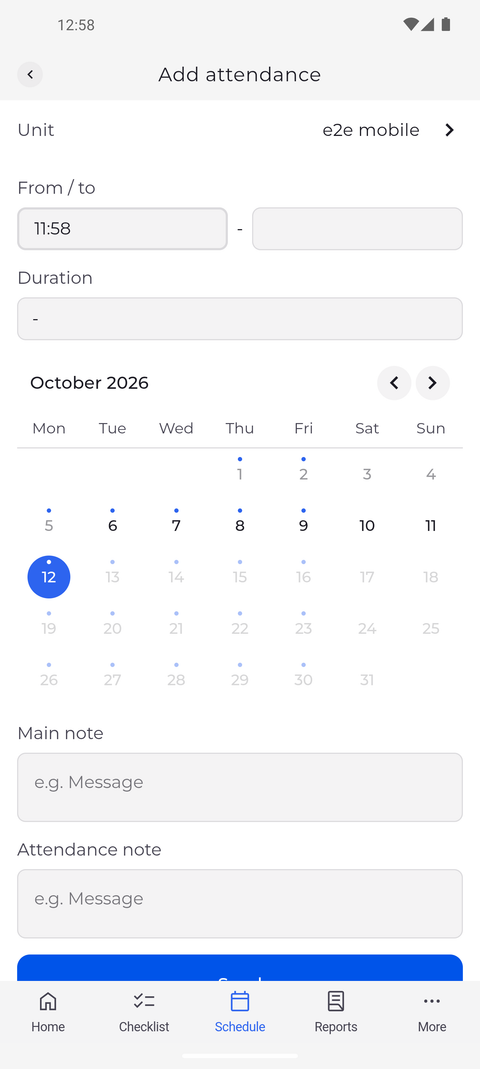
Tap the first From / to field and change it to the time you really started. Duration shows a dash as long as there is no end time. Scroll down and tap Send.
Tip: Leave the end time and Duration empty and you are clocked in from the start time you set. If you fill in either of them (a duration fills in the end time for you), the attendance is saved as finished and you stay clocked out.
Tip: Today is already selected in the calendar, and every day you tap is added to it - each selected day gets its own attendance with the same times. For an earlier day only, tap today to clear it, then tap that day. Days after today are greyed out.
Tip: After you tap Send, the button shows a spinner and cannot be tapped again until the app has an answer, so the attendance is not added twice.
-
Step 3: You are clocked in from the time you set
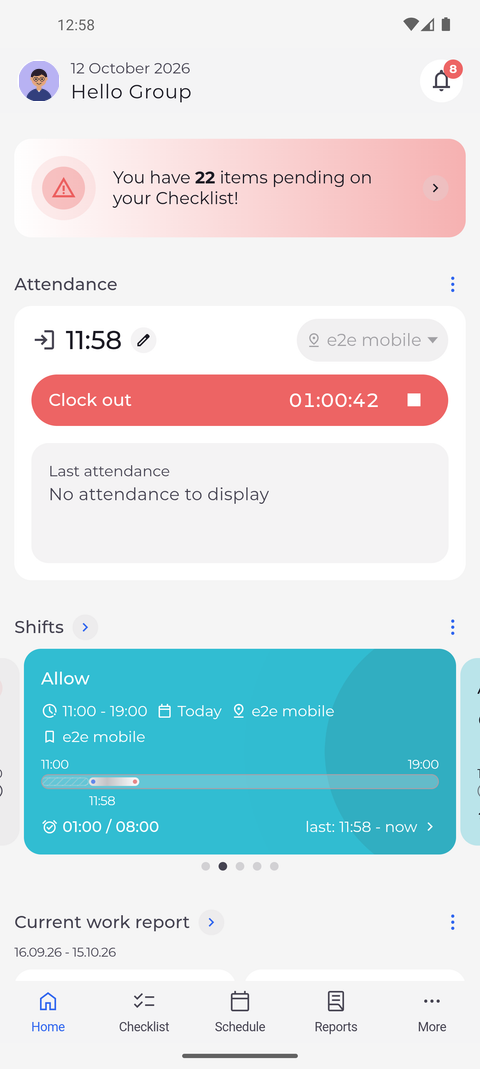
The app returns to Home. The Attendance card shows the start time you set and the red Clock out button, with a counter that runs from that time. The unit is greyed out while the attendance is running.
What happens next
You are clocked in from the time you really started. When you finish work, tap Clock out as usual.
Questions
Why does nothing happen when I hold Clock in?
Your company does not let you add attendances yourself, so holding the button does not open the editor. Tap Clock in briefly to clock in at the current time, and ask your manager to correct the start time.
Why does the app say "Attendance start time cannot be in the future"?
The start time you set is later than now. Choose a time that has already passed and tap Send again. An end time later than now is refused the same way, with "Attendance end time cannot be in the future".
Why did an Attendance warnings window open after I tapped Send?
The new attendance affects your shifts. If the window shows only warnings, the attendance is saved: tap OK and leave the editor with the back arrow. If it shows errors and a Don't change button, nothing was saved: tap it, correct the times or the unit and tap Send again.