


Clock in and clock out
Clock in and Clock out is how you record your working time in the app. You tap Clock in when you start working and Clock out when you finish; the app timestamps both moments and saves the result as an attendance, so you do not have to write hours down or report them later.
Before you start
You need:
- Clock in / clock out from the mobile app
- At least one unit you are allowed to work at
New to the app? Start with Sign in to the MyTimePlan app.
When to use it
Whenever you start or finish work and your workplace records attendance through the app.
Step by step
-
Step 1: Open the Home screen and find the Attendance card
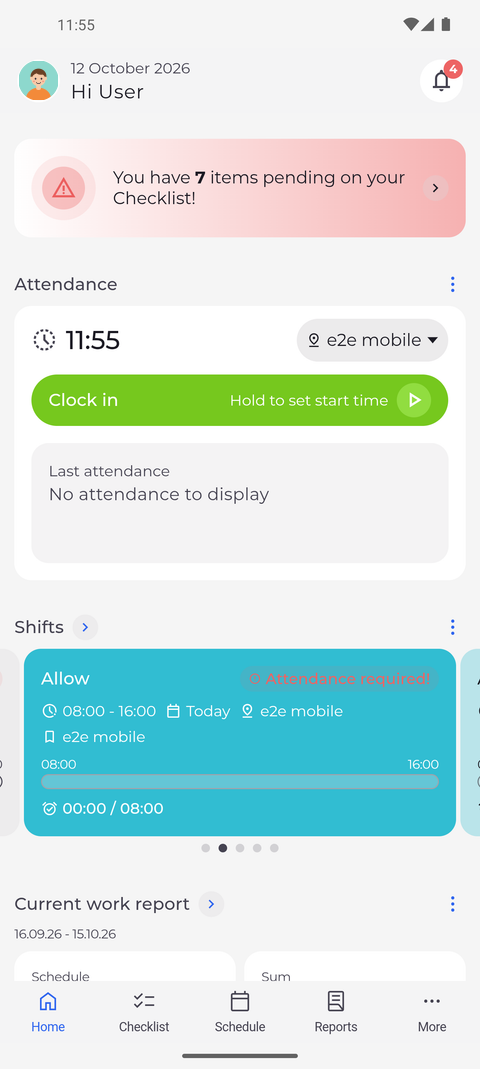
On the Home screen, scroll to the Attendance card. It shows the current time, the unit your time will be booked to, a green Clock in button and, below it, Last attendance. As long as you have no finished attendance, it reads No attendance to display.
Tip: If you do not see an Attendance card on Home, it is switched off for your account. Ask your manager.
Tip: If you hid the Attendance card yourself (the ⋮ next to Attendance, then Hide widget), turn it back on under More → Settings → Home screen.
Tip: If your company only allows clocking from certain networks, the card says "Checking network..." for a moment while it loads. Clock in appears as soon as the check is done.
-
Step 2: Optionally change the unit you are clocking in atOptional
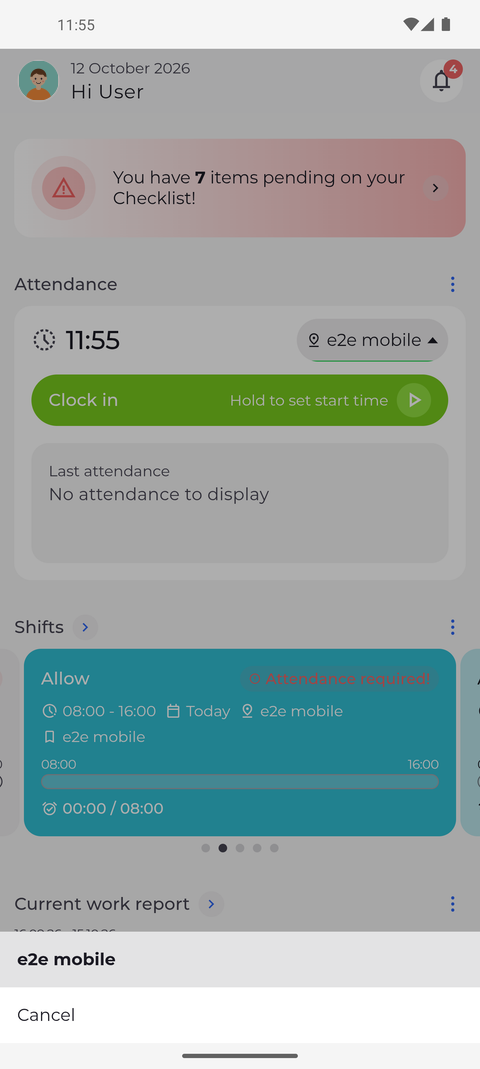
The card already selects a unit for you, so you can usually skip this step. If you are working somewhere else today, tap the unit name at the top right of the card and pick the right unit from the list; only the units you are allowed to work at appear.
Tip: Choose the unit before you clock in - once an attendance is running, the unit is locked.
-
Step 3: You are clocked in and the card starts counting your time
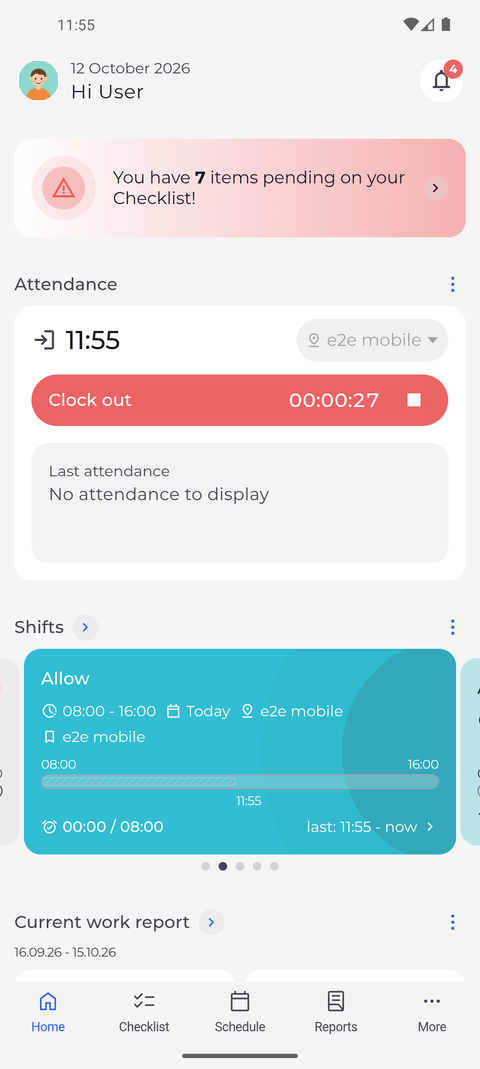
Tap Clock in. The button turns red and now reads Clock out, a counter next to it starts running and the unit is greyed out because it can no longer be changed.
Tip: You can close the app and carry on working - the time keeps running on the server, not on your phone.
Tip: To correct the start time, tap the pencil next to it or press and hold Clock out - both open Edit attendance. The pencil only appears if you are allowed to change this attendance.
Tip: If your running attendance starts later than the time on your phone, Clock out stays greyed out and the counter shows 00:00:00 until that time is reached.
-
Step 4: You are clocked out and the finished attendance appears under Last attendance
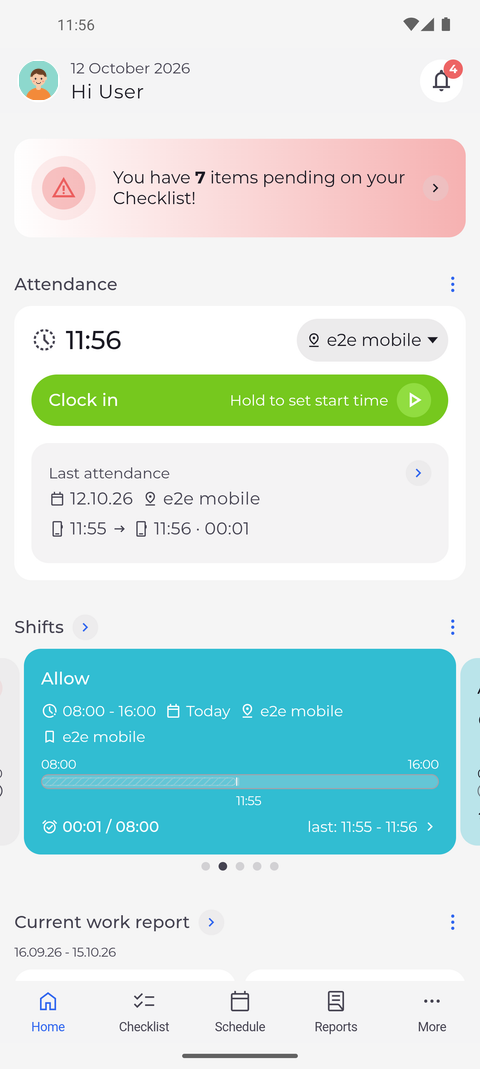
When you finish, tap Clock out. The button turns green and reads Clock in again, and your finished attendance appears under Last attendance with its date, unit, start time, end time and duration.
What happens next
Your working time is recorded and visible to you and to your manager. The finished attendance is listed under Last attendance on the card, and it is included in your reports for the period.
Good to know
- Press and hold Clock in instead of tapping it to set a different start time.
- Some networks do not allow clocking. If the card says "Cannot clock from current network", connect to an allowed network - usually your workplace Wi-Fi.
- A second tap while the first one is still saving is ignored, so you cannot create two attendances by accident.
Questions
Why did an Attendance warnings window open after I clocked in or out?
It lists the errors and warnings for the shifts affected by this attendance. Read them and tap OK. If the button did not change afterwards (to Clock out, or back to Clock in), the attendance was not saved - ask your manager.
Why does the card say "You do not have access to attendances."?
Your account is not allowed to view attendances, so the card cannot show Last attendance. Ask your manager to change this.
The button says "Hold to set start time" - why does nothing happen when I hold Clock in?
The hint is always shown, but holding only opens the editor if your company lets you add attendances yourself. Without that, tap Clock in to start at the current time and ask your manager to correct the start time.
Why does "No connection to the server. Check your internet connection and try again." appear after I tap Clock in or Clock out?
Your phone could not reach MyTimePlan. The app does not send a clock in or clock out again by itself, so nothing is recorded twice. Check your connection, then look at the card: if the button has not changed, tap it again.