


Filter your team's schedule
In the My team view of the schedule you can narrow the list to a unit, an action or a status, for example to see who is late or has not clocked in.
Before you start
You need:
- Your account can see the units of your team - the team view lists the people of the units you can see
New to the app? Start with Sign in to the MyTimePlan app.
Step by step
-
Step 1: The team view sums up the day - who is late, not clocked in or away
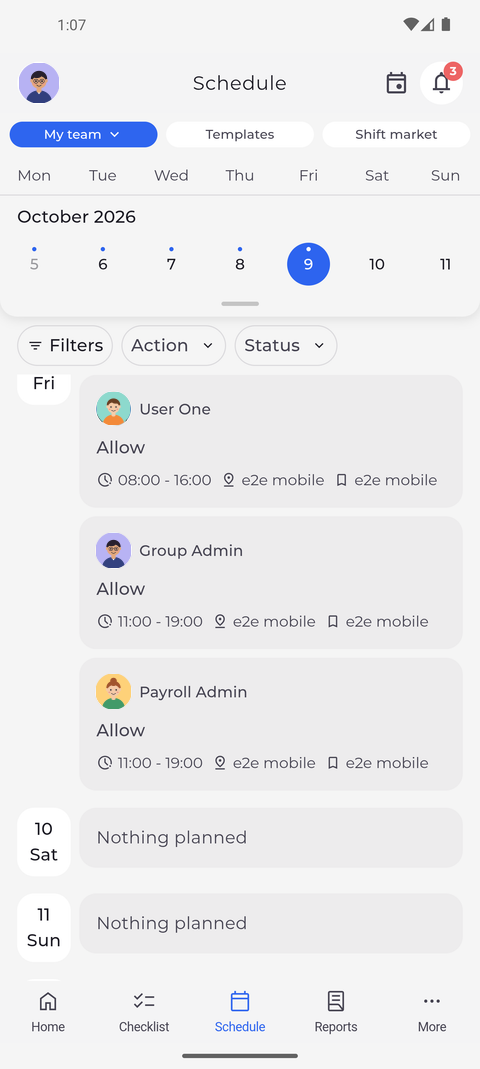
On the Schedule tab, tap Me at the top left and choose My team. Each day with something planned now starts with Daily summary, followed by one card per colleague with the shift or attendance, its times and unit. The filter bar above the list offers Filters, Action and Status.
Tip: The filter bar folds away while you scroll down the list. Scroll up a little to bring it back.
-
Step 2: Filter by unit, action or status to find who you are looking for
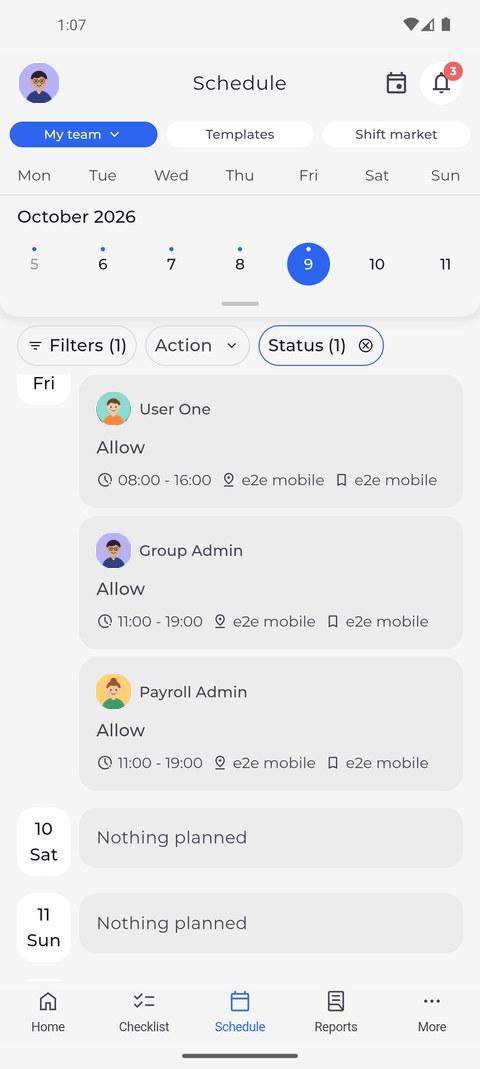
Tap Filters, pick what you are looking for - here the status Not clocked in - and tap Show results. The list keeps only the colleagues who match.
Tip: Unit is only in the Filters overview - choose units there and tap Show results. Action and Status also have their own chips on the bar.
Tip: Status offers All, Clocked in, Late, Not clocked in and Unavailable. On a day ahead only Unavailable can match, because nobody has clocked in yet.
Tip: Not clocked in lists shifts that have already started with no clock-in. Late lists shifts whose clock-in came at least a minute after the start, unless the person is still clocked in.
Tip: A chip with a number has a filter on. Tap its cross to clear it, or tap Clear and then Show results in Filters to clear them all.
What happens next
Only the colleagues that match your filters are listed.
Good to know
- The counts in Daily summary are worked out from the filtered list, so they always match the cards below them.
- Your filters stay when you switch to Me and back to My team.