


See your team
MyTeam shows who is working on a given day, grouped by unit, and lets you find a colleague by name or narrow the list with filters.
Before you start
You need:
- Your account can see at least one unit - MyTeam lists the people of the units you can see
New to the app? Start with Sign in to the MyTimePlan app.
Step by step
-
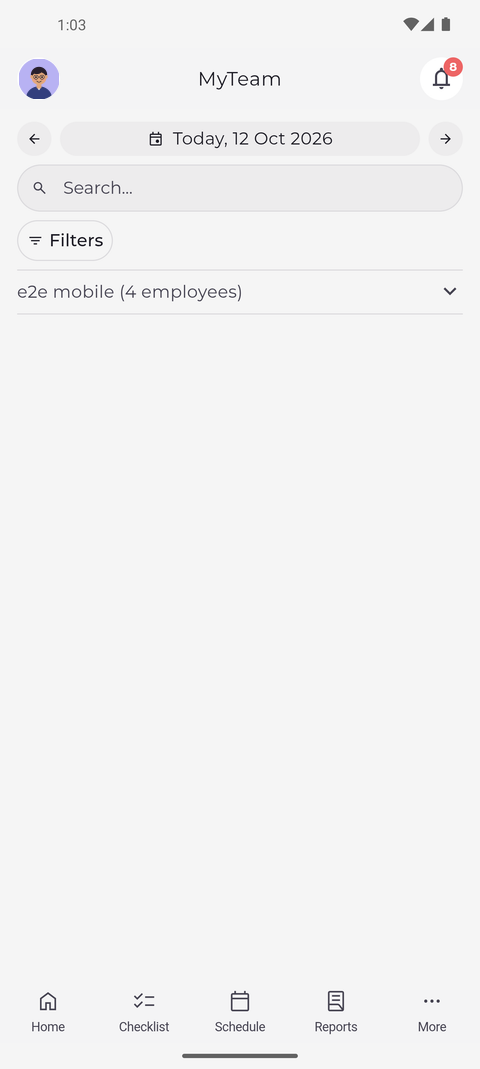
Step 1: MyTeam lists your colleagues by unit for the selected day
Tap More in the bottom bar, then MyTeam. The page opens on today and lists the people by unit, each unit with its number of people. Tap a unit to expand it and see its people.
Tip: People are grouped by their own base unit, so a colleague from another unit who works in yours that day appears under the name of their own unit.
Tip: Use the arrows next to the date to see the previous or next day. On a day in the future the cards show only the plan, without Clocked in, lateness or "not clocked in".
-
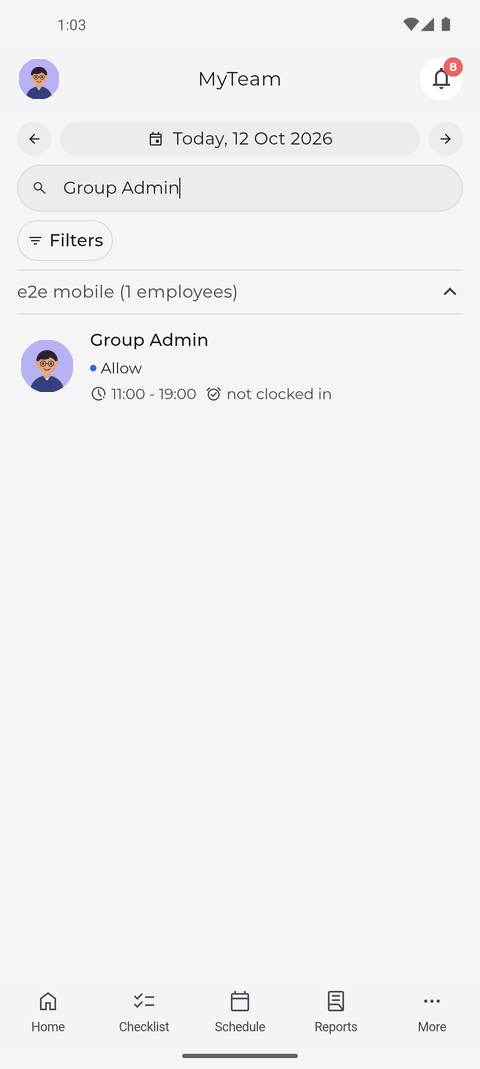
Step 2: Search by name to find someone quickly
Tap Search... and type a name. Only the units with a matching person stay in the list, already expanded, so you see that person's card for the day straight away.
Tip: The search matches any part of a person's first or last name, whether you type upper or lower case.
What happens next
You can see who is scheduled, working or unavailable on a given day. Clear the search field to see all units again.
Good to know
- On a card, Clocked in means the person is working right now, Extra that they worked without a planned shift, and Unavailable that they have time off. A label such as "5' late" or "1 h late" shows how late they clocked in; while they are still clocked in, the card shows Clocked in instead.
- "No shift!" on a card means nothing is planned for that person on the selected day; "not clocked in" means they have a shift but no attendance yet.
- Tap Filters to narrow the list by Status, Attendance, Unit or Employee, then tap Show results. A filter chip with a number is active; tap its cross to clear it.
- Each time you open MyTeam it starts on today. Only coming back from a person's details keeps the day you were on.
- Pull the list down to reload it. This also picks up units that were added or renamed since you signed in.
Questions
Why does MyTeam say "No employees to display"?
Nobody matches your search or filters on the selected day. Clear the search field or the active filters to see everyone again. If the list stays empty with no search or filter, your account cannot see any unit - ask your manager.