


See a colleague's details
Open a person from MyTeam to see how to reach them, the units they work in, and their shifts, skills and time banks.
Before you start
You need:
- Your account can see at least one unit - MyTeam lists the people of the units you can see
New to the app? Start with Sign in to the MyTimePlan app.
Step by step
-
Step 1: General shows how to reach the person and the units they work in
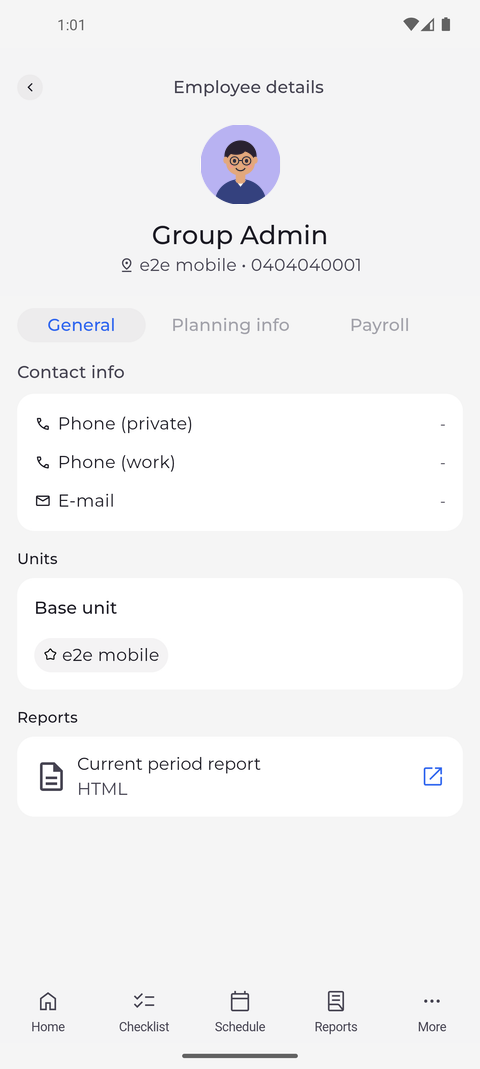
In MyTeam, find the person, for example with Search..., and tap their name. Employee details opens on General, with Contact info and Units, where the Base unit is shown apart from the other units the person works in.
Tip: Contact info lists Phone (private), Phone (work) and E-mail. A line you may not see is left out; "-" means it is not filled in.
Tip: Current period report under Reports opens the person's report for the running period. It appears only if you may view that person's reports.
Tip: Under Units, the Base unit is marked with a star. The other units the person works in are listed below it.
-
Step 2: Planning info lists the person's shifts, skills and time banks
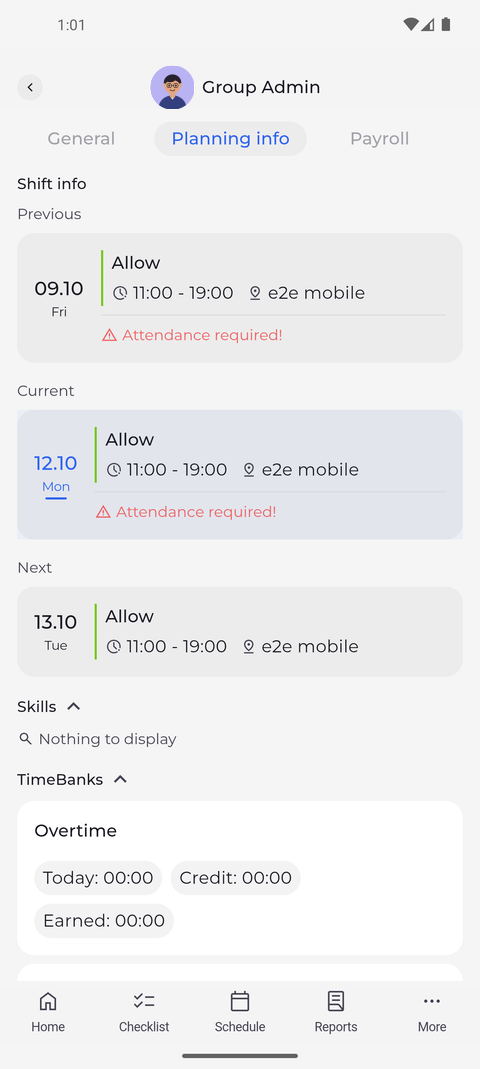
Tap Planning info to see Shift info, Skills and TimeBanks. Scroll down to see all of the person's time banks.
Tip: Shift info shows the Previous, Current and Next shift with its attendances; "Attendance required!" marks a shift that needs an attendance and has none. Tap a shift to open its details.
Tip: Tap Skills or TimeBanks to fold or unfold the section. Each time bank shows its value for today, the credit and what has been earned.
Tip: Under Previous or Current, "No attendance" means no attendance is registered for that shift. "Nothing to display" under Skills or TimeBanks means the person has none.
What happens next
You know how to reach the person and what they are planned for.
Good to know
- Pull the page down to reload the person's details.
- Payroll, Employment & contracts and Documents are not available yet - they say "Coming soon".
Questions
Why does the page say "Couldn't load this employee's details."?
The app could not fetch the person's card, usually because of the connection. Go back and open the person again.