


The Settings page
The Settings page brings together your profile, your company and personal details, how you sign in, and how the app itself looks and behaves.
Step by step
-
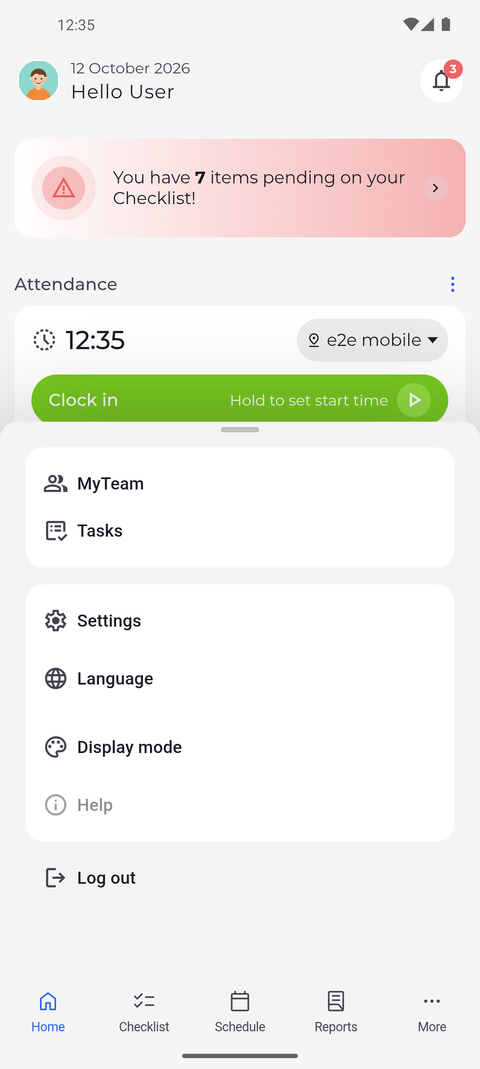
Step 1: Tap More in the bottom bar to reach everything that is not a tab
Tap More at the right end of the bottom bar. A sheet slides up with the pages that are not in the bar, then Settings, Language and Display mode, and Log out at the bottom.
Tip: The rows above Settings are the pages that are not in your bottom bar. Which ones you see depends on your access and on Settings > Menu layout.
Tip: To close the sheet without choosing anything, tap More again or any tab in the bottom bar - also the one you are on.
-
Step 2: Settings opens on your profile, with your company and your data below it
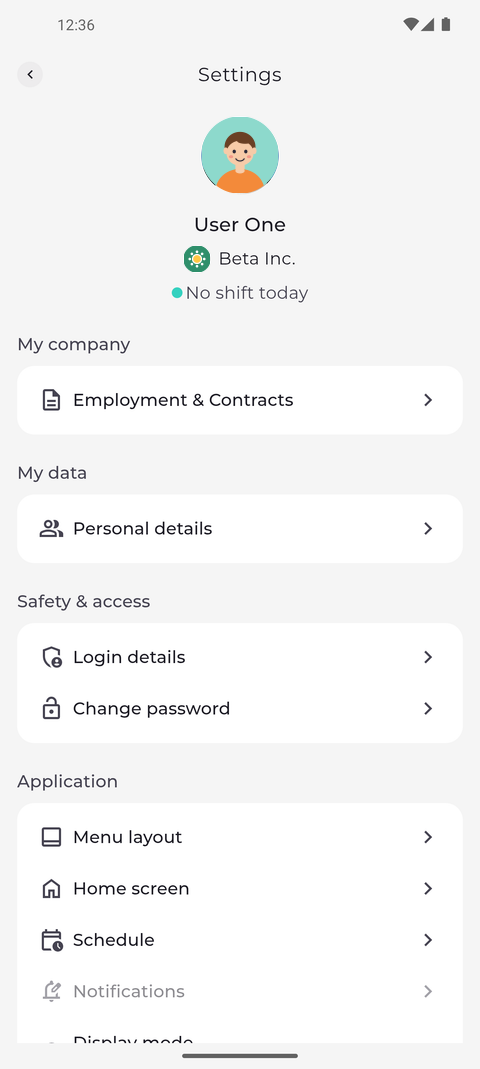
Tap Settings. The page opens on your profile - your picture, your name and company, and whether you have a shift today. Below it are My company with Employment & Contracts, My data with Personal details, and Safety & access with Login details and Change password.
Tip: Tap your profile picture to change or remove it. If nothing happens, changing your picture is not enabled for your account.
-
Step 3: Further down you change how the app itself behaves, and sign out
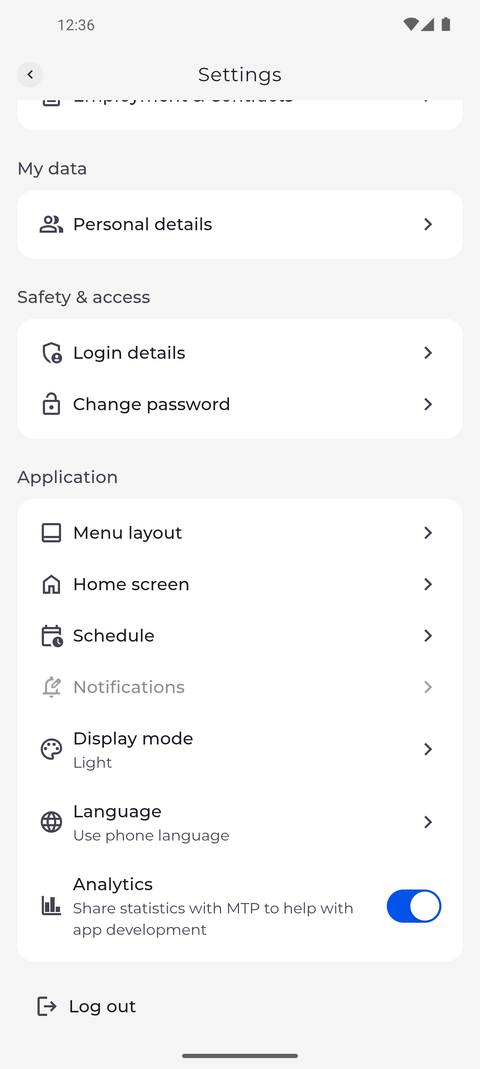
Scroll down to Application. Here you set the Menu layout, what the Home screen shows, your Schedule preferences, the Display mode and the Language; the Display mode and Language rows show your current choice. Log out is at the very bottom of the page.
Tip: Analytics is on until you turn it off. Turn it off to stop sharing usage statistics with MTP; the choice is kept on this phone.
What happens next
You know where your personal details and the app's own settings are, and you reach them again any time through More > Settings.
Good to know
- If you do not see My company with Employment & Contracts, your account cannot see your employment or contract details. Ask your manager.
- Greyed-out rows - Help in the More menu and Notifications in Settings - are not available yet. Tapping them only shows "Feature coming soon!".
Questions
Why does Change password only say "Password change is not allowed"?
Your company does not let you change your password in the app. Ask your manager how to change it.