


Add your birthdate
Add or change your birthdate in Personal details.
Before you start
You need:
- Your company lets you change your birthdate in the app - otherwise the Birthdate row is greyed out
New to the app? Start with Sign in to the MyTimePlan app.
Step by step
-
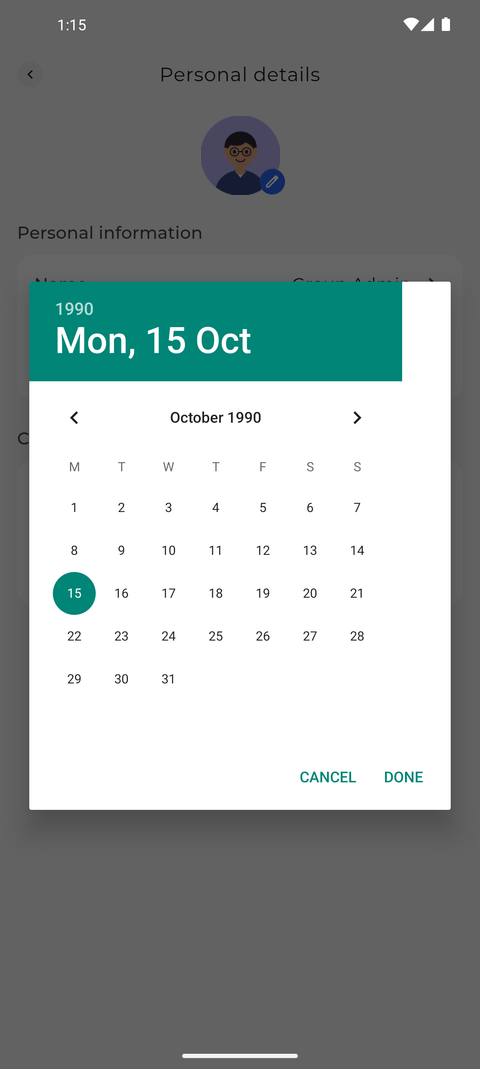
Step 1: Pick the date in the calendar and confirm
Tap your profile picture at the top left of Home to open Settings, then tap Personal details and Birthdate. A calendar opens: tap the year at the top to choose another year, move to the month with the arrows, tap the day and then tap DONE.
Tip: Tap Cancel to close the calendar without changing your birthdate.
-
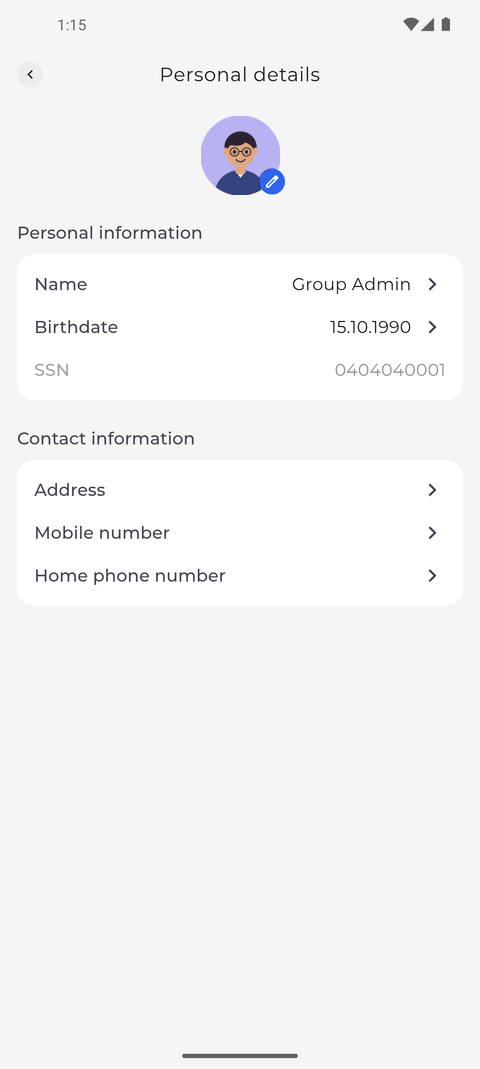
Step 2: The date is saved as soon as you confirm it
The calendar closes, and the Birthdate row under Personal information shows the date you picked.
Tip: There is no Save button - the app saves the date the moment you confirm it and shows "Personal details updated".
Tip: The date is shown as day, month and year, for example 15.04.1990.
What happens next
Your birthdate is saved in your profile and shown under Personal information.
Good to know
- Once a birthdate is saved, the app cannot remove it - you can only pick another date. Ask your manager if it has to be removed.
Questions
Why does nothing happen when I tap Birthdate?
The row is greyed out when your company does not let you change your birthdate in the app. Ask your manager.