


Change your username
Change the username you sign in with in Login details.
Before you start
You need:
- Your company lets you change your username in the app - otherwise the Username row is greyed out
New to the app? Start with Sign in to the MyTimePlan app.
Step by step
-
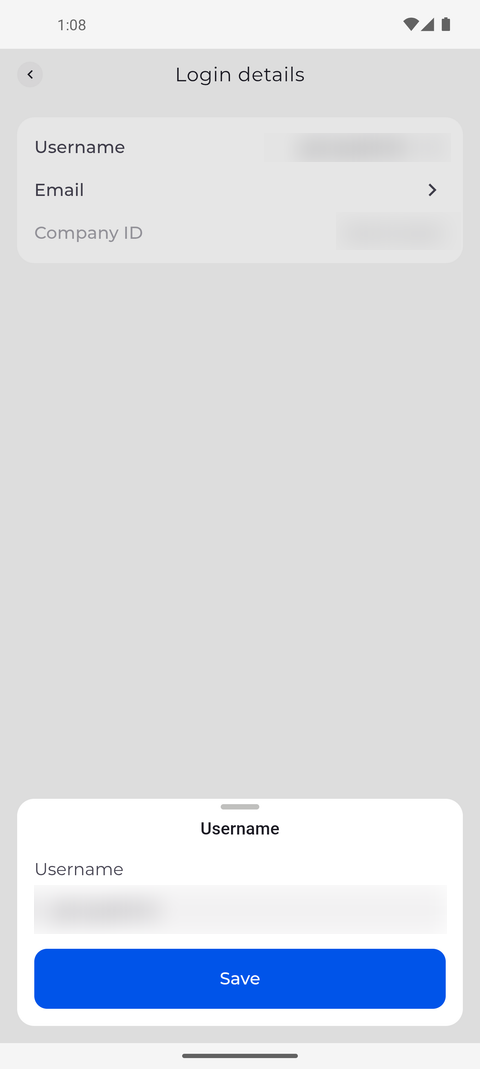
Step 1: The editor shows your current username
Tap your profile picture at the top left of Home to open Settings, then tap Login details and Username. A sheet opens with your current username in the Username field.
Tip: If the Username row is greyed out, your company does not let you change your username - ask your manager.
Tip: Swipe the editor down to close it without saving.
-
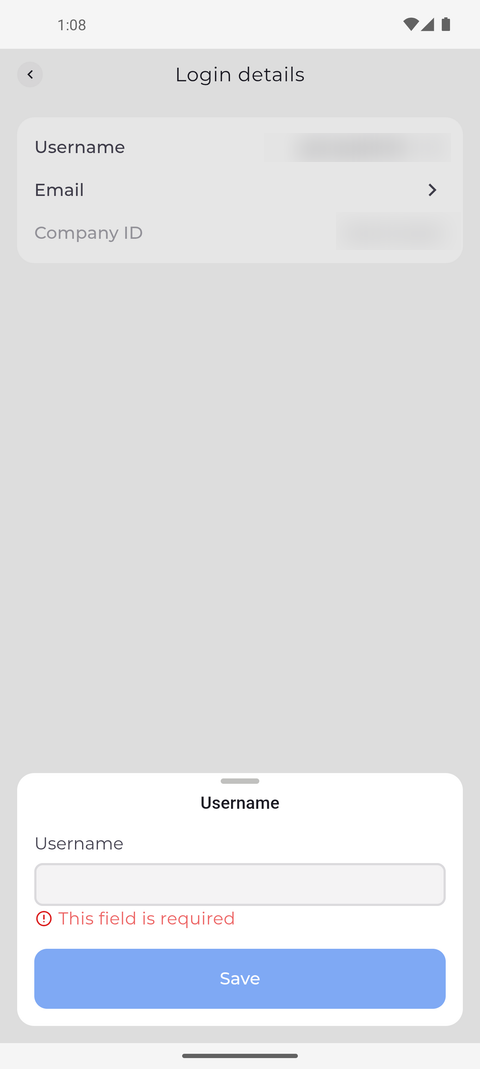
Step 2: The username cannot be empty - Save stays off until the field is valid
Clear the field and type the new username. While the field is empty, the message This field is required appears under it in red.
Tip: About a second after you stop typing, the app checks whether the name is free. A name somebody else already uses shows "The username is not available".
Tip: Save stays off while the field is empty, while the app is checking the name and when the name is taken.
What happens next
Your username changes only when you tap Save with a valid name in the field; until then you keep signing in with your current one.
Good to know
- After you save, the app shows "Personal details updated", and Login details shows the new username.