


Add or change your email
Add, change or remove the email address of your account in Login details.
Before you start
You need:
- Your company lets you change your email in the app - otherwise the Email row is greyed out
New to the app? Start with Sign in to the MyTimePlan app.
Step by step
-
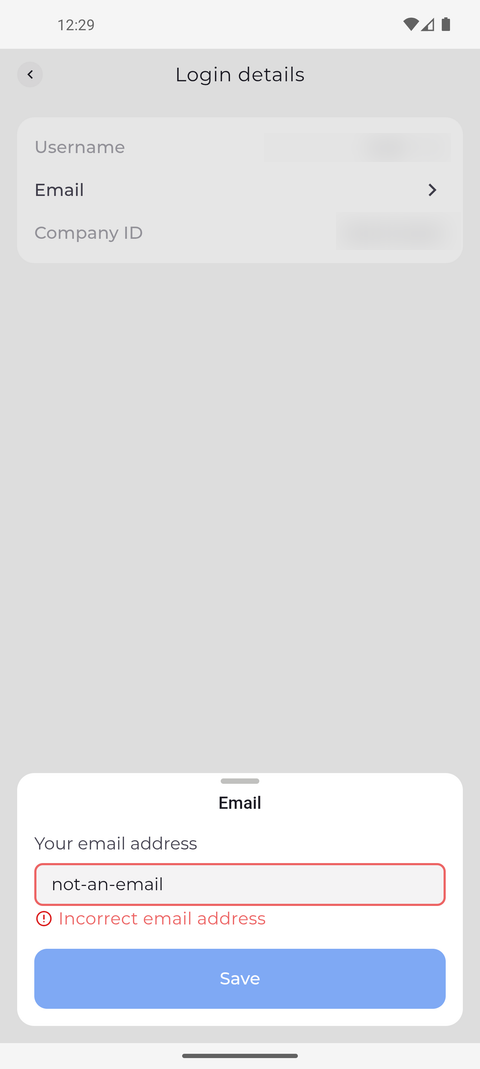
Step 1: The app checks the address as you type - Save stays off until it is valid
Tap your profile picture at the top left of Home to open Settings, then tap Login details and Email. Type your address in the field of the sheet that opens. An address that is not valid yet gets a red frame and an error message under the field.
Tip: "Incorrect email address" stays while the text is not shaped like an email address - a name, an @ and a domain, such as name@example.com - and Save stays off until it is.
-
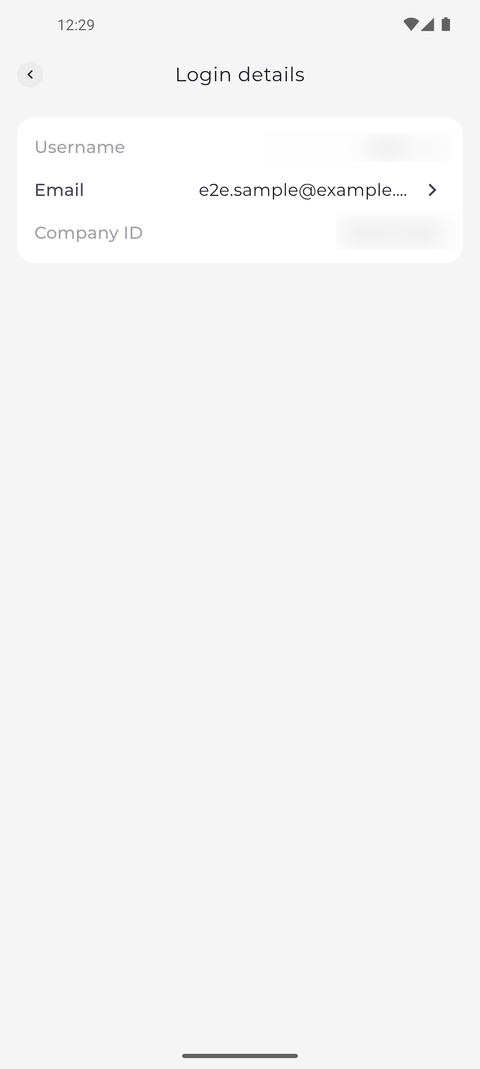
Step 2: The new address is saved and shown in Login details
Type the complete address and tap Save. The sheet closes, and the Email row of Login details shows the new address.
Tip: The app confirms with "Personal details updated". If it says "Operation failed", the address was not changed.
Tip: While the address is being saved, Save shows a spinner and cannot be tapped again. The editor closes once the address is saved; if saving fails, it stays open with what you typed.
What happens next
Your account has the email address you entered, and Login details shows it.
Good to know
- The email address is optional: clear the field and tap Save to remove it.
Questions
Why can I not tap Email?
The row is greyed out when your company does not let you change your email address in the app. Ask your manager.