


Choose the widgets on your Home screen
The Home screen settings let you hide the widgets you do not need on Home and bring them back later.
Step by step
-
Step 1: Home screen lists the widgets you see, in their order
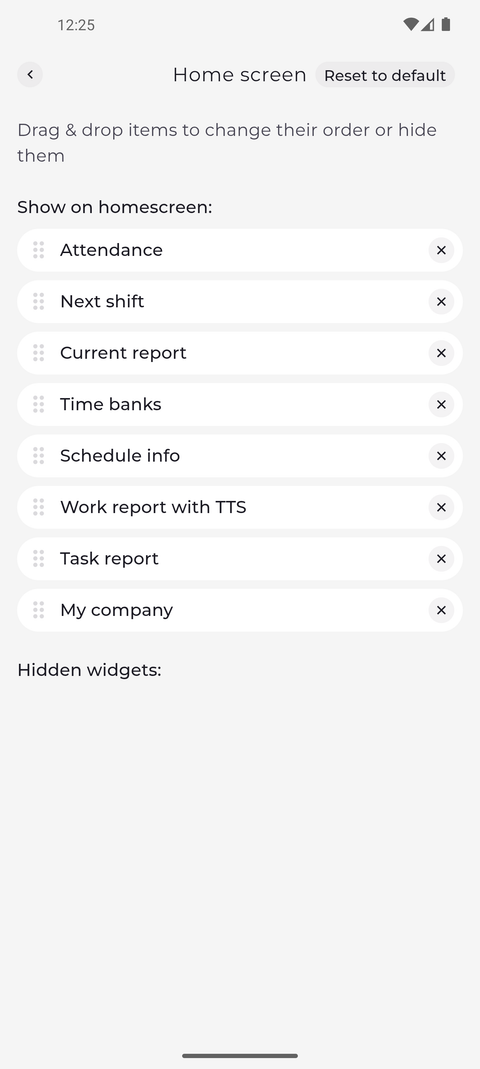
Tap More in the bottom bar, then Settings, and then Home screen. Under Show on homescreen: you see the widgets that appear on Home, in the same order. Hidden widgets: is empty while every widget is shown.
Tip: You can also open this page from Home - tap Widget settings at the bottom of the Home screen.
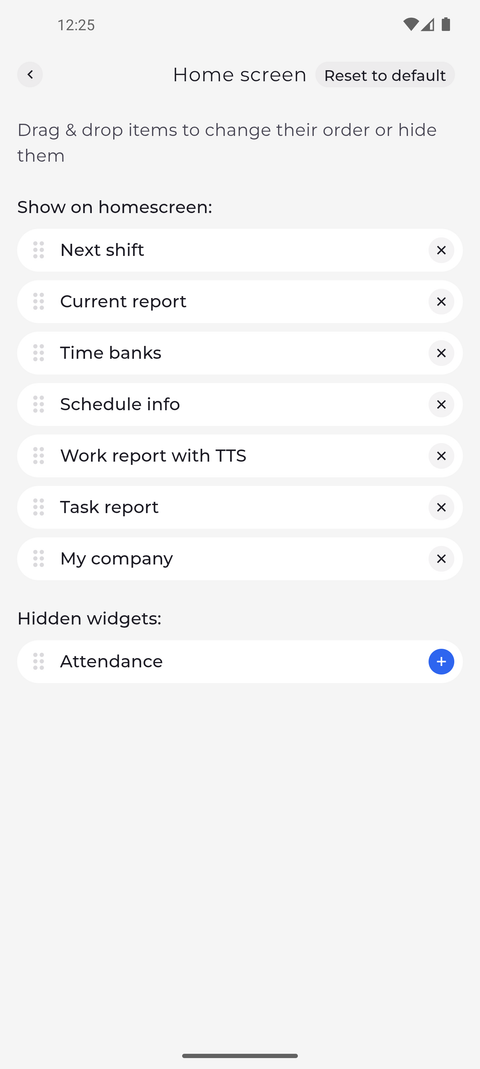
Tip: Drag a widget by its handle to change where it appears on Home, or drag it under Hidden widgets: to hide it.
Tip: The list shows only the widgets your account can use. If a widget such as Attendance or Current report is missing here, it is not enabled for your account - ask your manager.
What happens next
Home shows only the widgets listed under Show on homescreen:. Your choice stays, also after you restart the app, until you change it or tap Reset to default.
Good to know
- Every widget on Home has a three-dot menu next to its title with Hide widget, which hides it without opening Settings.
- Reset to default shows every widget again, in the original order.