


Arrange the widgets on Home
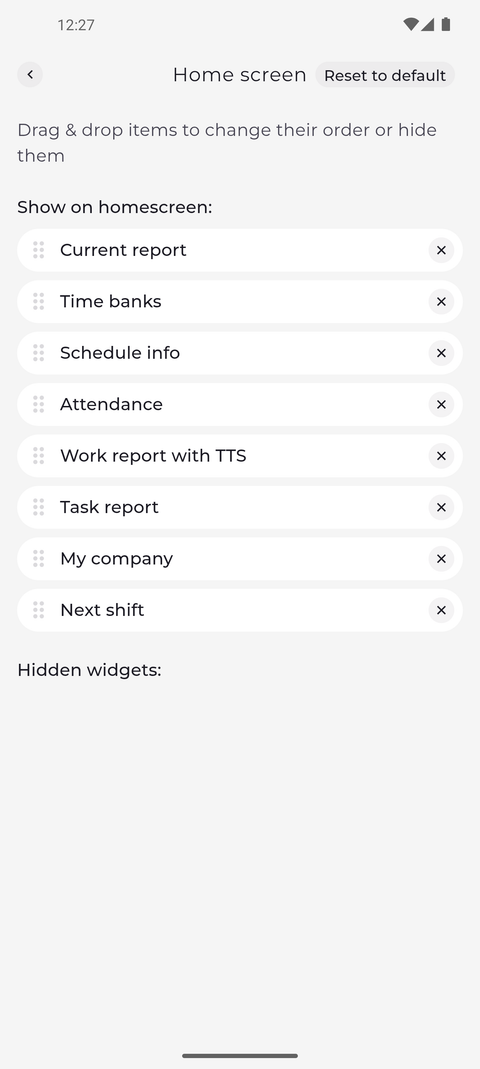
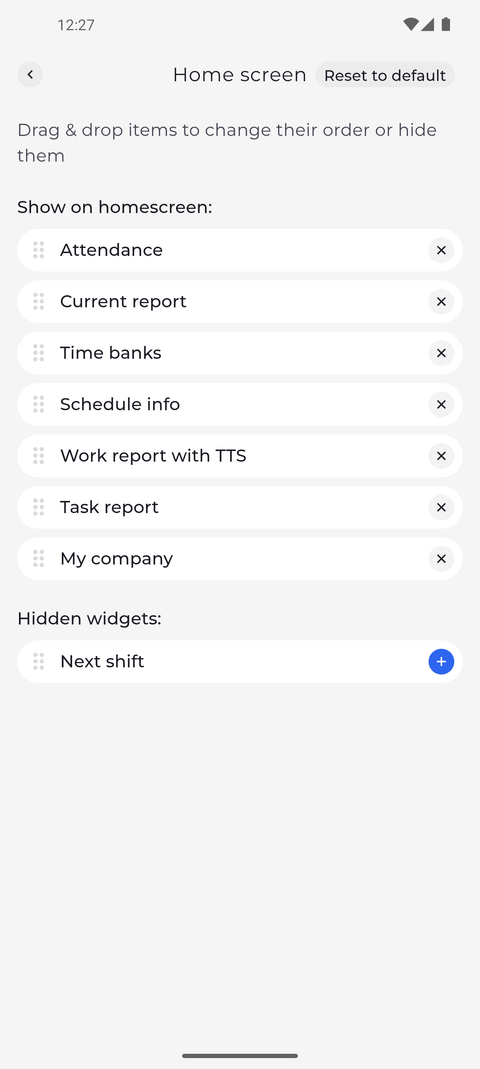
On the Home screen page of Settings you choose the order of the widgets on Home and bring hidden widgets back.
Step by step
-
Step 2: Drag a widget by its handle to change the order on Home
To move a widget, hold it by the dots at its left and drag it to another place in the list. Here Attendance has moved down the list, below Schedule info, and stays among the shown widgets.
Tip: Home shows the widgets from top to bottom in the order of the list under Show on homescreen:.
Tip: Every change is saved the moment you make it - there is no Save button.
What happens next
Home shows your widgets in the order you chose, until you change it or tap Reset to default.
Good to know
- Reset to default brings back the original order - Attendance, Next shift, Current report, Time banks, Schedule info, Work report with TTS, Task report and My company - each one only if your account can use it.